20
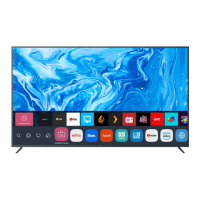
MANAGING webOS HOME
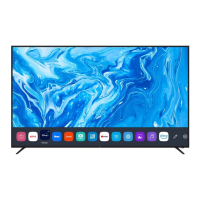
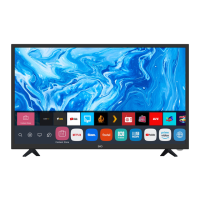
You can view a list of all apps installed on your TV, change their positions,
or delete them.
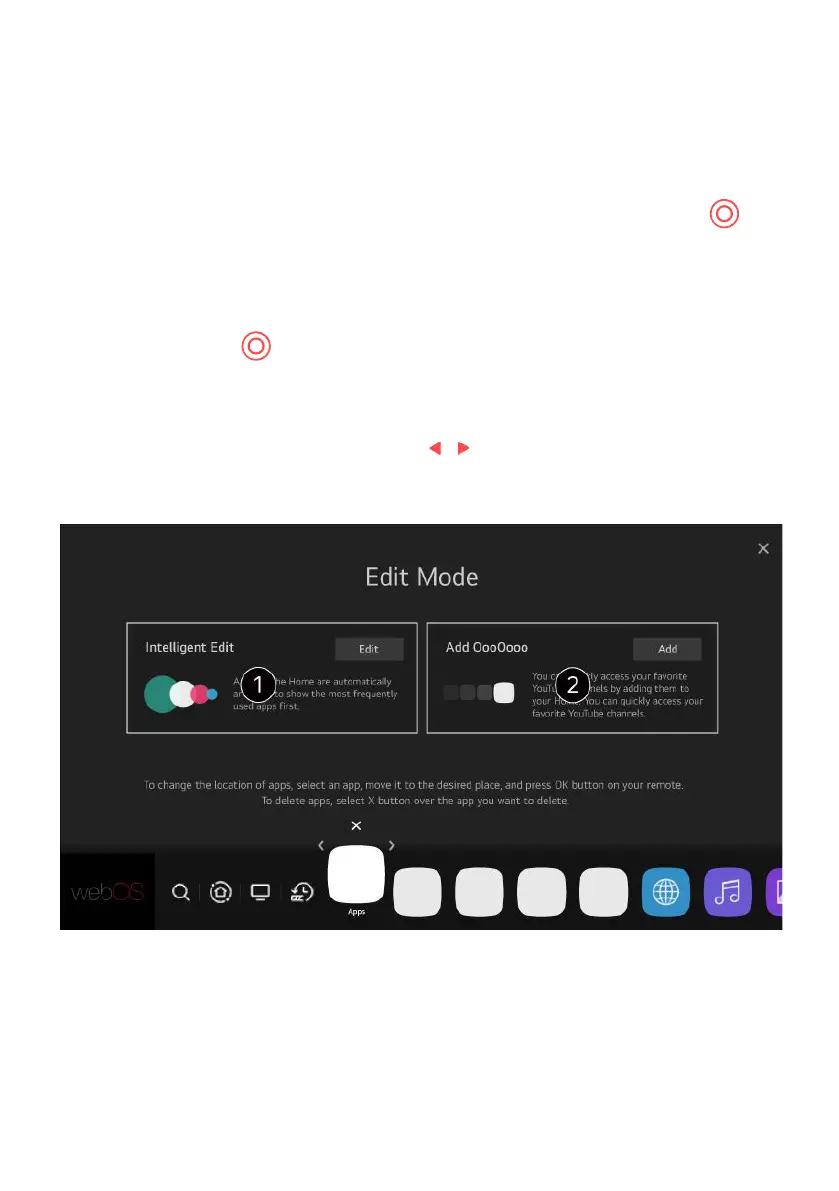
1. Select the app you want to edit, and press and hold the SELECT
button (located in between direction arrows) on the remote control.
This will activate the app edit mode or you can select the Edit mode
button at the right corner of the Home list to enter the App Edit mode.
2. To move the app to your desired position, go to the position and press
the SELECT button.
To delete an app, select the “X” icon above the app.
You can move and delete as many apps as you wish before exiting
the edit mode.
You can also move apps with the / buttons on your remote control.
3. After the editing is done, press the Close at the top right to exit the App
Edit mode. The default TV app cannot be edited.
You can automatically edit position of all your apps with “Intelligent Edit”.
Selecting this will adjust all apps to the front in order of what application is most
frequently used.
webOS GUIDE (Cont.)


 To Next Page