Http://www.elego.cc
16 / 137
Importing a .zip Library
Libraries are often distributed as a ZIP file or folder. The name of the folder is the name of the
library. Inside the folder will be a .cpp file, a .h file and often a keywords.txt file, examples
folder, and other files required by the library. Starting with version 1.0.5, you can install 3rd
party libraries in the IDE. Do not unzip the downloaded library, leave it as is.
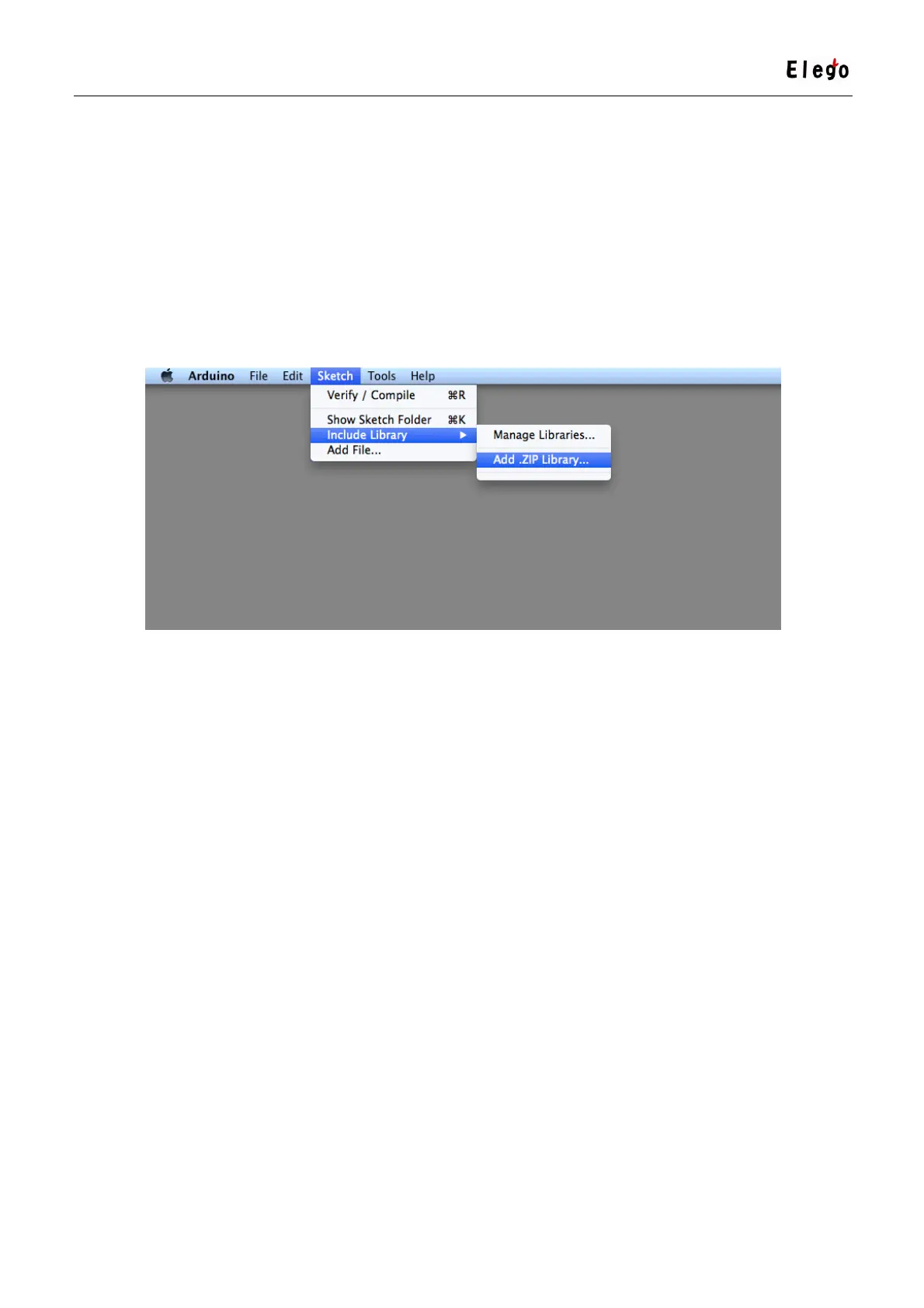
In the Arduino IDE, navigate to Sketch > Include Library. At the top of the drop down list,
select the option to "Add .ZIP Library''.
You will be prompted to select the library you would like to add. Navigate to the .zip file's
location and open it.
Return to the Sketch > Import Library menu. You should now see the library at the bottom of
the drop-down menu. It is ready to be used in your sketch. The zip file will have been
expanded in the libraries folder in your Arduino sketches directory.
NB: the Library will be available to use in sketches, but examples for the library will not be
exposed in the File > Examplesuntil after the IDE has restarted.
Manual installation
To install the library, first quit the Arduino application. Then uncompress the ZIP file containing
the library. For example, if you're installing a library called "ArduinoParty", uncompress
ArduinoParty.zip. It should contain a folder calledArduinoParty, with files like
ArduinoParty.cpp and ArduinoParty.h inside. (If the .cpp and .h files aren't in a folder, you'll
need to create one. In this case, you'd make a folder called "ArduinoParty" and move into it
all the files that were in the ZIP file, like ArduinoParty.cpp and ArduinoParty.h.)



 To Next Page