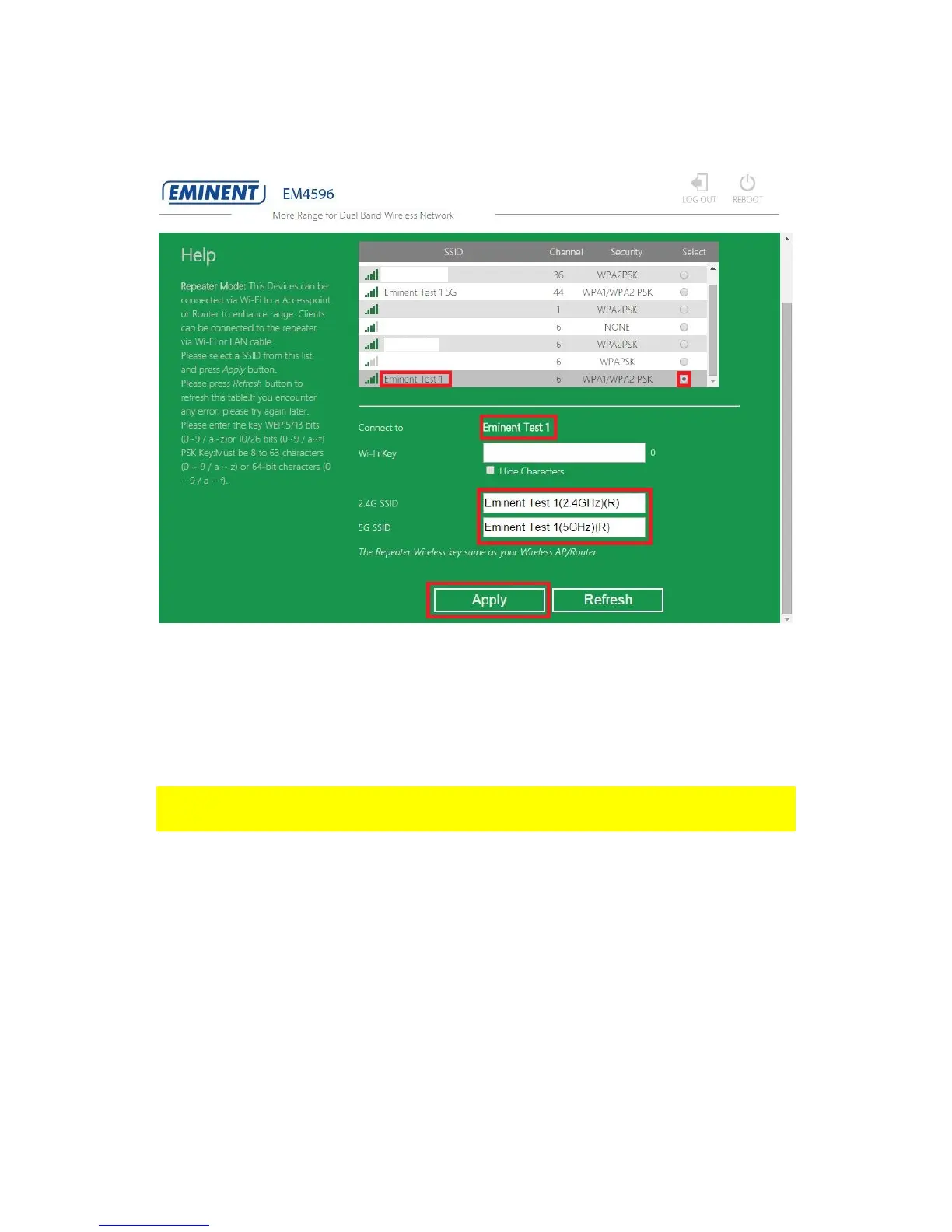
13. You may notice that the repeater will automatically make a new Wi-Fi SSID name
for 2,4GHz and 5GHz SSID. Enter the security key of your wireless network in the
“Wi-Fi Key” field.
14. Click “Apply”, the EM4596 will reboot and connect to your router.
15. You can now connect your wireless network adapter(s) to the new made Wi-Fi
SSID and entering the wireless encryption key of the wireless network you
previously connected.
Note: After the settings have been applied, the EM4596 will reboot. Your device will no
longer be connected to the wireless network SSID of the EM4596.
5.0 Connecting a wireless WPS adapter to the
EM4596
5.1 Using the WPS button on the EM4596
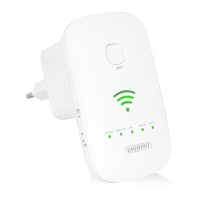
1. Press the WPS button on the EM4596 for about 2-3 seconds.
2. Now press the WPS button on your wireless adapter.
3. If correct, the connection between the wireless WPS adapter and EM4596 will be
established. Depending on the Windows version you are using, you should see a
connected icon in the taskbar.


 To Next Page