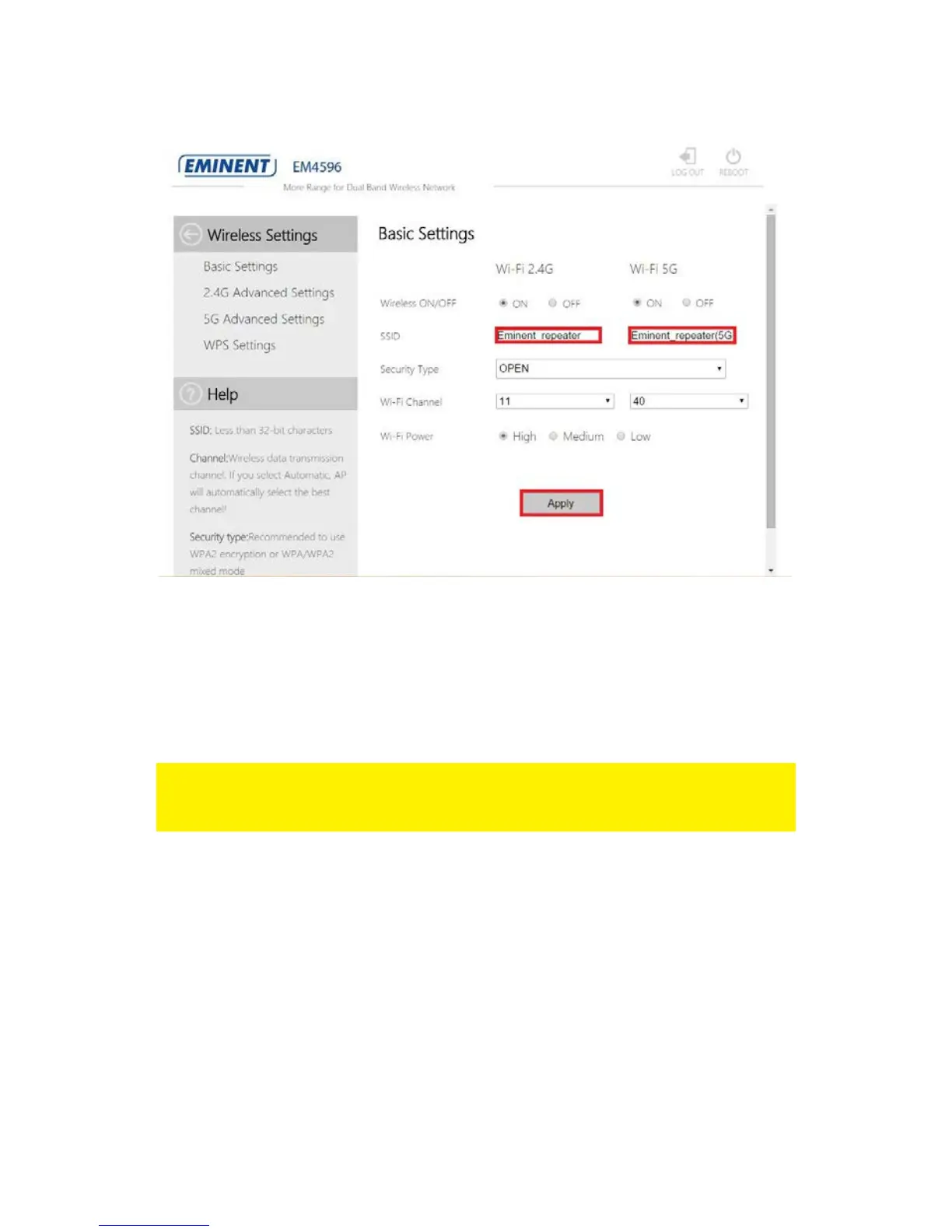
5. Change the SSID name to the preferred name for the Wi-Fi network of the
Repeater. See picture.
6. Click “Apply”. (If you wish to change both Network names please repeat step 3
and 4).
7. Remove the repeater from the power socket or switch off the repeater by
switching the “On/Off” button to “Off.
8. Connect the EM4596 back to the wall outlet and make sure the “On/Off” button is
switched to “ON”.
Note: After the settings have been applied, the EM4596 will reboot. Your device will no
longer be connected to the wireless network SSID of the EM4596. Reconnect your
device to the Wireless network (SSID) you entered in step 5.
7.0 Access Point mode
1. First make sure the mode selector switch is set to “AP” position for “AP” mode.
2. Connect the EM4596 to a wall outlet (preferably close to the modem/router).
3. Wait for the signal indicator to light up all three leds. This will take approximately 1
minute.
4. Connect to the EM4596 via Wi-Fi SSID: Eminent_repeater or
Eminent_repeater(5G), or use the Ethernet cable to connect directly from your
PC LAN port to the EM4596 “LAN” port.
5. Open your internet browser and type http://192.168.10.1 in your internet browser
and then hit Enter.


 To Next Page