26
Set Thumbnail : Change the thumbnail picture of the
video title
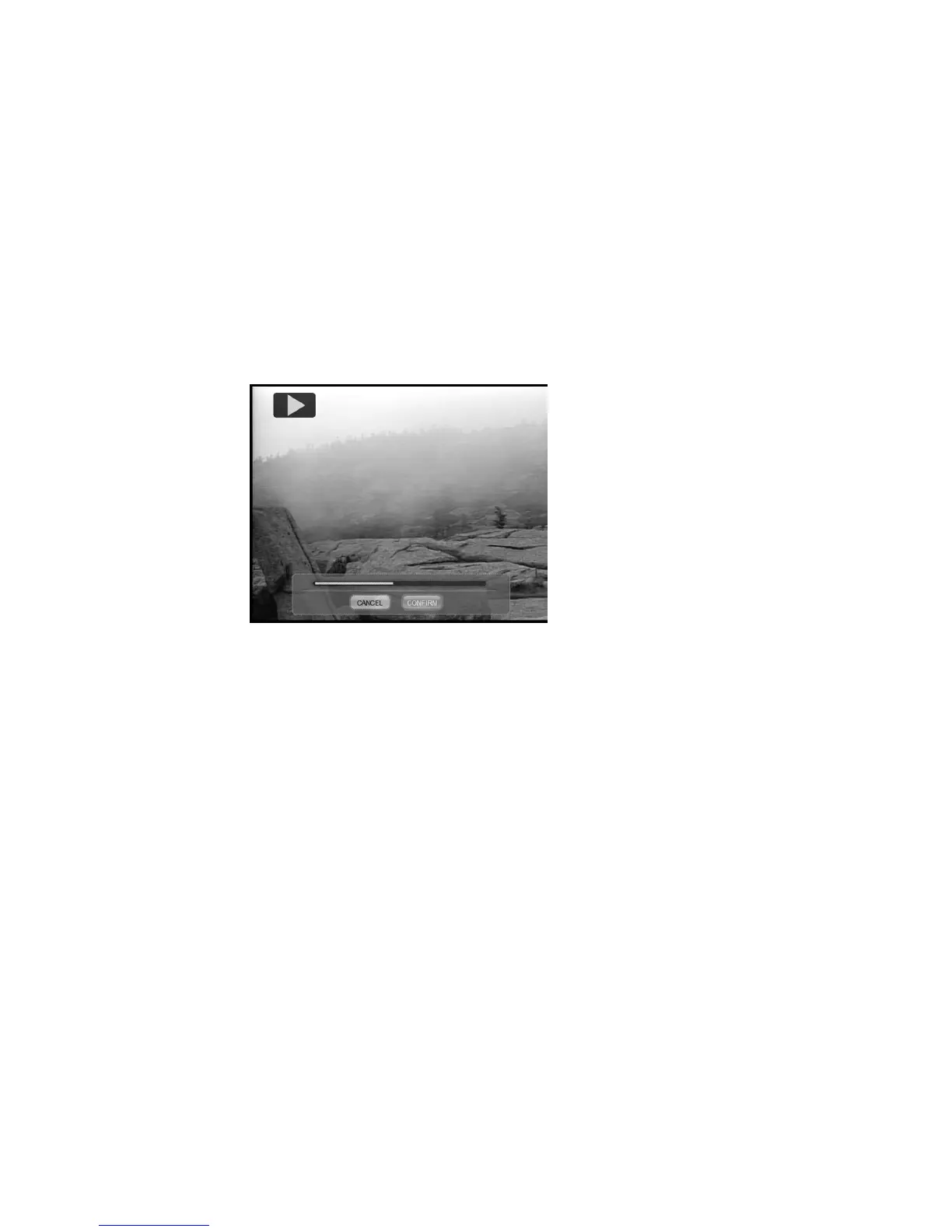
You can capture a video frame and use the picture as the thumbnail of
the video title. The select video is shown and ready to play. Use
PLAY CONTROL
keys to select the video frame. Use
g
,
h
keys to
select CONFIRM icon on the tool bar and press ENTER key to capture
the video frame.
Figure Thumbnail Capture
AB Erase
Delete from point A to point B in the video. Point A and point B in the
video should be set first.
The select video is shown and ready to play.
Use
PLAY CONTROL
keys to browse the video. Select the
SET A
icon on the toolbox and press ENTER key to set the point A, a green
d
indication
will be shown. Repeat the same procedure to set the
point B. Select
CANCEL
icon to cancel the operation. Select the
CONFIRM icon to delete, a "Confirm to delete" message box will be
shown. Select
Confirm
to confirm
AB Erase
operation, and select
Cancel
to Cancel.



 To Next Page