ENGLISH
41
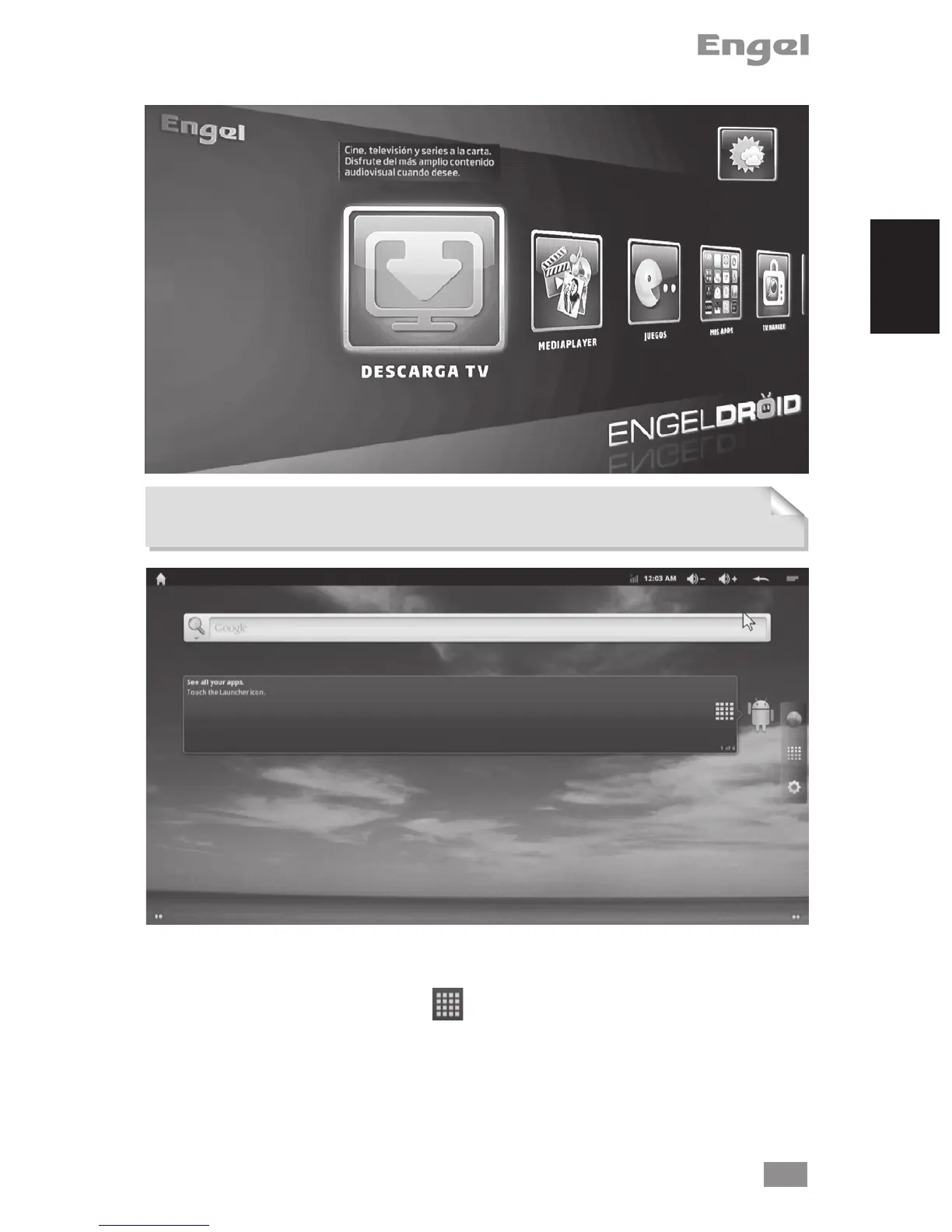
Note: If you want to access to Google Play menu (screen below) press “0” key on your
remote control while you are on EngelDroid main menu.
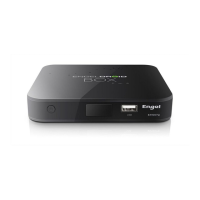
· The extended Home screen: Slide cursor with remote OK pressing horizontally on
the screen or use left/right button, to go to the left or right side of the extended home
screen.
· Browsing Applications: Choosing on the left of screen to access to all apps.
· Add a home screen items: (shortcuts, widgets, etc.), hold pressing your cursor on
the screen at an empty location, then choose from the list.
· Move/Remove home screen item: hold pressing cursor onto item/App until it gets
larger, then drag it to the desired location or recycle bin, and release.


 To Next Page