WEB CONFIGURATION LOGGING IN
3-1
3.1 Logging In
The ENS202 has a built-in Web Configurator that lets you
manage the unit from any location using a Web browser that
supports HTTP and has Javascript installed.
After configuring the computer for TCP/IP using the procedure
appropriate for your operating system, use that computer’s
Web browser to log in to the ENS202 Web Configurator.
1. Launch your Web browser.
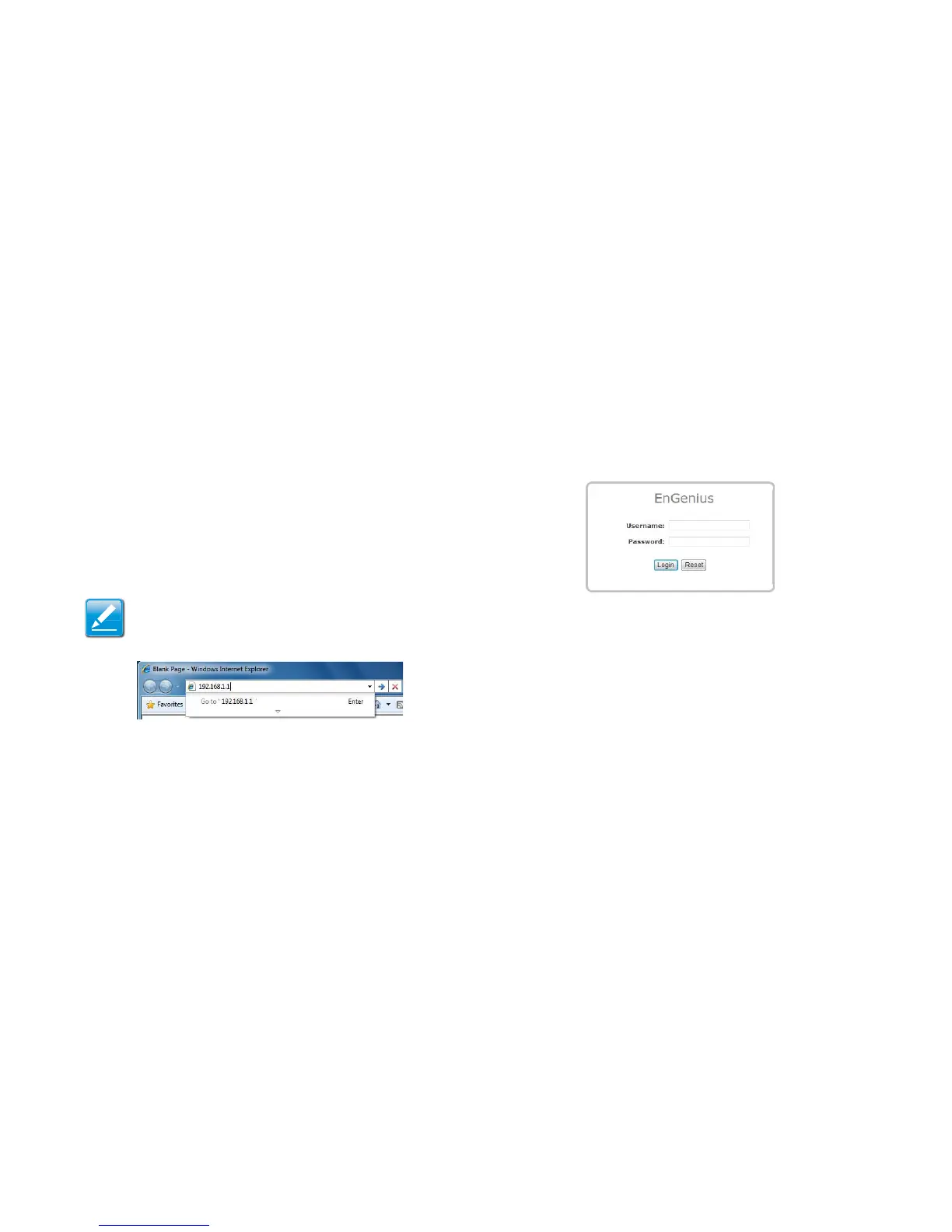
2. In the browser address bar, type 192.168.1.1 and
press the Enter key.
Figure 3-1: Web Browser Address Bar
3. When the login screen appears, enter admin for the user-
name in the top field and admin for the password in the bottom
field.
Figure 3-2: Windows Security Login Dialog
4. Click Login to continue or Reset to abort the login.
You are now ready to use the instructions in the following chap-
ters to configure the ENS202.




 To Next Page