15
Apple Mac OS X
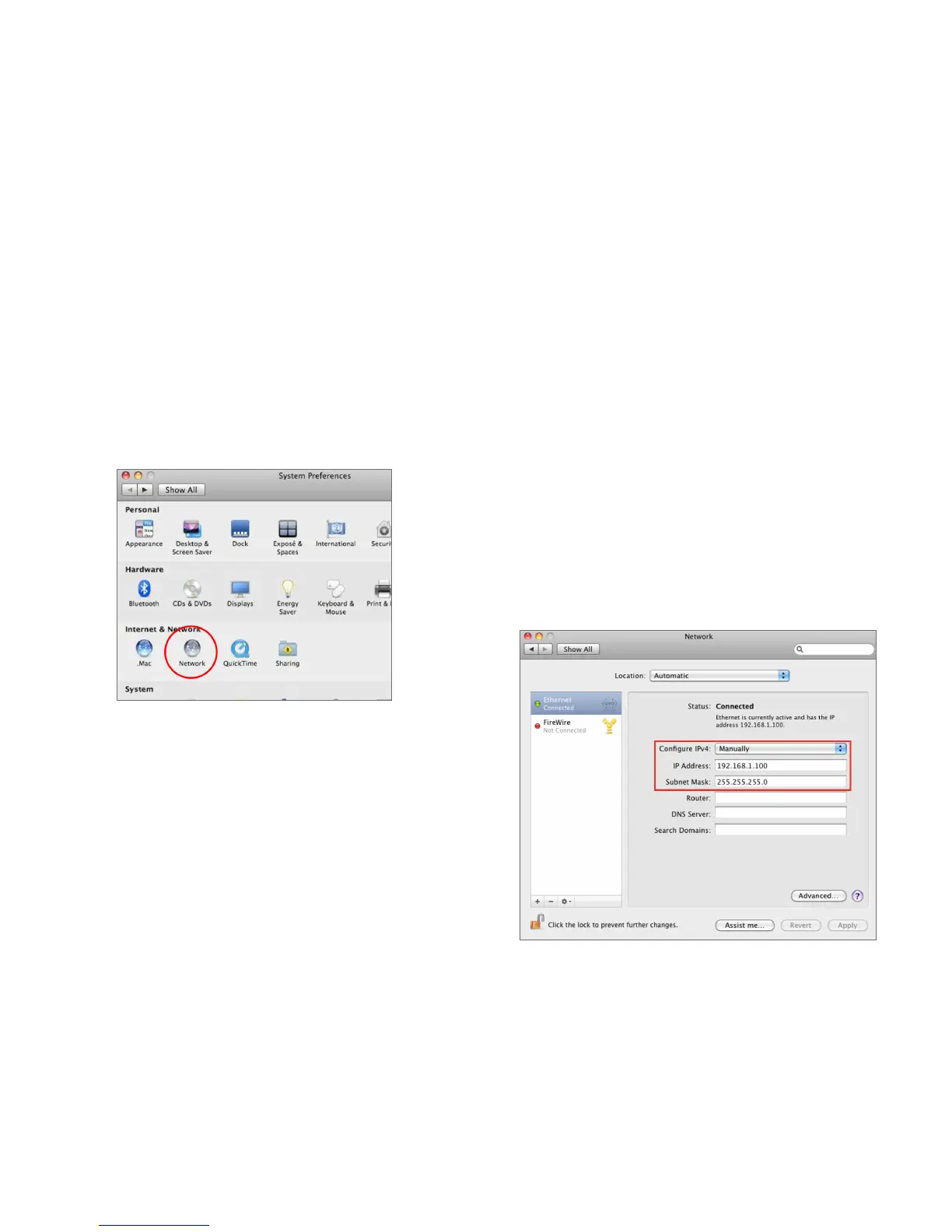
1. Go to System Preferences (Which can be opened in the
Applications folder or selecting it in the Apple Menu).
2. Select Network in the Internet & Network section.
3. Highlight Ethernet.
4. In Congure IPv4, select Manually.
5. Enter an IP address that is different from the Access
Point and Subnet mask then press OK.
Note: Ensure that the IP address and Subnet mask are
on the same subnet as the device.
Forexample:ENH900EXTIPaddress:192.168.1.1
PCIPaddress:192.168.1.2–192.168.1.255
PC Subnet mask: 255.255.255.0
6. Click Apply when done.




 To Next Page