49
WDS Link Settings
UsingtheWDS(WirelessDistributionSystem)featurewill
allow a network administrator or installer to connect to
Access Points wirelessly. Doing so will extend the wired
infrastructure to locations where cabling is not possible or
inefcienttoimplement.
Note: Compatibility between different brands and
models of Access Points is not guaranteed. It is
recommended that the WDS network be created using
the same models for maximum compatibility.
Also note: All Access Points in the WDS network need
to use the same Channel and Security settings.
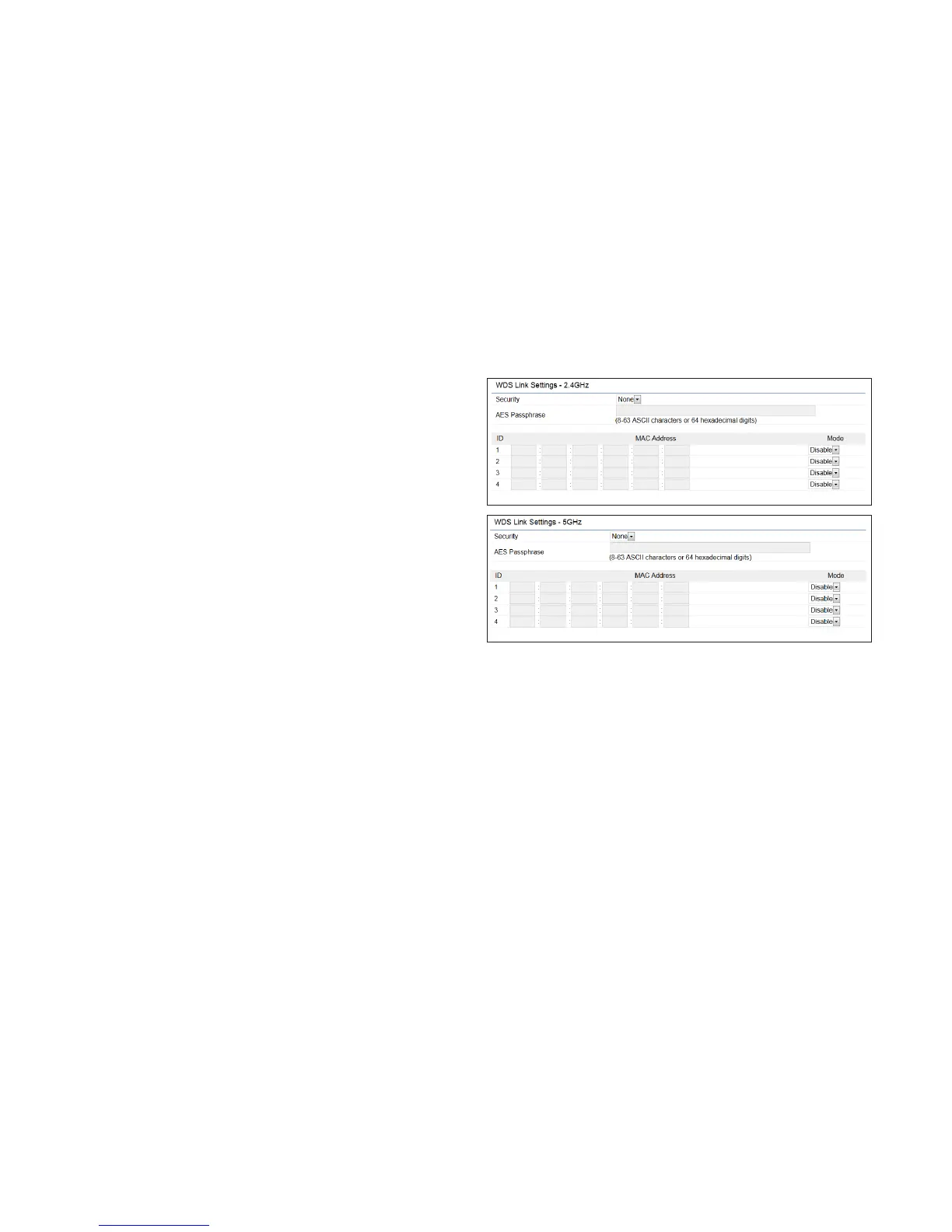
To create a WDS network, please enter the MAC addresses
of the Access Points that you want included in the WDS.
There can be a maximum of four Access Points.
Note: OnlyapplicableinWDSAPandWDSBridgemodes.
2.4 GHz/5 GHz WDS Link Settings
Security: Select None or AES from the drop-down list.
AES Passphrase: Enter the Key Values you wish to use.
OtherAccessPointsmustusethesameKeytoestablisha
WDS link.
MAC Address: Enter the Access Point’s MAC address to
where you want to extend the wireless area.
Mode: Select to disable or enable from the drop-down list.
Save: Click Save toconrmthechanges.




 To Next Page