English
4
Using the ERB300H/ERB150H as a Media Entertainment Bridge
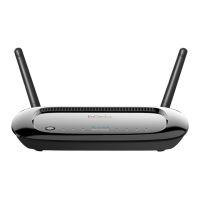
Create a wireless media entertainment network using the ERB300H/ERB150H as a Media
Entertainment Bridge (Client Bridge mode) by following the instructions in the next
section.
Setting Up the Media Bridge
Connect the ERB300H/ERB150H to an existing wireless network either by WPS
configuration or by Smart Wizard configuration.
Note: It is recommended to use WPS configuration if the router supports it.
 WPS Configuration
Note: see
Using the ERB300H/ERB150H as a Range Extender->WPS configuration
for
details.
Â
Smart Wizard Configuration
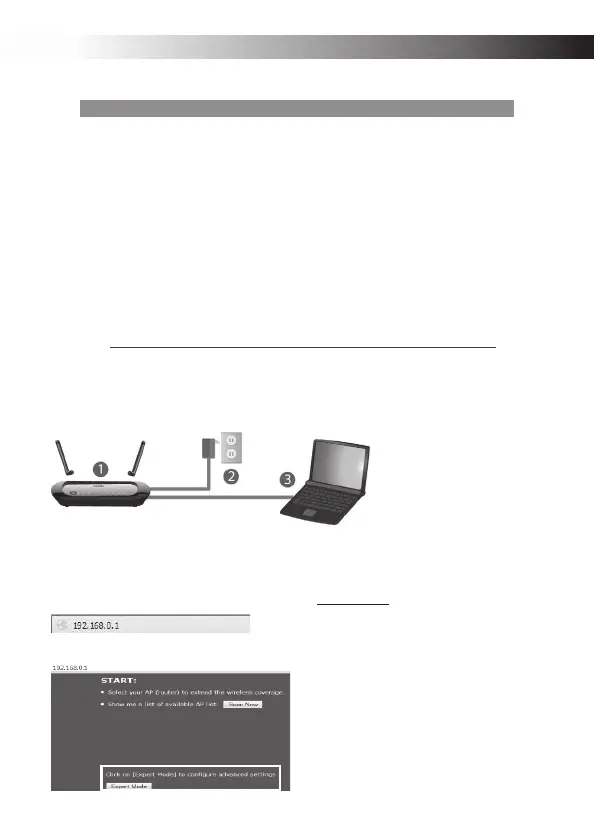
n Attach the ERB300H/ERB150H‘s Wi-Fi antenna and power on the device.
o Connect your computer to the ERB300H/ERB150H with an Ethernet cable
p Open a web browser and enter the default IP, 192.168.0.1, in the address bar.
q
Select Expert Mode to display the Login Page.


 To Next Page