5. FIRST START
5.1.
Turning on easyWallbox
The device does not have start/stop buttons. Once installed, it is ready to
charge when there are the following conditions:
⚫ correct installation, carried out following the instructions in this
manual
⚫ regular status of the device
5.2.
Configuration through the My easyWallbox app (only for users)
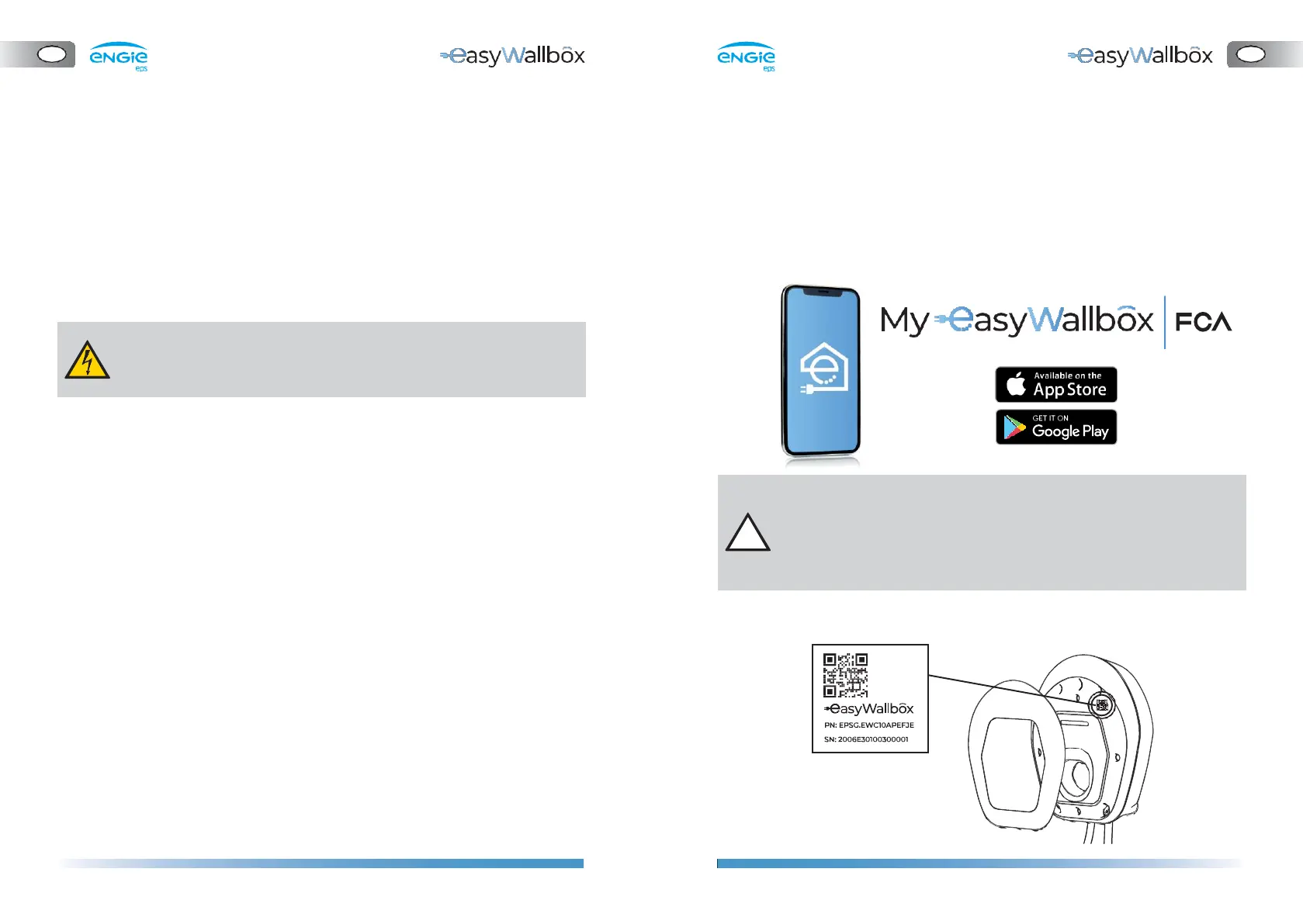
My easyWallbox is a dedicated smartphone app, available both on
Google Play
®
and App Store
®
, that can be used to configure, monitor,
and set easyWallbox via a Bluetooth connection.
Start and stop: Charging processes can be started and stopped, the
charging session delayed and access gained to the log of the latest
charging sessions through the app.
If the device is damaged, follow the instructions below precisely to avoid
dangerous situations, with the resulting damage to persons or things:
⚫ avoid using the damaged device
⚫ clearly indicate the damaged device so that other people will not use it
⚫ call qualified personnel promptly so that the device can be repaired
or, if irreparably damaged, taken out of service
To authenticate the smartphone, frame the QR code as required by the
app tutorial. For detailed instructions please refer directly to the app.
-
If the instructions in paragraph 4.12 are not followed, all parameters
remain as initially set for Mode 2. This reduces easyWallbox’s
performance.
-
Simultaneous use of My easyWallbox and smart charging
function from the vehicle may lead to minor functional issues.


 To Next Page