8
Detect devices
A ) Turn on the DG breaker(s).
B ) Use one of the following methods to detect devices:
Method A: Provision devices with Enphase Installer App
Use the Enphase Installer App to congure the IQ Gate-
way with the serial numbers of the installed devices.
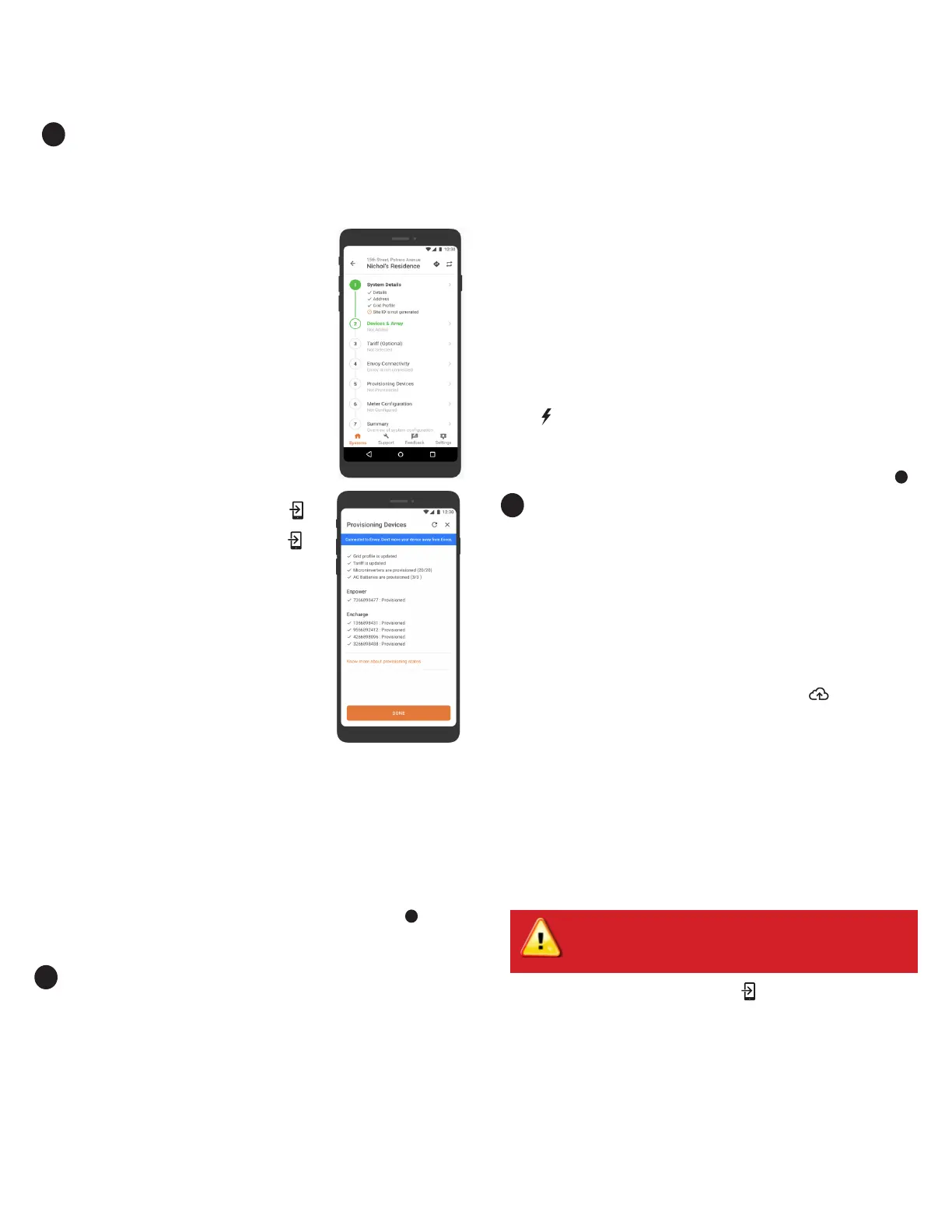
A ) Launch the Enphase Installer App and tap “Sys-
tems”.
B ) Select the system you are working with, or tap [+]
to add a system.
C ) Make sure that the system details are added (Step
1) and that an appropriate grid prole is set for the
system as shown.
D ) Go to “Devices & Array” (Step 2) and add the total
number of devices of each type in the system. Tap
“edit” if you need to edit previously entered data.
E ) Make sure to tap each device type and scan the
devices using the camera scanner. You can also
create arrays or assign microinverters to arrays.
F ) Connect to the IQ Gateway with your mobile device
(smartphone or tablet). The AP mode LED
lights solid green when the network is available
•
On the IQ Gateway if the AP mode LED is
not lit, press the AP mode button.
•
On your mobile device, go to “Settings” and join
the Wi-Fi network “IQ Gateway_nnnnnn” (where
“nnnnnn” equals the nal six digits of the IQ
Gateway serial number).
G) Input tariff details in Enphase Installer App Step3.
H) Go to Step 4 (IQ Gateway connectivity) and make
sure your device is connected to IQ Gateway. Tap
“Start provisioning devices”.
I) Make sure that all the installed devices are provi-
sioned as shown.
Method B: Discover devices with
Enphase Installer App
The microinverters can also be added to the system via a PLC scan option
available in the Enphase Installer App. However, we recommend using
Method A to avoid erroneous cross-talk with nearby system devices.
B ) Check that the grid prole is set for all the microinverters. Setting the
prole may take up to 5 minutes for a typical system.
C ) To check if IQ Battery 5P and/or IQ System Controller are connected,
navigate to “Devices & Array” -> “IQ Battery 5P” or “IQ System Control-
ler”-> <serial number> and make sure they are communicating.
D ) Tap “Step 6” and go to “Production Meter” and follow the wizard to
enable the production meter.
E ) Tap “Consumption Meter” and follow the on-screen instructions to
enable the consumption meter.
F) Tap ‘Storage Meter’ and follow the on-screen instructions to enable the
IQ Battery meter.
G ) Verify the meter readings.
H ) Tap Live Status and conduct functional testing.
If you used Enphase Installer App to detect devices, the Power Production
LED lights solid green when all expected microinverters are producing
power. If you did not use Enphase Installer App, it lights solid green if all
communicating microinverters are producing power. It ashes green when
devices are upgrading. Check Enphase Installer App for production status
details. If the Power Production LED remains red, see Troubleshooting
c
.
Connect to Enphase Installer Platform over cellular
(Model X-IQ-AM1-240-5C only)
The IQ Combiner 5C includes an Enphase Mobile Connect. (The IQ
Combiner 5 does not include the modem.) The Enphase Mobile Connect
LTE-M1 cell modem connects to AT&T’s or T-Mobile’s LTE-M network.
Reference AT&T’s or T-Mobile’s LTE coverage maps, if needed.
Conrm that the USB cable between IQ Gateway and the cell modem is
connected at both ends. Only one USB port is available on the IQ Gateway
for the Mobile Connect. The other is dedicated to CTRL communication.
If receiving power from the IQ Gateway, the modem power LED lights.
Within three minutes the Network Communications LED lights solid
green, indicating a successful connection to Enphase Installer App.
If the Network Communications LED remains off or lights solid red, see Trou-
bleshooting in the Enphase Mobile Connect Installation Guide.
Checking connection status and cellular signal strength
An IQ Gateway with Mobile Connect automatically reports to Enphase
Installer App. When the IQ Gateway establishes an Internet connection
through the cellular modem, the IQ Gateway Network Communications
LED glows solid green.
You can use the Enphase Installer App to check the modem status and cellu-
lar signal strength. The IQ Gateway’s AP (Access Point) Wi-Fi network allows
you to connect your mobile device (smart phone or tablet) to the IQ Gateway.
A) On the IQ Gateway, the AP mode LED lights solid green when the
network is available. If the AP mode LED is not lit, press the AP mode
button.
B) On your mobile device, go to “Settings” and join the Wi-Fi network “IQ
Gateway_nnnnnn” (where “nnnnnn” represents the nal six digits of the
IQ Gateway serial number).
C) Launch Enphase Installer App, go to your system, and tap “IQ Gateway
connectivity”.
D) Make sure that the IQ Gateway is connected to your mobile device,
verify the network conguration, and view the cellular connection
status.
Warning! If you have already installed and connected the
Mobile Connect to IQ Gateway, do NOT move the modem to
another IQ Gateway. This will deactivate the modem.
10
INSTALLATION — Part 3
You must complete Installation Part 3 AFTER installing any Enphase
microinverters, IQ Battery 5P and/or IQ System Controller.
With both methods
If the Device Communications LED remains solid red, see Troubleshooting
b
.
Verify system conguration
While still connected to the IQ Gateway with Enphase Installer App, check
the System screen for the following:
A ) For microinverters, conrm that the expected number of devices are
detected and communicating by navigating to “Devices & Array”->
“Microinverters & Array” and check that status is “Producing”.
9


 To Next Page
 Loading...