Reviewing Overall Data and Alarms Reports
dataPAC User’s Guide 75
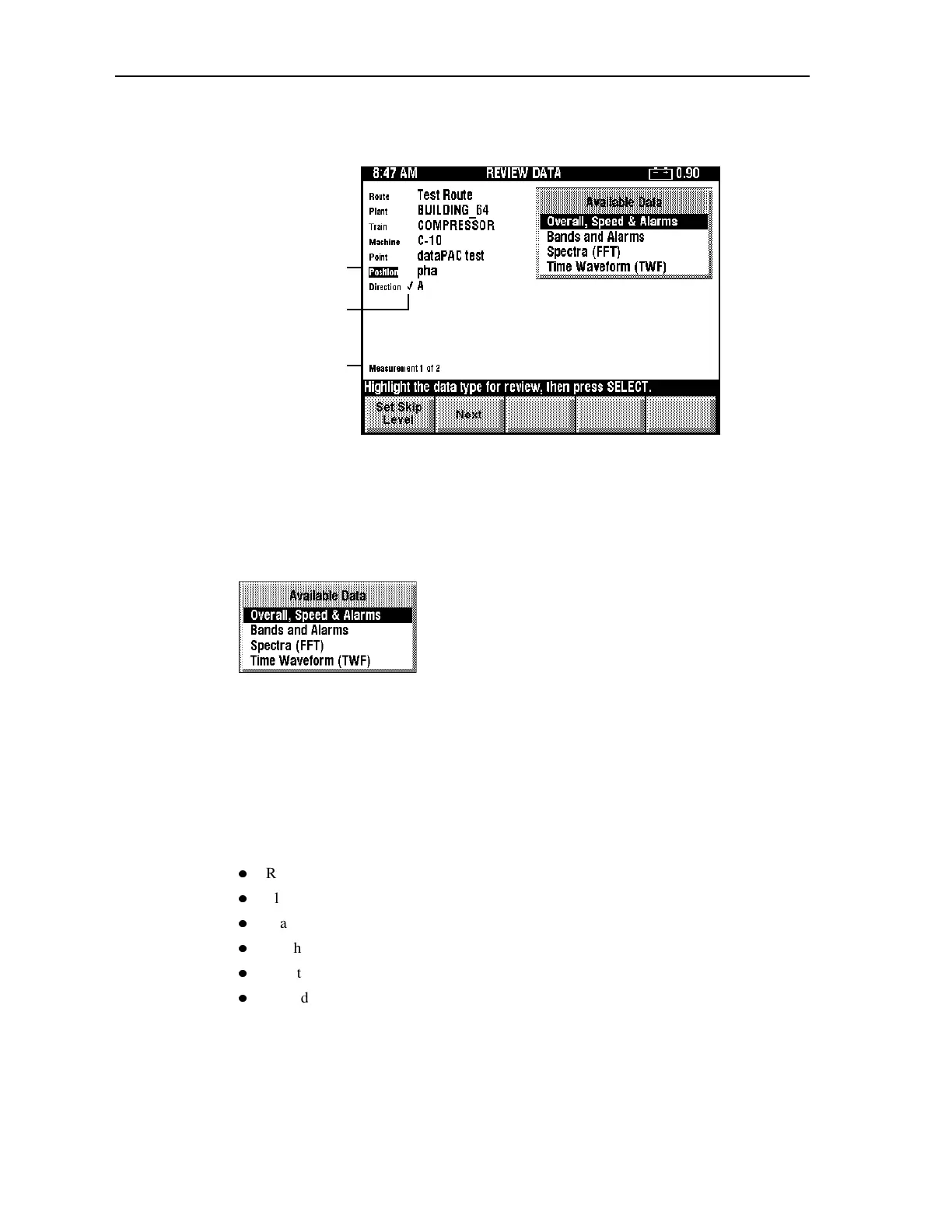
After you select a route, the main Review Data window opens, as shown.
The measurement number is displayed at the bottom left corner of the window just above
the status bar. If this point has more than one measurement, you can press <F2> (Next) and
<F3> (Previous) to select the active measurement for which you want to view data.
The Available Data window shows the different types of data. If you collected that type of
data for this point, you can view it by selecting the data type.
Use the arrow keys to highlight your choice, then press <SELECT>.
The dataPAC attempts to display a stored measurement which matches the data type
specified. If no measurement is available, the dataPAC alerts you to this.
To move through the collected data
In the top left corner of the window, the dataPAC displays a complete identifier for the point
you are viewing. Each point is defined by up to six levels of hierarchy:
z
Route
z
Plant
z
Train
z
Machine
z
Location
z
Transducer
These levels are defined by the structure of the route database at the host computer. The
number and labels of these identification levels vary according to the way your route
database was set up. You can select any point in the dataPAC’s memory by using the Set
Skip Level softkey, as described below.
Active skip level
highlighted
Measurement
number
An ‘*’ indicates
that this data was
collect as off route
Artisan Technology Group - Quality Instrumentation ... Guaranteed | (888) 88-SOURCE | www.artisantg.comArtisan Technology Group - Quality Instrumentation ... Guaranteed | (888) 88-SOURCE | www.artisantg.com



 To Next Page