EasyManua.ls Logo

Entone Amulet - User Manual

Entone Amulet
39 pages
Print Icon
To Next Page IconTo Next Page
Loading...
Amulet
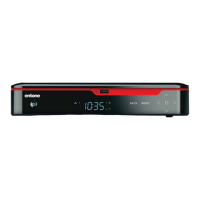
High Definition Television Receiver
Users Guide
P/N: 98-80xxxx-03

Other manuals for Entone Amulet

Questions and Answers

  • J
    Joe Bradley Jr.Jul 31, 2025
    How to fix Entone Amulet remote control not working?
    • W
      wdawsonJul 31, 2025
      If your Entone TV Receiver remote control isn't working, try the following: * Ensure the batteries are correctly loaded. * Verify you are using the new URC PLUS remote control. * Confirm the remote control is programmed to IR mode. If unsure, reprogram the remote control.
  • M
    mcintyrenathanAug 6, 2025
    What to do if my Entone TV Receiver has a green standby light but no picture?
    • V
      Victor BuchananAug 6, 2025
      If your Entone TV Receiver shows a green standby light but there's no picture on your TV, ensure the following: * The video output connector of the Amulet is properly connected to the input connector of the primary TV. * If using an “RF TV” (coaxial connection), the TV is set to channel 10. * If using Composite, Component, or HDMI connection, the TV is set to the correct input mode for the signal. * If using Component or HDMI, the resolution selected in Amulet is supported by your TV.
  • K
    karenbaileyAug 11, 2025
    Why is the standby indicator not lit on my Entone TV Receiver?
    • G
      garciawilliamAug 11, 2025
      If the standby indicator on the front panel of your Entone TV Receiver is not lit, it likely indicates a power supply issue. Here’s what to check: * Verify that the AC/DC adapter is properly connected to the DC INPUT connector. * Confirm that there is power from the power source. * Ensure you have pressed the Standby button on top of the box and that the Standby / On light is green.
  • K
    Kevin YoungAug 17, 2025
    What to do if Entone TV Receiver standby indicator stays orange?
    • E
      Elizabeth BlevinsAug 18, 2025
      If the standby indicator on the front panel of your Entone TV Receiver stays orange for more than 60 seconds, check: * That the ADSL cable is properly connected between the ADSL connector and the ADSL modem. The ADSL Link indicator should be orange and steady. * That the ADSL modem is properly connected to the telephone socket.
  • Z
    zamorapamelaAug 25, 2025
    Why Entone Amulet TV Receiver remote control cannot control programmed devices?
    • M
      Mindy GutierrezAug 26, 2025
      If your Entone TV Receiver's remote control cannot control the programmed devices, it might be because device manufacturers have changed their device codes or no device code can be found in the Universal Remote Control User’s Guide. Try searching the device code according to the procedures listed in the Universal Remote Control User’s Guide.

Summary

Declaration of Conformity

US Declaration of Conformity

Device compliance with FCC Rules, including limits for Class B digital devices and interference.

Preface

Typographical Conventions

Explains formatting conventions like bold, italics, ellipses, and special notes (NOTE/TIP, WARNING, IMPORTANT).

Overview of Users Guide

Provides a summary of topics covered in the guide, including safety, setup, connections, and troubleshooting.

Safety Precautions

Operation and Care Guidelines

Guidelines for operating and caring for the Amulet, including electrical safety and physical handling.

Index to Parts and Controls

Contents in the Box

Lists all items included in the product package, such as the Amulet receiver, cables, and remote control.

Front and Rear Panel Overview

Remote Control Functions

Remote Control Button Functions

Detailed explanation of each button on the URC PLUS remote control and its specific function.

Amulet Introduction

About the Amulet Receiver

Overview of the Amulet HD Television Receiver, its features, and capabilities as a CPE solution.

Connecting the TV

Connection Options Overview

Details various video and audio connection methods supported by the Amulet, including HDMI, Component, RCA, and RF TV.

Connecting via Coaxial Cable

Instructions for connecting the Amulet to a TV using a coaxial cable and setting the channel ID.

Setting TV for CATV Input

Guide on configuring the TV to receive signal from CATV when using RF TV output from the Amulet.

Connecting via RCA Composite

Step-by-step instructions for connecting the Amulet to a TV using RCA composite video and audio cables.

Connecting via HDMI or Component

Instructions for connecting the Amulet to a TV using HDMI or component cables for high-definition video.

Setting HDMI;Component Output Resolution

Guide on selecting output resolutions (1080i, 720p, 480p, 480i) for HDMI and Component connections.

Setting Channel ID for RF TV

Instructions on how to change the RF TV channel ID (3 or 4) using the rear panel switch.

Connecting Audio System

Audio Output Options

Explains connecting the Amulet to an amplifier for multi-channel surround sound using digital optical audio.

Powering Up the Amulet

Power-Up Steps and Indicators

Detailed steps for powering on the Amulet, including network connection and understanding front panel indicator lights.

Remote Controls

Loading Batteries into Remote

Instructions on how to correctly install AA-size batteries into the remote control.

Controlling the Amulet with Remote

Explains how the Amulet uses Infrared (IR) signals and the required line of sight for remote control.

Programming Remote for IR Mode

Step-by-step guide to program the URC PLUS remote control to IR mode for controlling the Amulet.

Controlling Other Devices

Instructions on using the Amulet remote to control other A/V devices like TVs and DVD players.

Closed Captioning

Controlling Closed Captioning

How to turn closed captioning on or off using the 'LANG' button on the remote control.

Aspect Ratio Settings

Aspect Ratio Modes

Explains the three display modes (4:3, 4:3 Letter Box, 16:9) for adjusting content to TV screen size.

User Menu Features

Available User Menu Options

Lists the configurable features available in the Amulet's on-screen User Menu.

Using the User Menu

Instructions on how to access and navigate the Amulet's on-screen User Menu.

Setting Features in User Menu

Guide on selecting and changing settings for various features within the User Menu using the remote.

Saving and Exiting User Menu

Instructions on how to save changes made in the User Menu or exit without saving.

User Menu Configuration

Setting HDMI;Component Resolution via User Menu

Using the User Menu to set output resolution for HDMI and Component connections.

Setting Closed Captioning via User Menu

Using the User Menu to control closed captioning, which can also be done via remote control.

Setting Fan Speed

Controlling the fan speed (high, middle, low, off) through the User Menu for optimal heat dissipation.

Setting HomePNA

Instructions for selecting telephone or coaxial wiring for HomePNA network access via User Menu.

Setting TiVo IR Keycode

Configuring the Amulet to use specific IR keycodes for TiVo or Sling box control.

Product Specifications

Connectors and Interfaces

Details the physical connectors and network interfaces available on the Amulet device.

Physical and Mechanical Specifications

Provides dimensions and weight of the Amulet receiver.

Regulatory and Security Compliance

Lists regulatory compliance (UL, CE, IEC65, FCC) and security controls (Anti-Taping, Parental Controls).

Troubleshooting Common Issues

Remote Control Problems

Solutions for issues where remote controls do not work or cannot control programmed devices.

Power and Indicator Light Issues

Troubleshooting steps for when the standby indicator is not lit or stays orange for too long.

Audio Output Problems

Solutions for no sound, multi-channel sound issues, or popping noise on HDMI connections.

Entone Amulet Specifications

General IconGeneral
Video OutputComposite
Audio OutputHDMI
ConnectivityEthernet, Wi-Fi, USB
Ethernet10/100 Mbps
Wi-Fi802.11 b/g/n
USB Ports2
Supported Video FormatsMPEG-2, MPEG-4, H.264
Supported Audio FormatsMP3, AAC

Related product manuals