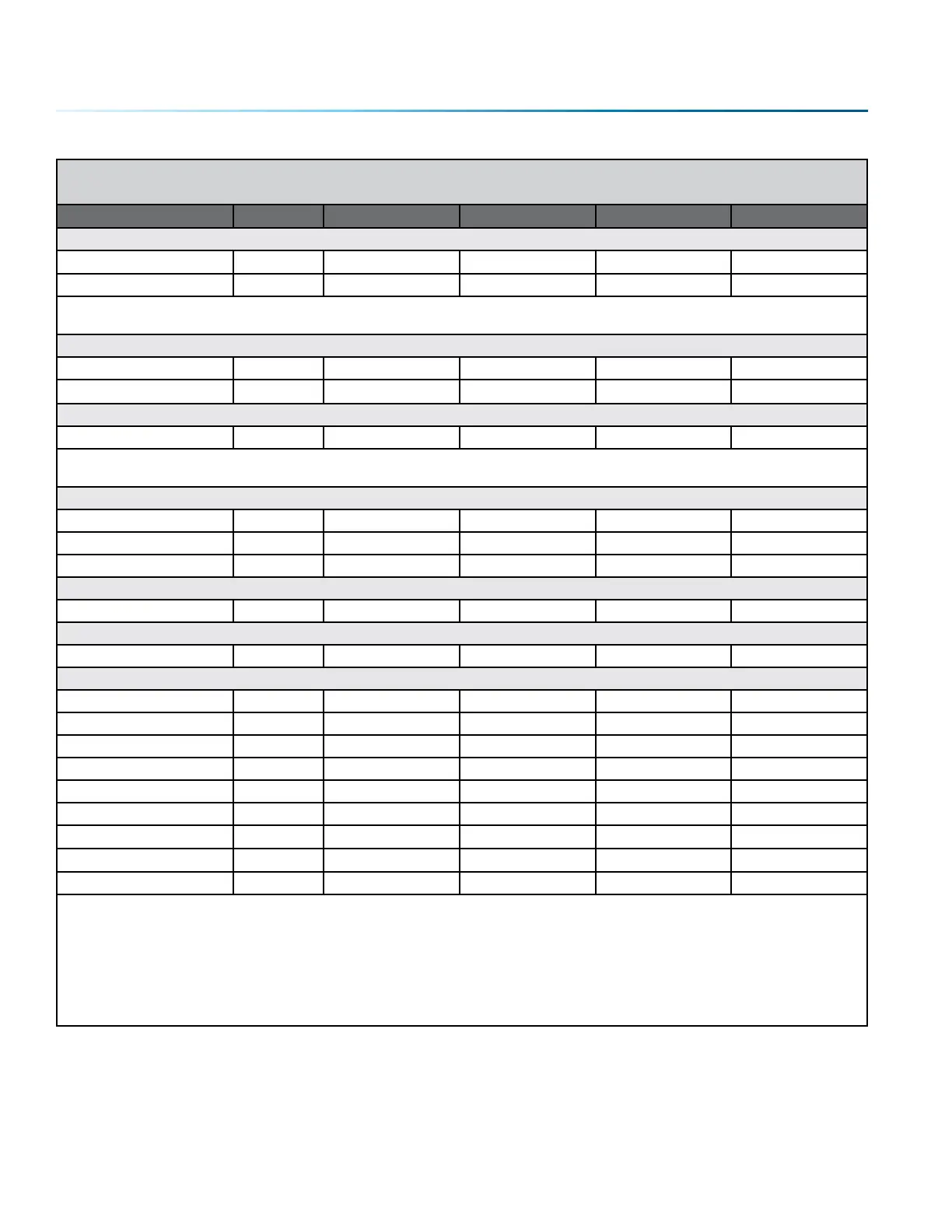
Fusion Pro Suggested Material Settings (CO2)
Material DPI/Freq. 50 watt 60 watt 80 watt 120 watt
Marble
Photo Engraving 300 DPI 100s 45p 100s 40p 100s 35p 100s 25p
Text Engraving 500 DPI 100s 55p 100s 50p 100s 45p 100s 35p
Every marble is very dierent for settings. Start low and increase the power with a second run if you haven’t
used that marble before.
Painted Brass
Engraving 300 DPI 100s 35p 100s 30p 100s 25p 100s 15p
Engraving 500 DPI 100s 30p 100s 25p 100s 15p 100s 10p
Plastics
Engraving 300 DPI 100s 30p 100s 25p 100s 20p 100s 15p
These settings work well with many plastics, including plastic phones and covers. Even one color plastics can
achieve a great look when engraved.
Plastic (2 Layer Laser Engraveable)
Engraving 300 DPI 100s 70p 100s 65p 100s 40p 100s 35p
Engraving 500 DPI 100s 50p 100s 35p 100s 25p 100s 20p
Cutting 1/16” (1.5 mm) 100 f 10s 65p 10s 55p 10s 40p 20s 40p
Stainless Steel w/Cermark
Engraving 500 DPI 30s 100p 35s 100p 45s 100p 55s 100p
Twill
Cutting 25 f 70s 100p 90s 100p 90s 80p 90s 60p
Wood
Photo Engraving 500 DPI 50s 100p 60s 100p 70s 100p 100s 100p
Clipart/Text Engraving 300 DPI 40s 100p 50s 100p 60s 100p 90s 100p
Clipart/Text Engraving 500 DPI 45s 100p 55s 100p 65s 100p 85s 100p
Deep Engraving 500 DPI 20s 100p 25s 100p 30s 100p 60s 100p
Thin Veneer (Cutting) 10 f 40s 100p 40s 90p 50s 80p 50s 60p
Cutting 1/8” (3 mm) 10 f 6s 100p 8s 100p 12s 100p 20s 100p
Cutting 1/4” (6 mm) 10 f 3s 100p 4s 100p 6s 100p 10s 100p
Cutting 3/8” (9.5 mm) 10 f 2s* 100p 2s* 100p 3s 100p 5s 100p
Cutting 1/2” (12 mm) 10 f 2s 100p
When cutting wood, multiple passes may allow cutting of thicker materials. Using Color Mapping you can
adjust the focus point between passes down to the center point of the cut for the best results.
* The Fusion has two sets of Speed control for vector cutting applications. Checking the Speed Comp
selection box in the print driver will reduce the speed setting you have selected by one half. Speed Comp is
most useful for speeds of 1 to 10. Example: Cut a square at 5% speed. Then repeat the job at 5% speed and also
select Speed Comp. The second square will take twice as long to cut as the first square. Speed Comp gives
you more slower speed setting to work with. Always use Air Assist when cutting.
- 130 -
APPENDIX B: MATERIAL SETTINGS



 To Next Page