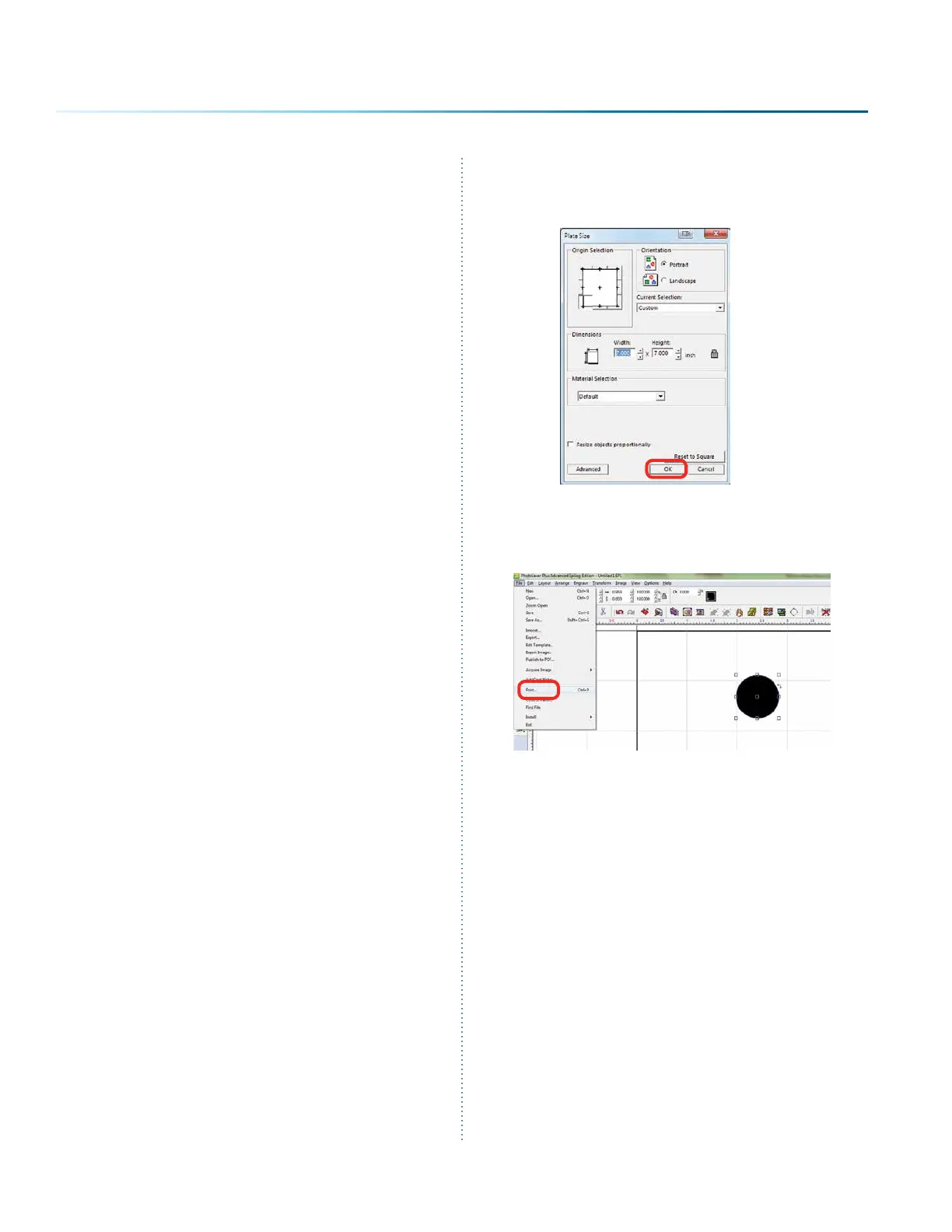
5. Aer the install is complete, you will need to
activate PLP. Open the soware and click the
OK key on the pop-up screen.
6. Place any graphic on the page. This can be
an object, text, or an imported image. Print it
by going to File then Print.
PhotoLaser Plus
The PhotoLaser Plus soware package (PLP) is
an optional addition to your Epilog Laser System
created by CadLink that provides an easy method
of transforming photographs for your laser
engraver, as well as incorporating variable badge
making features. This soware is not intended to
replace your other graphic layout soware, such
as CorelDRAW or Illustrator; however it is a great
complement to your other soware.
Epilog only supports PhotoLaser Plus and
badge layout functions in the soware. The full
EngraveLab soware is a poweul standalone
graphics package. Support for the full EngraveLab
is available through CadLink.
Setting Up the PLP Soware
Epilog has teamed up with CadLink to bring
you a special custom version of PhotoLaser Plus
designed to only be used with an Epilog Laser
system. Primary functions such as printing, Copy,
Paste, etc are unavailable unless an Epilog print
driver has been established as the default printer
within PLP.
1. Go to Devices and Printers on your computer
and check your print driver’s name to be sure
the word Epilog is included. If it is, you are
ready to install the soware.
2. If the word Epilog is not included in the
laser’s name, right click on the icon for the
laser and select Printer Properties.
3. In the General tab, change the name of the
printer in the first field to include the word
Epilog.
4. Insert the CD that came with the soware
into the disk drive and follow the prompts for
a Full Install.
- 98 -
SECTION 9: OPTIONAL FEATURES



 To Next Page