- 19 -
SECTION 2: GETTING STARTED
USB Cable Setup
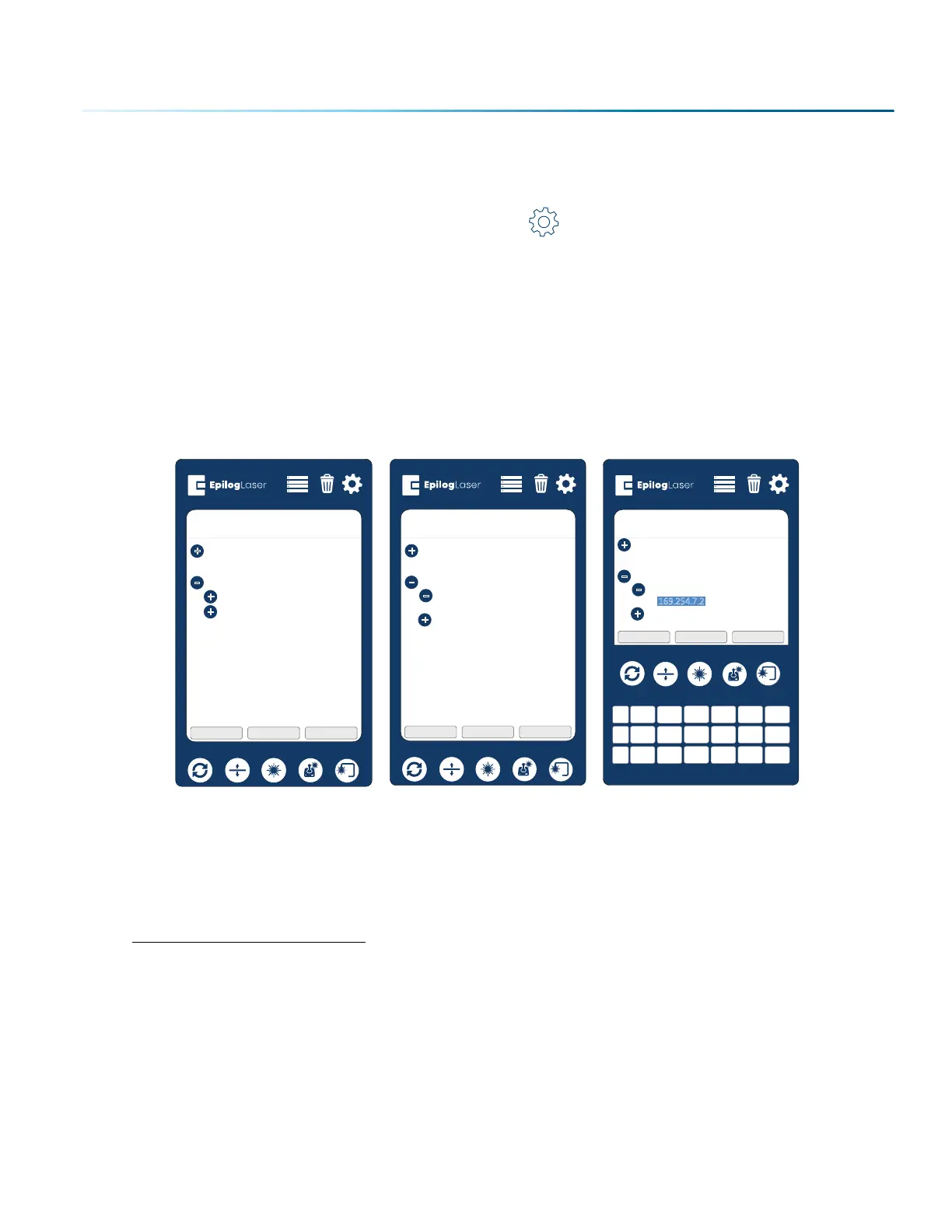
1. Once your machine is booted up, select the Settings button in the upper right corner of the
touchpad.
2. Select USB in the settings list.
3. Under USB you will see “IP Address” and “Netmask”, press “IP Address” and then press the numbers
that appear next to them. A keyboard should show up at the bottom of the screen.
4. Press the “123” Button in the bottom le corner of the keyboard to access the numerical keypad.
5. Type in whichever IP Address you prefer to use. In this case we used 169.254.7.2
6. Press the Close key to close the keyboard, then press the Job Menu Button to return to the main
screen and your settings should be saved.
7. Sign Up for Driver Updates and Register Your
System
Go to www.epiloglaser.com/register and register your system. You can also sign up for our monthly
e-newsletter, quarterly customer printed newsletter, and sign up for driver update notifications.
Settings
+
-
System
Network
Idle
Park Axis Home Axis Home Table
IP
Address
Netmask
+
USB
169.254.7.2
-
Settings
“
Idle
169.254.7.2
Enter Close
ABC Del
< >
1
-
+
SP 2 3 0
4 5 6
7 8 9 ,
.
Park Axis Home Axis Home Table
+
-
System
Network
IP
Address
Netmask
+
USB
-
Settings
+
-
System
Network
Idle
Park Axis Home Axis Home Table
IP
Address
Netmask
+
USB
+



 To Next Page