Color Map Settings
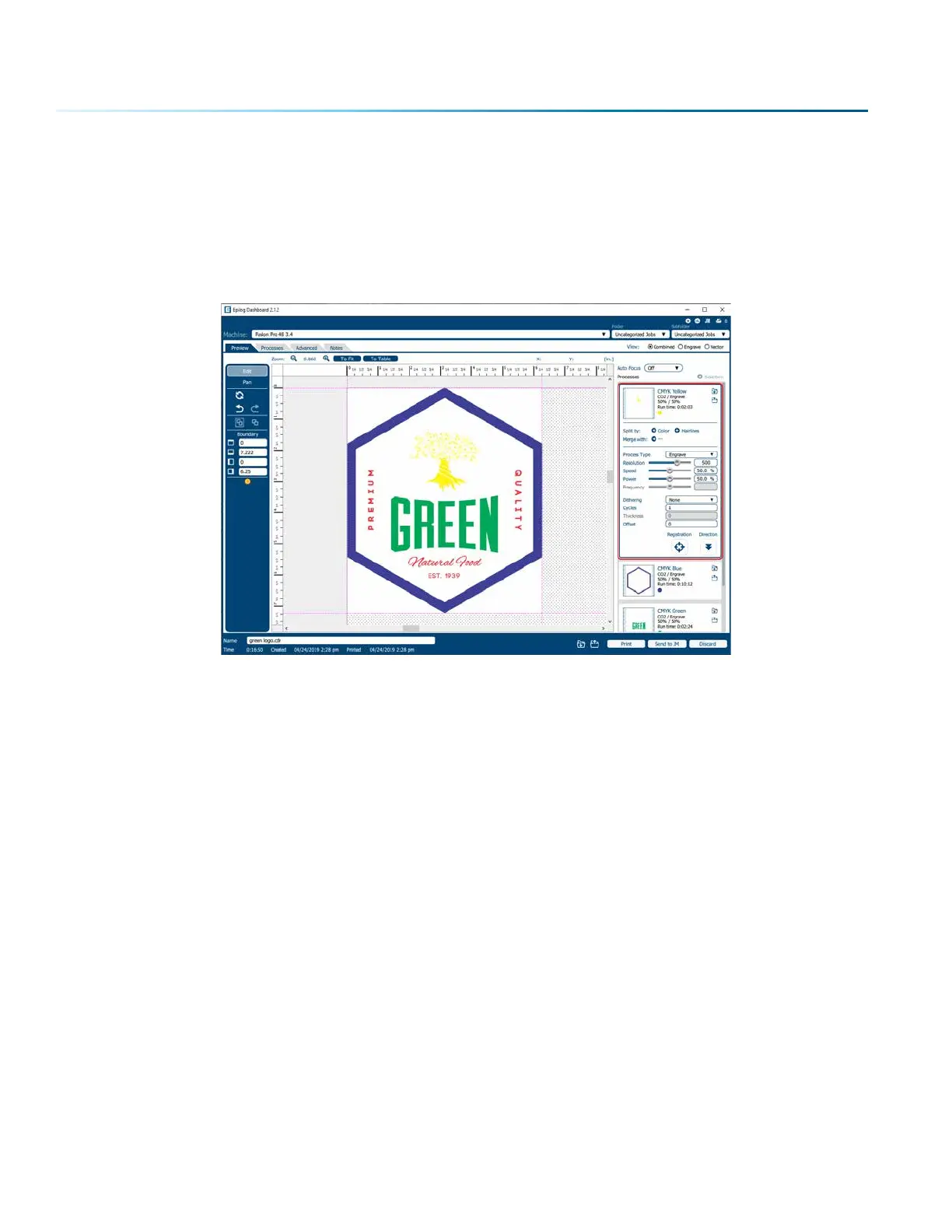
The Color Map Settings can be found under the Processes section located on the right side of the window,
which lists of all of the color mapped processes.
1. Select a color in the Processes area. We selected the color Yellow. Once selected your laser
settings will be revealed.
2. Adjust the laser settings on the selected process.
3. Once the laser values have been adjusted, you may select any other color processes that need to
be changed.
4. When any process tabs are collapsed, you can still see their speed and power settings displayed
under each process name.
Color Mapping Functions
Engrave: Setting a specific color process to Engrave means the laser will apply the same engraving
settings to all objects set to that color.
Vector: Setting a specific color process to Vector means the laser will apply the same vector settings to
all objects set to that color.
Speed: Applies a speed setting for all objects of the same color.
Power: Applies a power setting for all objects of the same color.
Frequency: Applies a frequency setting for all objects of the same color (Vector only).
Oset: Oset allows you to focus at any point above or below the suace of your material. When
engraving acrylic many users like to focus above the suace to produce a “soer” finish to the engraving.
Conversely, when cutting acrylic, many users like to focus about half way into the acrylic. Oset allows
- 90 -
SECTION 8: SYSTEM FEATURES



 To Next Page