Page 26
Web pages
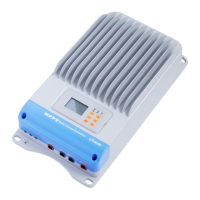
Connect the eTracer controller to the network. Open a web browser on any PC on the
network. Enter the IP address of the controller (‘192.168.0.2’ by default) in the
address bar of the web browser. The login webpage will load. Links are provided to
Real Time Data, Ctr Para Set, Net Para Set, Log Query, Password, and Help
Document pages. Pages served by the controller are ideal for retrieving quick
information about the charge controller and making adjustments to network settings.
However, there is no ability to customize the layout or data displayed. Also,
information from multiple controllers cannot be displayed on the same webpage.
5.2 Setting
Set the controller IP address, corresponding subnet mask and default gateway and
connect to network. Enter IP address of equipment at the address bar of browser and
then the equipment can be monitored.
Web monitoring mainly includes such functions as user login, real-time data, control
parameters setting, network parameters setting, log query and password modification,
etc.
1) User login
Not all users that are connected into Internet/Intranet can browse those data in the
system. Generally password should be input so as to ensure safety of the system.
Enter network password and press the button ‘Login’, and if it is right, it will display
monitoring page; otherwise, it will prompt ‘Password Error’.



 To Next Page