Projector Setup Settings - Extended Menu
181
Setting Options Description
Wired Sync Mode Wired Sync Mode: if the projectors are
not connected using the optional remote
cable set, or if the interactive pen
operation is unstable in Mode 1, select
Mode 2.
Preset Pen
Thickness
Preset Pen Thickness: selects Normal or
Thin as the line thickness from thin
width or thick width.
Eraser Size Eraser Size: selects Normal or Large as
the erasable area from thin width or
thick width.
Color Palette Color Palette: allows you to select
Palette 2 if certain colors in the default
color palette are difficult to see.
Advanced (PC Free
Annotation
section)
Pen Button
Function
Pen Button Function: sets the function
of the button on the side of the
interactive pen.
Default Touch
Action
Default Touch Action: allows you to
select whether to activate Eraser or PC
Interactive when you switch to
annotation mode.
Confirm Clear
Screen
Confirm Clear Screen: when set to On, a
confirmation screen is displayed before
clearing all the content drawn on the
projected screen.
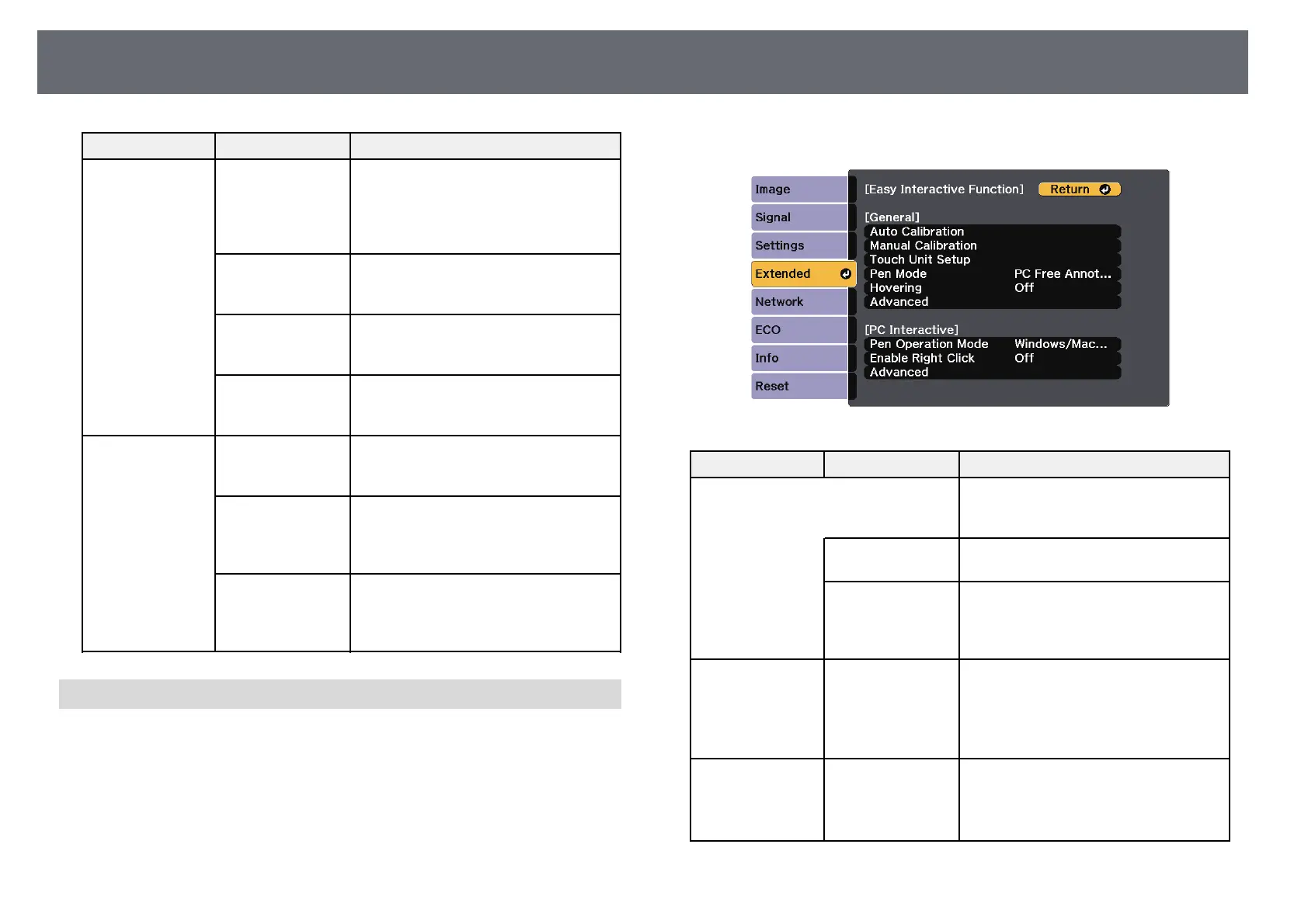
PC Interactive
Settings on the PC Interactive section let you set various settings when you
want to operate a computer from the projected screen.
s Extended > Easy Interactive Function > PC Interactive
Setting Options Description
Pen Operation
Mode
Selects the operation mode for interactive
pen or your finger according to the
operating system on your computer.
Windows/Mac
Mode
Windows/Mac Mode: when using
Windows or Mac.
Ubuntu Mode Ubuntu Mode: when using Ubuntu.
When selecting this mode, you cannot
use the Windows' ink functionality using
the interactive pen.
Enable Right Click On
Off
When set to On, a long press by the pen
tip or finger acts as a right-click
operation.
(Only available when Pen Operation
Mode is set to Ubuntu Mode.)
Advanced Pen Tip Button Pen Tip Button: assigns either Right
Click or Left Click to the pen tip.
(Only available when Pen Operation
Mode is set to Ubuntu Mode.)


 To Next Page