10-Connecting a Computer
Before.fm7/22/03
Connecting Equipment
Connecting a Computer
See the "Quick Reference Guide" for instructions on connecting to video equipment.
Compatible computers
fLaptop connection
Setup examples
Windows:
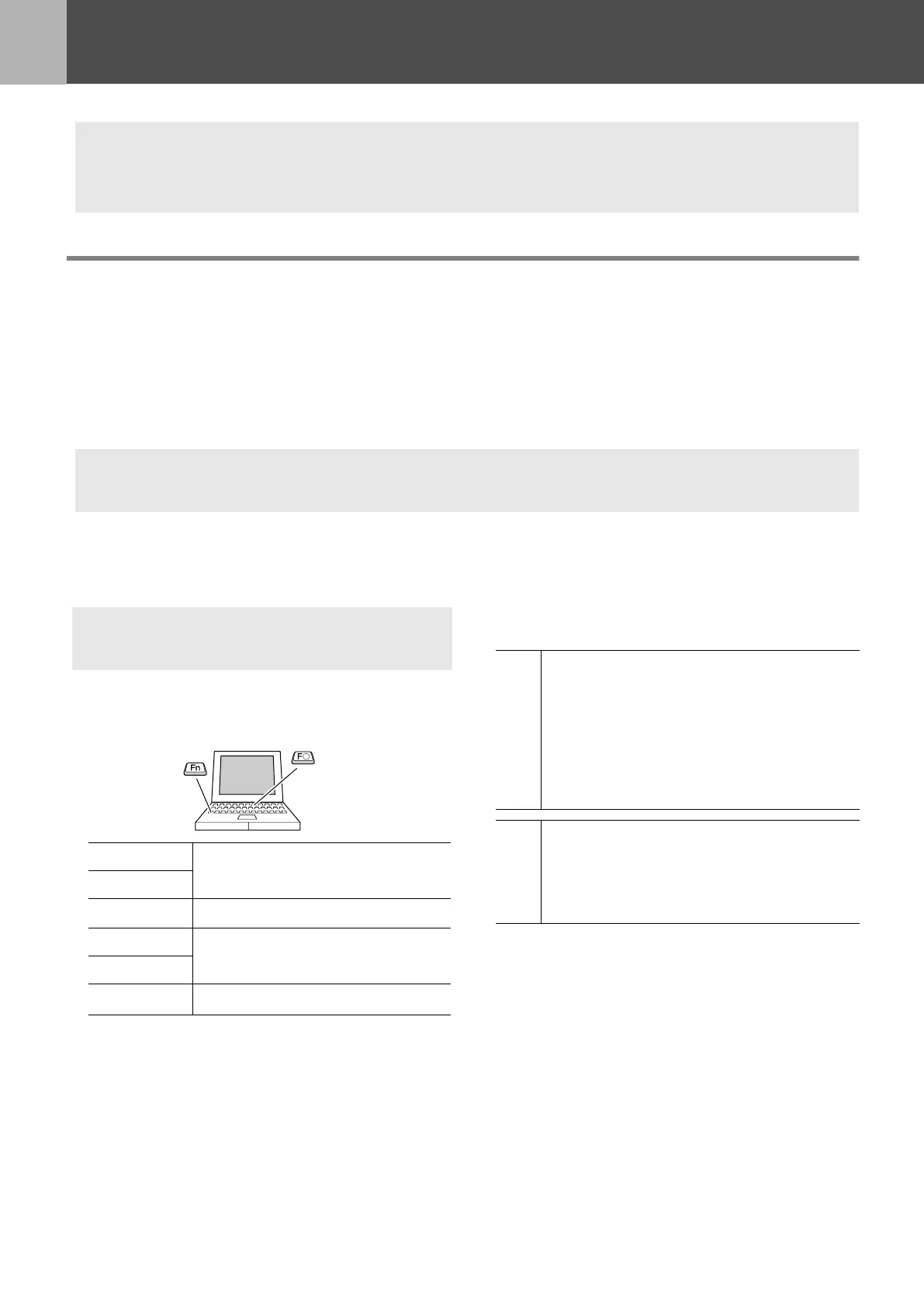
Press and hold the [Fn] key, followed by the appropriate
function number key.
Macintosh:
After start up enable "Mirroring" in the Monitors Control
Panel.
Refer to your computer’s documentation for further
details.
c
When connecting, be sure to:
• Turn off the power for both the projector and the computer.
Damage may result if you try to make a connection when the power is switched on.
• Check the connector types.
Damage may result if you attempt to insert a connector into the incorrect port.
Condition 1: Check that the computer has an image output port, such as an RGB port, monitor
port or CRT port.
Some computers with an in-built monitor and some laptop computers may not be compatible. Please
refer to your computer manual for further details.
Condition 2: The display frequency and resolution of the computer must correspond to that of the
projector. s "Supported Display Resolutions" P.26
p
You may need to purchase a separate adapter depending on the shape of the computer's port. Refer to the documentation
provided with the computer for further details.
p
When using a laptop or a computer with an in-built
monitor, select external video output on the computer.
NEC
[Fn]+[F3]
Panasonic
Toshiba
[Fn]+[F5]
IBM
[Fn]+[F7]
SONY
Fujitsu
[Fn]+[F10]
Win
Depending on your version of Windows, a dialog
box may appear to alert you that new display
hardware has been found. Follow the on-screen
instructions to proceed. If you have any
problems, please contact the nearest address
provided in the "International Warranty
Conditions" section in the "Safety Instructions /
World-Wide Warranty Terms" guide.
Win/
Mac
• It may take a few moments until the computer
image is projected.
• Depending on the computer, the monitor may
go blank when using the external video output
on the computer.
USERS_E.BOOK Page 10 Tuesday, July 22, 2003 3:37 PM





 To Next Page