1-10
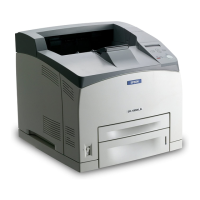
Printing with the EPL-N4000
Flamingo
Rev. C
A5 size LOADING.FM
11/5/98 Pass 0
L
Proof Sign-off:
M.Takata _______
K.Nishi _______
K.Pipa _______
Selecting the paper size
By default, the printer driver is set for A4 size paper to be loaded.
If you load paper of a different size, change the paper size setting
using one of the following methods.
Using the printer driver
Choose the paper size on the Basic Settings menu. For more
information on using the printer driver, see the driver’s online
help.
Using SelecType
On the printer’s control panel, press the
Menu
button until
Printing Menu appears in the display. Then press
Item
until Page
Size appears. Press
Value
to change the paper size setting, then
press the
Enter
button to activate your setting. An asterisk (✽)
appears next to the activated setting.


 To Next Page
 Loading...