EasyManua.ls Logo

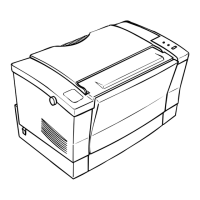
Epson EPL-6200 - User Manual

Epson EPL-6200
513 pages
Print Icon
To Next Page IconTo Next Page
Loading...
Where to Find Information
Setup Guide
Provides you with important safety information about this
printer, information on assembling the printer and installing the
printer software.
Reference Guide (this manual)
Provides you with detailed information on the printer’s functions,
optional products, maintenance, troubleshooting, and technical
specifications.
Note:
This guide includes information for both the EPL-6200 and
EPL-6200L models. Unless stated, the information applies to both
printer models.
The majority of the illustrations and screen shots used in this guide
show the EPL-6200 model. Specific illustrations and screen shots of
the EPL-6200L model are included in places where the differences
between the two models result in different instructional
information.

Table of Contents

Other manuals for Epson EPL-6200

Questions and Answers

  • E
    estradabenjaminAug 19, 2025
    How to fix Epson Printer when it cannot configure network interface or print from network?
    • W
      walshjamesSep 12, 2025
      If you cannot configure the network interface or print from the network, the printer or network settings may be incorrect. First, print a status sheet. If successful, examine the network settings. If not, set the printer's control panel interface mode to Auto or Option.
  • W
    willisronaldAug 21, 2025
    What to do if Epson EPL-6200 does not print even with assigned IP address?
    • T
      Todd GuerraAug 21, 2025
      If you cannot print even after assigning IP addresses, it could be because the computer's IP address was manually assigned, while the printer's was assigned via Automatic Private IP Addressing (APIPA). To resolve this, assign the printer an IP address within the same segment as the computer. You can use EpsonNet Config and the printer’s control panel for this.
  • K
    Kyle BlackburnAug 23, 2025
    What to do if Epson printers do not appear in Chooser?
    • J
      Jennifer ChanAug 23, 2025
      If printers do not appear in Chooser, ensure that Ethernet is selected for “Connect via” in the AppleTalk Control Panel and that AppleTalk is active in Chooser. Also, inspect the network equipment, including the hub cable.
  • M
    Melanie GibsonAug 26, 2025
    What to do if message appears when starting EpsonNet Config: “EpsonNet Config cannot be used because no network is installed.”?
    • A
      amy28Aug 26, 2025
      If the message “EpsonNet Config cannot be used because no network is installed” appears, it means that either TCP/IP and IPX/SPX are not installed, or TCP/IP is installed but its IP address is not set correctly. Install the TCP/IP or IPX/SPX protocol, or set a correct IP address for the computer.
  • W
    whitejoelAug 27, 2025
    How to fix EpsonNet Config when the Model Name and IP Address do not appear in the dialog box?
    • A
      Amy FlynnAug 27, 2025
      If the Model Name and IP Address do not appear in the EpsonNet Config dialog box, it may be because a valid IP address is not set. Set a valid IP address, refresh the status from the View menu, and increase the timeout length in the Tool menu (though this may slow down EpsonNet Config).
  • G
    gregory40Aug 30, 2025
    How to resolve “Could not complete communicating configuration data” message in EpsonNet Config?
    • A
      Aaron MurrayAug 30, 2025
      If you see the message “Could not complete communicating configuration data” when sending settings, especially when using a dial-up router, run Command Prompt and enter the command: ROUTE ADD [IP address of the network interface] [IP address of the computer]. Replace the bracketed information with the appropriate IP addresses.
  • N
    nelsonaprilSep 1, 2025
    What to do if Epson Bonjour/Rendezvous printer setting is overwritten by AppleTalk printer setting?
    • N
      Nicholas MurraySep 1, 2025
      If the Bonjour/Rendezvous printer setting is overwritten by the AppleTalk setting, it means the same printer was set up with AppleTalk after being set up with Bonjour/Rendezvous. Change the AppleTalk printer name to avoid conflicts with the Bonjour/Rendezvous printer name.
  • T
    tinahigginsSep 3, 2025
    Why I am unable to start EpsonNet Config with Web Browser?
    • S
      Sharon BarreraSep 3, 2025
      If you cannot start EpsonNet Config with a Web Browser, it's likely because the IP address for the network interface hasn't been set. Set the IP address using EpsonNet Config for Windows or Macintosh, the printer’s control panel, or the arp/ping commands.
  • A
    Adam GraySep 5, 2025
    How to resolve Epson extra account generated when using dial-up network?
    • D
      Danielle RiveraSep 5, 2025
      If an extra account is generated when using a dial-up network, it's because NetWare is enabled even if you're not using it. Disable NetWare on the NetWare screen of EpsonNet Config with Web Browser.
  • L
    Laurie HillSep 7, 2025
    What to do if Epson printers on the IPX network do not appear in the EpsonNet Config dialog box?
    • S
      shannonjonesSep 7, 2025
      If printers on the IPX network don't appear in the EpsonNet Config dialog box: - Ensure the printer is turned on. - Verify the printer is in the same segment as the computer with EpsonNet Config (use Search options for other segments). - Log in to the target NetWare server with supervisor privileges from the computer with EpsonNet Config.

Summary

Where to Find Information

Setup Guide

Provides safety, assembly, and software installation information for the printer.

Reference Guide (this manual)

Provides detailed printer functions, maintenance, and troubleshooting information.

Safety Information

Warnings, Cautions, and Notes

Explains the meaning of warnings, cautions, and important notes.

Safety Precautions

General safety measures to ensure safe and efficient printer operation.

Important Safety Instructions

Key instructions for safe printer usage, including power and electrical safety.

Chapter 1 Product Information

Printer Parts

Identifies the external components of the printer.

Control Panel

Describes the indicator lights and buttons on the printer's control panel.

Options and Consumable Products

Lists optional hardware upgrades and consumable items.

Features at a Glance

Provides a brief overview of key printer features.

Chapter 2 Paper Handling

Paper Sources

Describes the available paper input locations like MP tray and cassette.

Loading Paper

Instructions on how to load paper into the standard and optional paper sources.

Printing on Special Media

Details on printing with special paper types like labels and envelopes.

Chapter 3 Using the Printer Driver For Windows

Installing the Printer Software

Instructions for installing the printer driver and EPSON Status Monitor.

Using the Printer Driver

Explains how to access and configure printer settings via the driver.

Uninstalling Printer Software

Steps to remove the printer driver and related software.

Chapter 4 Using the Printer Driver For Macintosh

Installing the printer driver

Instructions for installing the printer driver on Macintosh systems.

Printer driver settings

How to access and configure printer settings through the driver.

Uninstalling Printer Software

Steps to remove the printer driver and related software.

Chapter 5 Setting Up Your Printer on a Network (EPL-6200)

For Windows

Instructions for sharing the printer on a standard Windows network.

For Macintosh

Instructions for sharing the printer on an AppleTalk network.

Chapter 8 Installing and Removing Options (EPL-6200 only)

500-Sheet Lower Paper Cassette Unit A4

Details on installing and removing the optional 500-sheet paper cassette.

Duplex Unit

Instructions for installing and removing the duplex printing unit.

Memory Module

Instructions for installing and removing printer memory modules.

Interface Cards

Instructions for installing and removing optional interface cards.

Chapter 9 Replacing Consumable Products

Precautions During Replacement

Safety guidelines and handling precautions for replacing consumables.

Developer Cartridge

Instructions for replacing the developer cartridge.

Photoconductor Unit

Instructions for replacing the photoconductor unit.

Chapter 10 Cleaning and Transporting the Printer

Cleaning the Printer

General cleaning procedures for the printer case and interior.

Cleaning the paper path rollers

Specific instructions for cleaning the paper path rollers.

Transporting the Printer

Steps for safely packing and moving the printer.

Chapter 11 Troubleshooting

Status and Error Lights (EPL-6200 only)

Explains control panel indicator lights and error states for EPL-6200.

Clearing Jammed Paper

General procedures and precautions for clearing paper jams.

Operational Problems

Troubleshooting common operational issues and their solutions.

Print Quality Problems

Troubleshooting issues that affect the quality of printed output.

Memory Problems

Troubleshooting issues related to insufficient printer memory.

Paper Handling Problems

Troubleshooting issues related to paper feeding and jams.

Appendix A Technical Specifications

Paper

Details on paper types, weights, sizes, and usage recommendations.

Printer

General, environmental, and mechanical specifications of the printer.

Options and Consumables

Specifications for optional accessories and consumable products.

Appendix B Symbol Sets (EPL-6200 only)

Introduction to Symbol Sets

Overview of the printer's various symbol sets and their usage.

In the LJ4 Emulation Mode

Lists symbol sets available specifically for LJ4 emulation mode.

Appendix C Working with Fonts

Available Fonts

Lists fonts available for different printer emulation modes.

Installing EPSON BarCode Fonts (Windows only)

Instructions for installing EPSON BarCode Fonts on Windows.

Printing with EPSON BarCode Fonts

Steps to create and print bar codes using EPSON BarCode Fonts.

Appendix D Contacting Customer Support

For users in Latin America

Customer support contact information for users in Latin America.

For users in Australia

Customer support contact information for users in Australia.

For users in Singapore

Customer support contact information for users in Singapore.

Appendix E Samples

Postscript Font Samples

Visual examples of various PostScript fonts available.

Glossary

Epson EPL-6200 Specifications

General IconGeneral
Print TechnologyLaser
Print Speed20 ppm
Resolution1200 x 1200 dpi
ConnectivityParallel, USB
Memory8 MB
Max Memory72 MB
Media SizeA4, A5, B5, Letter, Legal, Executive
Media Weight60 - 163 g/m²
First Print Out Time10 seconds
Supported Operating SystemsWindows, Mac OS

Related product manuals