238 Setting Up Your Printer on a Network (EPL-6200L)
Note for Mac OS X users:
This function is available only with Mac OS X 10.2 or later. To share
your printer on a network, use the Printer Sharing setting, which is a
standard feature of the Mac OS X 10.2 or later.
Setting up your printer as a shared printer
Follow these steps to share a printer connected directly to your
computer with other computers on an AppleTalk network.
Note:
This function is not available with Mac OS X. However, you can share
your printer by installing an interface card with a FireWire port to the
Type B Interface card slot.
1. Turn on the printer.
2. Select Chooser from the Apple menu and click the EPL-6200L
Advanced icon. And select USB port in the “Select a printer
port” box on the right. Then click Setup. The Printer Setup
dialog box appears.
Note:
Make sure On is selected under Background Printing.
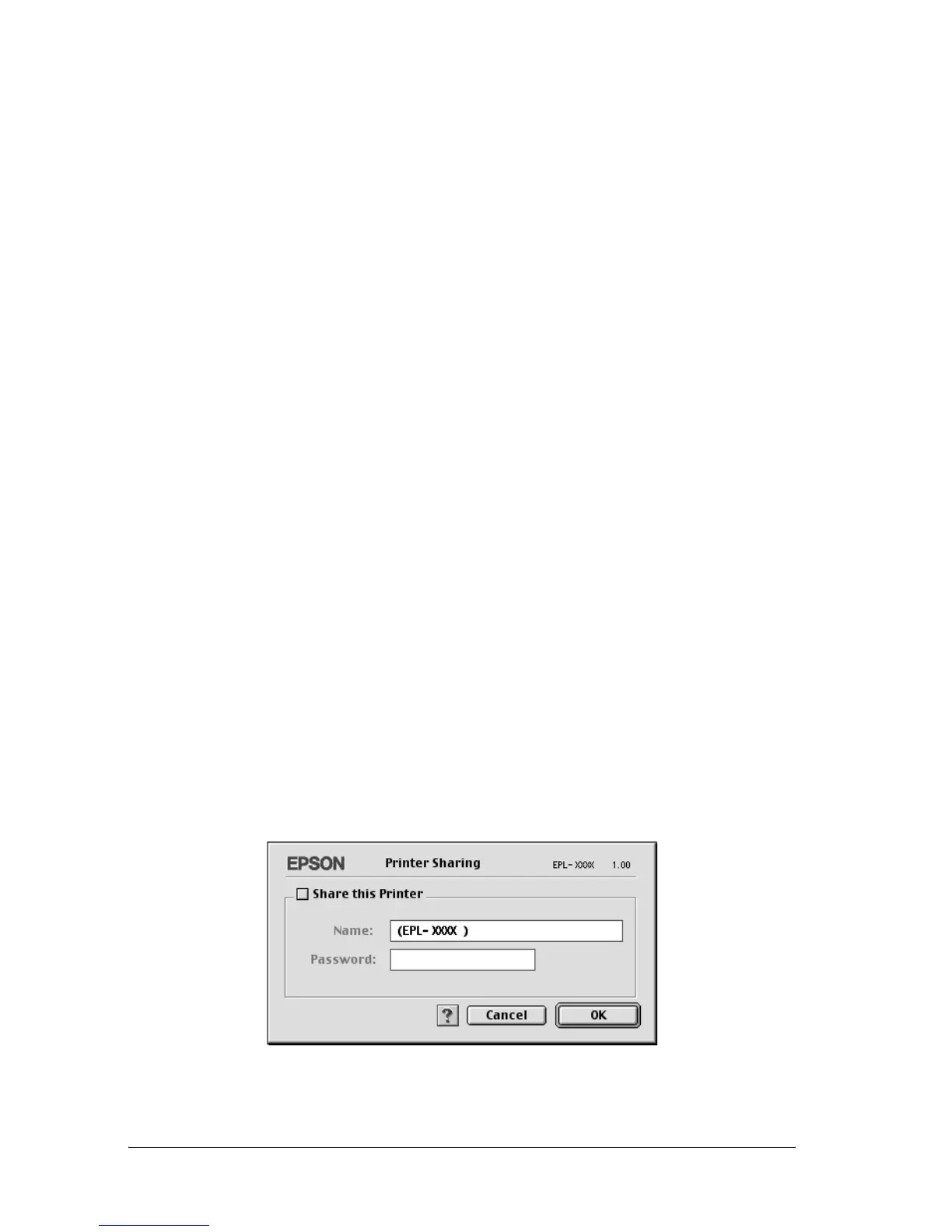
3. Under Printer Sharing Set Up, click Printer Sharing Setup.



 To Next Page