Note:
❏ If you cannot find the folder, search for the "EpsonWideCMYK" profile.
❏ On Mac OS X, copy EpsonWideCMYK_Ver2.icc to the following folder.
Source: Library - Caches - Epson - Epson Control Dashboard - Profile
Target: Library - ColorSync - Profile
B
Start Adobe Illustrator and open the print data.
C
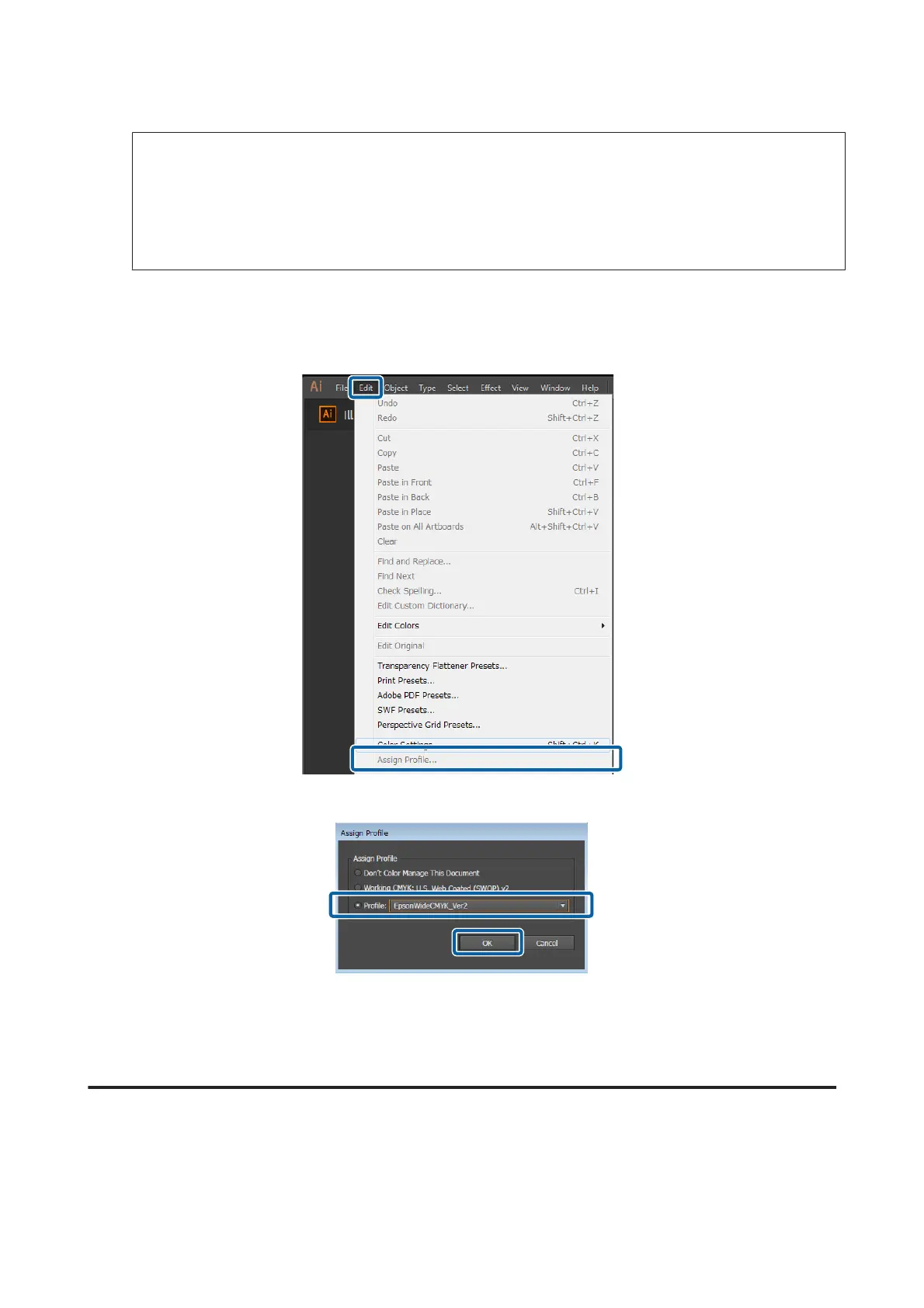
Click in the order of Edit - Assign Profile.
D
Select EpsonWideCMYK_Ver2.icc in Profile, and then click OK.
This update is applied to the display colors in the preview. We recommend closing Adobe Illustrator without
saving the print data after you are done checking. If you save the changes, the color input settings for the print
data change.
Matching Your Print Results to the Display Colors in the Image
Processing Software
Use the follow procedure to check the display colors of the image processing software and to unify the input color
settings for the RIP.
Epson Manual for RIP Printing (ONYX RIP)
Troubleshooting
39



 To Next Page