EasyManua.ls Logo

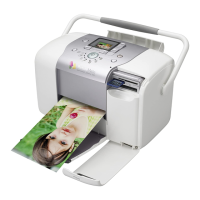
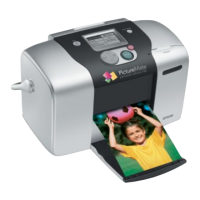
Epson PictureMate PM 260 - User Manual

Epson PictureMate PM 260
106 pages
Print Icon
To Next Page IconTo Next Page
Loading...
User’s Guide

Other manuals for Epson PictureMate PM 260

Questions and Answers

  • S
    sthomasAug 20, 2025
    Why is my Epson PictureMate printing so slow?
    • S
      Sarah OrtegaAug 20, 2025
      If your Epson PictureMate printer is printing too slowly, keep in mind that it takes a few moments to process images before printing. If the printer is in a hot location, move it to a cooler place. If you print continuously for 30 minutes, the printer may slow down to prevent overheating; leave it powered on but stop printing for a few minutes. For faster printing, don’t print more than 40 pictures at a time, print photos with borders, turn off special features, and disconnect unused USB devices.
  • D
    David FergusonAug 22, 2025
    Why does my Epson PictureMate printer make unexpected noises?
    • I
      Isabel GallowayAug 22, 2025
      If the Epson PictureMate printer is making unusual noises after being turned on or sitting idle, this is normal. The printer is likely performing routine maintenance.
  • K
    Kelli VegaAug 25, 2025
    How to turn on Epson PictureMate printer when power light and screen don’t turn on?
    • J
      Jacqueline KingAug 25, 2025
      If your Epson PictureMate printer is not turning on, try the following: * Press the power button on the side of the PictureMate. Note: the remote control button only works when the power light is orange. * Check that the power cable and AC adapter are securely connected at both ends. * Ensure the power outlet is working properly and is not controlled by a switch or timer.
  • A
    Andrea BrockAug 26, 2025
    What to do if my Epson PictureMate print is blurry or smeared?
    • C
      Calvin HillAug 27, 2025
      If your Epson PictureMate printer is printing blurry or smeared photos, try the following: * Use PictureMate photo paper. * Ensure the paper isn’t damp, curled, or loaded face down (load it glossy or whiter side up). * Remove each photo from the output tray after printing and let it sit for a minute before handling.
  • J
    Jimmy ScottAug 28, 2025
    How to fix Epson PictureMate paper jams?
    • B
      Brett HodgeAug 28, 2025
      If your Epson PictureMate printer is not feeding paper correctly or the paper is jamming, try these steps: 1. Remove the paper, separate the sheets slightly, and reload it between the edge guides. 2. If multiple pages feed at once, remove the paper, separate the sheets, and carefully reload it. 3. If paper jams, detach the output tray if necessary and remove the paper. Then press OK to clear the jam. Don’t pull out jammed paper from the top of PictureMate. 4. Use new paper loaded with the glossy or whiter side up, and separate the sheets slightly. 5. Load a maximum of 20 sheets. 6. Make sure your paper is beneath the arrow on the edge guides.
  • M
    Michael BassAug 30, 2025
    Why does my Epson PictureMate sound like it is printing, but nothing prints?
    • B
      Barbara ClarkAug 30, 2025
      If the Epson PictureMate printer sounds like it's printing but nothing is coming out, it may be preparing to print. Also, make sure paper is loaded and not jammed. The printer should be placed on a flat, stable surface to work properly.
  • T
    troy12Sep 1, 2025
    Why is my Epson PictureMate print faint or has gaps?
    • A
      alexander90Sep 1, 2025
      If your Epson PictureMate printer is printing faint images or has gaps, the photo cartridge may be old or low. Also, make sure your paper isn’t damaged, old, dirty, or loaded face down. If it is, load new paper with the glossy or whiter side up.
  • A
    Andrea GalvanSep 2, 2025
    Why doesn't the Epson PictureMate remote control work?
    • K
      Kathleen GuzmanSep 3, 2025
      If the remote control for your Epson PictureMate printer isn't working, first, make sure the power light on the printer is on. Then, ensure you are within 16 feet of the printer and pointing the remote directly at it. Finally, check that the battery is correctly installed in the remote control, and replace it if necessary.
  • C
    Christopher Olsen MDSep 5, 2025
    What to do if Epson PictureMate screen goes blank?
    • F
      Faith VasquezSep 5, 2025
      If your Epson PictureMate screen goes blank or the printer shuts off automatically, Auto Power Settings may be enabled. Press the power button on the printer’s side to turn it back on.
  • B
    Brooke RodriguezSep 7, 2025
    What to do if Epson PictureMate is on, but nothing prints?
    • L
      Lindsey BakerSep 7, 2025
      If your Epson PictureMate printer is on but not printing, and you’re printing from your computer, make sure the USB cable is connected securely at both ends. If you’re printing on a network, see 'Set Up'.

Summary

Welcome!

A Quick Introduction to Digital Photography

Explains the basic digital photography process for users.

Special Features

Supported Photo Formats

Where to Find Information

Where to Get a Print Pack and Accessories

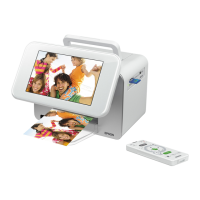
PictureMate Remote Control Buttons

Prepare to View and Print

Inserting Your Memory Card

Step-by-step guide on how to insert a memory card into the device.

Removing Your Memory Card

Loading Paper

Using the P On Button

View Photos and Print

Printing Individual Photos

Describes how to select and print single photos from the memory card.

Printing All Photos

Printing From a Slideshow

Printing Camera-Selected DPOF Photos

Storing and Displaying Your PictureMate Photos

Caring for Your Photos

Guidelines for preserving the quality and longevity of printed photos.

Displaying Your Photos

Recommendations for properly displaying printed photos to prevent fading.

Storing Unused Paper

Do More With Your Photos

Zooming and Cropping

Explains how to select and adjust specific parts of a photo for printing.

Choosing a Layout

Custom Sizing and Cropping

Fixing Red-Eye

Adjusting Photo Settings

Adjusting Borderless Expansion

Selecting the Source for Photos

Adding Camera Text

Rotating Photos

Print From an External Device

Printing From a Digital Camera

Instructions for printing directly from a PictBridge-enabled camera.

Settings for Camera Printing

Printing From an External Drive

Printing Wirelessly From a Bluetooth Device

Choosing Bluetooth Settings

Save Photos

Backing up Photos

Instructions for saving printed photos to a memory card or external device.

Deleting Photos from Print History

Print From a Computer

Installing Software and Connecting PictureMate

Steps to install the printer software and connect the device to a computer.

Installing Software for Windows

Installing Software for Macintosh

Printing From a Windows Computer

Printing with the Windows Vista Photo Gallery

Printing with the Windows XP Picture and Fax Viewer

Printing From a Macintosh

Mac OS X 10.5

Printing instructions specific to Mac OS X 10.5.

Mac OS X 10.3 and 10.4

Copy Photos to and From Your Computer

Supported Photo Formats

Requirements for photo file formats when transferring between devices.

Inserting Your Memory Card and Copying Photos

Process for copying photos between memory cards and computers.

Preparing to Remove a Memory Card

Replace Print Pack

Buying a Print Pack

Information on purchasing new print packs and their contents.

Replacing the Photo Cartridge

Checking Photo Cartridge Status

Take PictureMate With You

Packing Your PictureMate

Instructions for packing the device for transport to prevent damage.

Set PictureMate Preferences

Changing the Way Photos are Saved

Options for configuring automatic photo saving behavior.

Setting the Date and Time

Setting Automatic Power On;Off

Changing PictureMate’s Language

Changing Units of Measurement

Adjusting the Screen Brightness

Returning to Default Settings

Printer Care and Troubleshooting

Checking and Cleaning the Print Head

Procedure to check nozzle status and clean the print head for better print quality.

Checking and Cleaning the Print Head Using the Computer

Aligning the Print Head

Aligning the Print Head Using the Computer

Cleaning PictureMate

Replacing the Remote Control Battery

Printing and Operation Problems

Software Installation Problems

Print Quality Problems

Problems With Paper Feeding

Miscellaneous Printout Problems

Uninstalling PictureMate Software

Where to Get Help

Set Up Network Printing

Setting Up a Shared Printer

Configuring the printer to be shared on a network.

Accessing a Network Printer

Macintosh

Setting Up a Shared Printer

Specific steps for sharing a printer on a Macintosh network.

Accessing a Shared Printer

System Requirements

Windows System Requirements

Minimum hardware and software specifications for Windows.

Macintosh System Requirements

Minimum hardware and software specifications for Macintosh.

Technical Specifications

Printing

Technical details about the printer's printing capabilities.

Paper

Specifications related to supported paper types and sizes.

Photo Cartridge

Information on the photo cartridge, including life and storage.

Notices

Important Safety Instructions

Critical safety guidelines for using the device and its accessories.

Photo Cartridge Safety Instructions

Screen Safety Instructions

Remote Control Battery Safety Instructions

Epson America, Inc. Limited Warranty

What Is Covered

Details the scope and duration of the product's warranty.

What Epson Will Do To Correct Problems

Outlines Epson's procedures for warranty repairs or exchanges.

What This Warranty Does Not Cover

PictureMate Print Pack Satisfaction Guarantee

Refund Procedure

Steps to follow for claiming a refund under the satisfaction guarantee.

Declaration of Conformity

FCC Compliance Statement

Copyright Notice

A Note Concerning the Responsible Use of Copyrighted Materials

Trademarks

Epson PictureMate PM 260 Specifications

General IconGeneral
Print TechnologyInkjet
Max Print Resolution5760 x 1440 dpi
Print Size4 x 6 inches
ConnectivityUSB, PictBridge
Paper TypesGlossy, Matte
Supported Memory CardsSD, SDHC, Memory Stick, Memory Stick PRO

Related product manuals