EasyManua.ls Logo

Epson PictureMate Pal PM 200 - User Manual

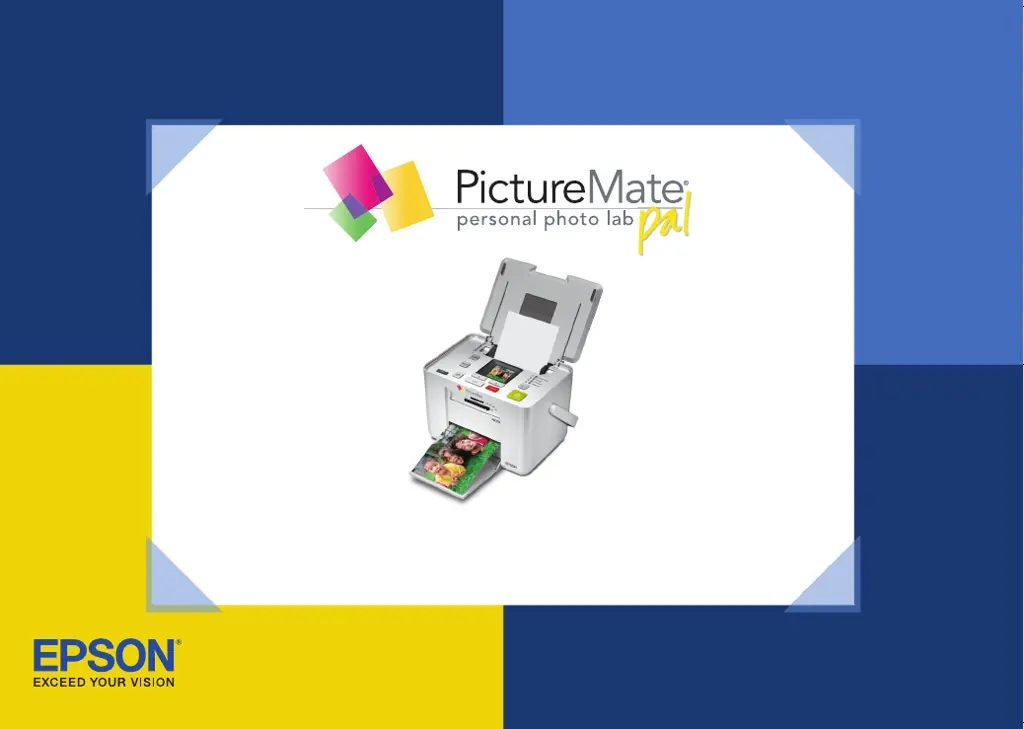
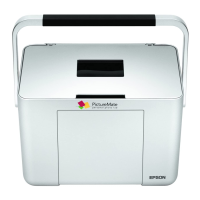
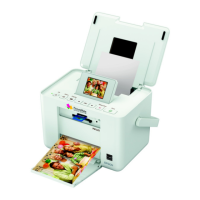
Epson PictureMate Pal PM 200
70 pages
Print Icon
To Next Page IconTo Next Page
Loading...
4109191 Rev.1
1-F C
4109191 Rev.1
1-F M
4109191 Rev.1
1-F Y
4109191 Rev.1
1-F K
CPD-21348R2
Printed in XXXXXX XX.XX-XX XXX
Basics
*410919100*
*410919100*
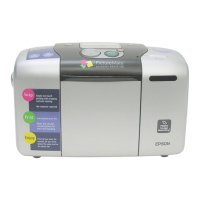
Snap Print Enjoy
PM 200

Other manuals for Epson PictureMate Pal PM 200

Questions and Answers

  • P
    Paul GonzalesAug 15, 2025
    What to do if my Epson PictureMate Pal PM 200 paper doesn’t feed correctly or jams?
    • J
      John SimpsonAug 15, 2025
      If the paper doesn’t feed correctly or keeps jamming in your Epson Printer, make sure that the handle is not resting on the paper. Remove the paper, separate the sheets slightly, and reload it between the edge guides.
  • B
    brobinsonAug 18, 2025
    What to do if my Epson Printer is not turning on?
    • A
      Ashley StrongAug 18, 2025
      If the On light and photo viewer screen on your Epson Printer don’t turn on, check that the power cable and AC adapter are securely connected at both ends. Also, ensure your power outlet works and isn't controlled by a wall switch or timer.
  • K
    Kim JohnsonAug 21, 2025
    Why is my Epson PictureMate Pal PM 200 printing blurry or smeared?
    • J
      johnsonmichaelAug 21, 2025
      If your Epson Printer prints blurry or smeared photos, ensure you are using PictureMate 200 Series photo paper to guarantee proper saturation, ink absorption, and overall quality. Also, verify that the glossy side of the paper is facing up.
  • N
    nsandovalAug 25, 2025
    What to do if Epson PictureMate Pal PM 200 Printer sounds like it is printing but nothing prints?
    • J
      Jessica BarronAug 25, 2025
      If your Epson Printer sounds like it is printing, but nothing is coming out, first check to ensure that paper is loaded correctly and that there is no paper jam. Also, ensure that the printer is placed on a flat, stable surface.
  • S
    Susan StewartAug 27, 2025
    What to do if my Epson PictureMate Pal PM 200 Printer has a paper jam?
    • J
      Jessica AllenAug 28, 2025
      If your Epson Printer has a paper jam, remove any sheets behind the jammed paper and press OK to eject the jammed paper.
  • C
    Chelsea WheelerAug 30, 2025
    What to do if my Epson PictureMate Pal PM 200 Printer print is faint or has gaps in the image?
    • D
      Dr. Hannah Davis MDAug 30, 2025
      If your Epson Printer output is faint or has gaps, the photo cartridge may be old or running low. Also, make sure your paper isn’t damaged, old, dirty, or loaded face down.
  • R
    robinwoodsSep 2, 2025
    What to do if Epson PictureMate Pal PM 200 Printer says close the cartridge door?
    • G
      Gregory MurphySep 2, 2025
      If your Epson Printer displays 'Close the cartridge door,' make sure the door clicks shut.
  • A
    Angela WilliamsSep 5, 2025
    What to do if Epson Printer says no cartridge installed?
    • T
      thomasjosephSep 5, 2025
      If your Epson Printer shows a 'No cartridge installed' message, install a new photo cartridge.
  • T
    Troy ChavezSep 8, 2025
    What to do if Epson Printer says not initial cartridge?
    • T
      Tamara MathisSep 9, 2025
      If your Epson Printer displays 'Not initial cartridge' message, insert the initial photo cartridge that came with it the first time you charge it.
  • S
    Sara GatesSep 12, 2025
    What does 'Print Pack low message' mean on Epson photo viewer?
    • N
      nalvaradoSep 12, 2025
      When you see the 'Print Pack low message' on the Epson photo viewer, it means you should replace the Print Pack.

Summary

Welcome and Introduction

Digital Photography Process Overview

Explains the basic steps of digital photography.

Special Features

PictBridge and USB Direct-Print Connectivity

Connect cameras directly for printing.

DPOF and Bluetooth Printing

Pre-select photos via DPOF or print wirelessly.

Supported Photo Formats

Specifies accepted file types and resolutions.

Getting Supplies

Where to Buy Print Packs and Accessories

Information on purchasing print packs and accessories.

Preparing to Print

Loading Paper and Inserting Memory Card

Instructions for loading paper and memory cards.

Managing Memory Cards

Removing Your Memory Card Safely

Steps to properly remove memory cards.

Selecting and Printing Photos

Printing All Photos from Memory Card

Guide to printing all photos on the memory card.

Choosing Print Layouts and Options

Selecting print layouts like borderless, wallet, etc.

Printing Specific Photos and DPOF Selections

Printing selected photos or DPOF-marked images.

Print Care and Storage

Storing and Displaying Printed Photos

Guidelines for preserving and displaying prints.

Storing Unused Photo Paper

Proper storage of unused photo paper.

Advanced Photo Printing Options

Customizing Photo Layouts and Proof Sheets

Options for multiple photos per sheet and proof sheets.

Enhancing Photos for Better Quality

Using features like PhotoEnhance for image correction.

Black & White, Sepia Tones, and Date Stamps

Applying color effects and date stamps to prints.

Computer Integration and Software Setup

Installing Software and Connecting to Computer

Step-by-step guide for software installation.

Macintosh Software Installation Guide

Specific instructions for Mac users.

Saving Photos to Computer and Printing From PC

Transferring photos to PC and printing.

Printing From Windows

Printing Using Windows Photo Gallery

Detailed steps for printing from Windows.

Printing From Macintosh

Printing Photos from Macintosh Applications

Instructions for printing from Mac.

Printing Directly from Devices

Printing from Digital Cameras

Connecting cameras via USB for direct printing.

Wireless Bluetooth Printing

Printing wirelessly using Bluetooth adapter.

Managing Print Packs

Buying and Replacing the Print Pack

How to purchase and install new print packs.

Checking Print Pack Status

Monitoring ink and paper levels.

Transporting and Setting Preferences

Safely Transporting Your PictureMate Pal

Instructions for moving the printer.

Adjusting Borderless Expansion and Other Settings

Customizing print behavior and screen contrast.

Printer Care and Maintenance

Cleaning and Aligning the Print Head

Procedures for print head cleaning and alignment.

Cleaning the Printer Exterior

How to clean the printer's body.

Troubleshooting Common Problems

Understanding Error Messages

Explains error messages and solutions.

Resolving Printing and Operation Issues

Troubleshooting common operational problems.

Addressing Print Quality Issues

Fixing Banding, Blurriness, and Grainy Prints

Solutions for poor print quality.

Paper Handling and Printout Issues

Troubleshooting Paper Feeding and Jams

Resolving paper feeding errors and jams.

Addressing Miscellaneous Printout Problems

Fixing blank pages, incorrect borders, or layouts.

Resolving Wrong Photos and Copy Count Issues

Troubleshooting incorrect photo prints or excess copies.

Getting Technical Support

Contacting Epson for Assistance

Information on how to get technical support.

Safety and Handling Precautions

Important Safety Instructions for Use

Essential safety guidelines for operating the printer.

Product Warranty Information

Epson Limited Warranty Details

Explains warranty coverage and terms.

Print Pack Yield and Guarantee

Understanding Photo Yield and Satisfaction Guarantee

Information on print pack quantity and guarantee.

Product Compliance and Notices

Declaration of Conformity and FCC Compliance

Regulatory compliance and FCC statement.

Product Information and Legal Notices

Copyright, Trademarks, and General Notices

Copyright, trademarks, and disclaimers.

Getting to Know Your PictureMate Pal

Printer Components and Controls Overview

Diagram identifying printer parts and functions.

Obtaining New Print Packs

PictureMate 200 Series Print Pack Information

Details on available print packs and where to buy them.

Epson PictureMate Pal PM 200 Specifications

General IconGeneral
Printer TypePhoto Printer
Print TechnologyInkjet
Maximum Print Resolution5760 x 1440 dpi
Print Size4 x 6 inches
Ink TypeDye-based ink
Ink ColorsCyan, Magenta, Yellow, Black
Operating System CompatibilityWindows, Mac
ConnectivityUSB, PictBridge
Memory Card SupportCompactFlash, Memory Stick, SD, xD-Picture Card
Paper Sizes Supported4" x 6"
Print Speed (Color)Approx. 1.2 minutes per 4 x 6-inch photo

Related product manuals