104
• Windows 7: Click and select Devices and Printers. Right-click your product and select
Printer properties.
• Windows Vista: Click and select Control Panel. Click Printer under Hardware and Sound,
then right-click your product and select Properties.
• Windows XP: Click Start and select Printers and Faxes. Right-click your product and select
Properties.
2. Click the Optional Settings tab.
Note: You can prevent access to the Optional Settings tab by changing the user or group
permissions in the Security tab.
3. Click Driver Settings.
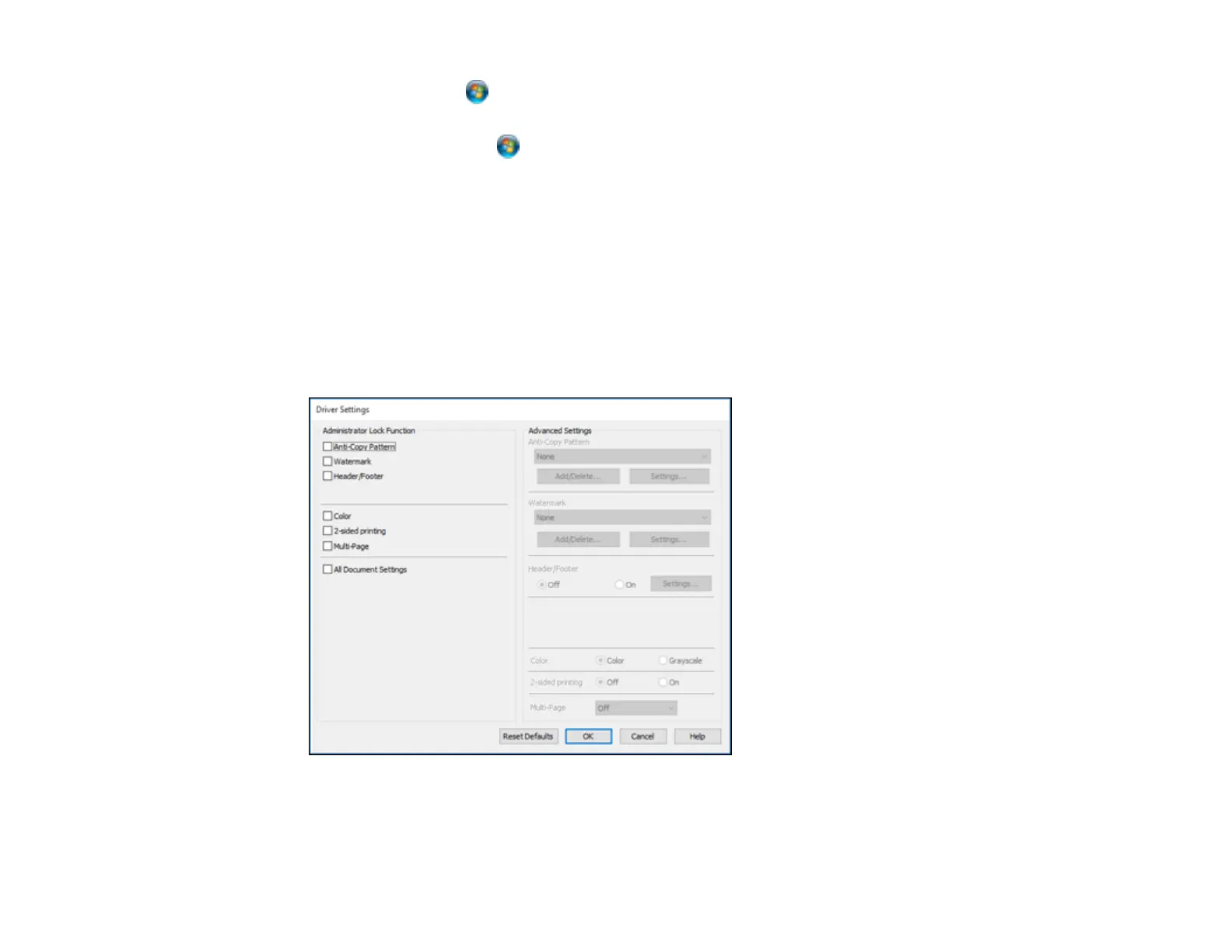
You see this window:
4. Select the checkbox for each setting you want to lock. To lock all print settings, select All Document
Settings.










 To Next Page