147
11. Select the Security tab and check that the Group or user names list at the top includes the current
computer user and the administrators who can now access the folder.
12. Select the Sharing tab again and write down the Network Path listed under Network File and Folder
Sharing at the top. This is the path you will register to your product contacts list so you can select it
for network scanning.
13. Click OK or Close.
Now you can register the path to the folder to your product contacts list.
Parent topic: Setting Up and Scanning to a Network Folder or FTP Server
Registering Contacts for Email, Network, or FTP Scanning - Control Panel
You can register a list of contacts for scanning to email or to a network folder or FTP server.
1. Press the home button, if necessary.
2. Select Settings.
3. Select Contacts Manager. Enter the administrator password, if necessary.
4. Select Register/Delete.
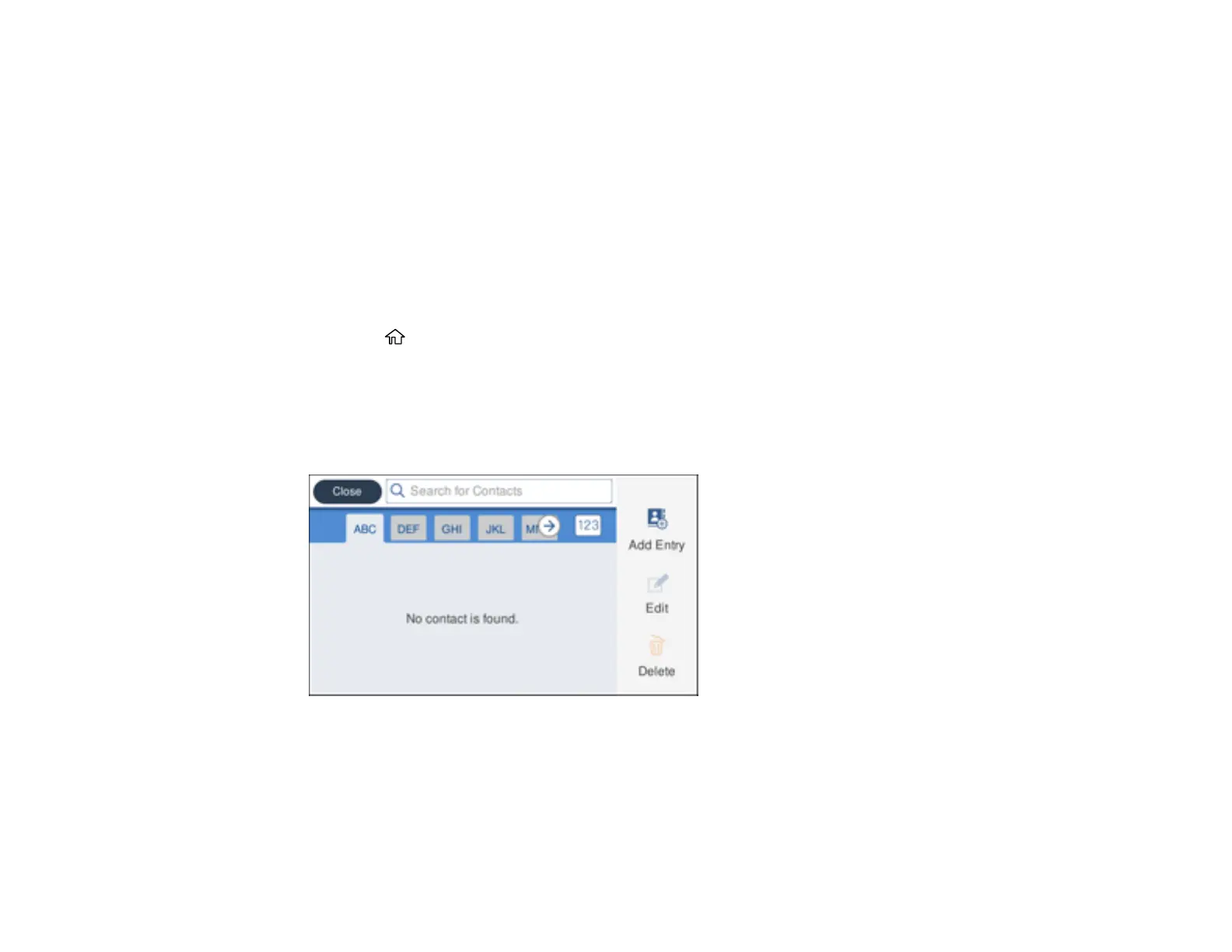
You see a screen like this:
5. Select Add Entry.
6. Select Add Contact.
7. Do one of the following:
• To create a contact for scanning to email, select Email.









 To Next Page