Multi-Page Printing Options - Windows
You can select any of the available options in the Multi-Page menu to set up your multi-page print job.
2-Up and 4-Up
Prints 2 or 4 pages on one sheet of paper. Click the Page Order button to select page layout and
border options.
2×1 Poster, 2×2 Poster, 3×3 Poster, 4×4 Poster
Prints one image on multiple sheets of paper to create a larger poster. Click the Settings button to
select image layout and guideline options.
Parent topic: Selecting Basic Print Settings - Windows
Selecting Double-sided Printing Settings - Windows
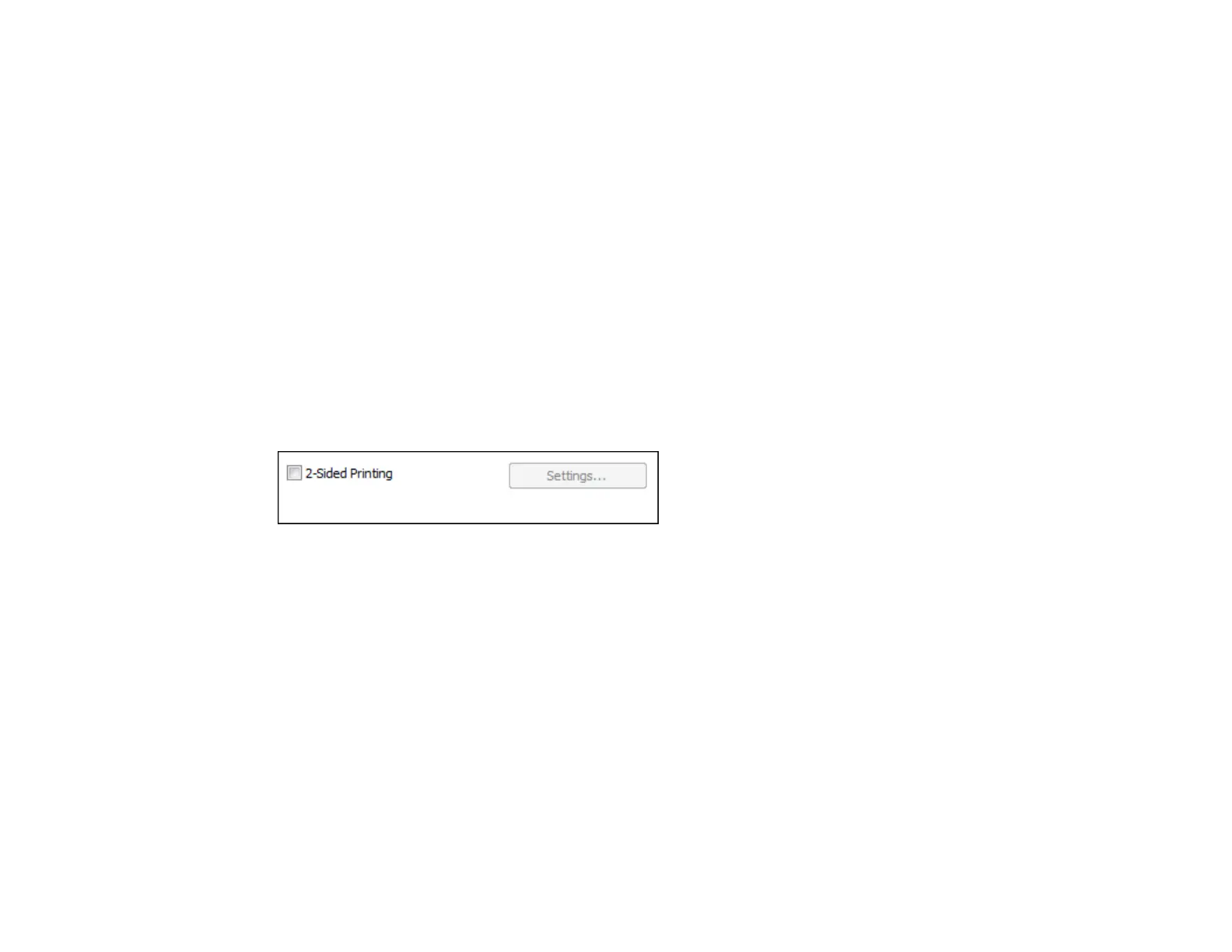
You can print on both sides of the paper by selecting the 2-Sided Printing checkbox on the Main tab.
Note: Double-sided printing is only available when printing on plain paper in these sizes: Letter (8.5 × 11
inches [216 × 279 mm]), A4 (8.3 × 11.7 inches [210 × 297 mm]), Legal (8.5 × 14 inches [216 × 357 mm]),
or A6 (4.1 × 5.8 inches [105 × 148 mm]).
Note: Some options may be pre-selected or unavailable, depending on other settings you have chosen
or if you are accessing the product over a network or as a shared printer.
1. Select the 2-Sided Printing checkbox.
2. Click the Settings button.
You see this window:
25






 To Next Page