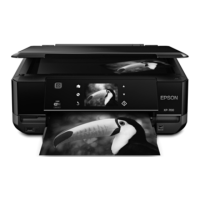
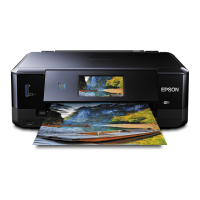
This document is a basic guide for the Epson XP-600 Series and XP-700 Series printers, providing essential information for setup, operation, and troubleshooting. It covers various functions from basic printing and copying to more advanced features like printing from memory cards and scanning.
Function Description
The Epson XP-600 and XP-700 Series are multifunction printers designed for home and small office use, capable of printing, copying, and scanning. They support printing from various sources, including computers, memory cards, and digital cameras, and offer features for creating custom prints like CD/DVD labels and greeting cards.
Printing
The printers support printing on a variety of paper types, including plain paper, photo paper (Epson Photo Quality Ink Jet Paper, Matte Paper-Heavyweight, Double-Sided Matte Paper, Ultra Glossy Photo Paper, Premium Glossy Photo Paper, Premium Semigloss Photo Paper, Glossy Photo Paper, Photo Paper), and Photo Stickers. The paper type setting is crucial as it allows the printer to adjust ink coverage for optimal print quality. The XP-700 Series also supports printing from memory cards, allowing users to select and print photos directly from the device's control panel. The XP-600 Series offers similar functionality for printing from memory cards. Both series can print from external USB devices.
Copying
The devices can copy documents and photos. Users can place multiple photos on the scanner glass, ensuring they are spaced 5 mm apart, and copy them simultaneously. The copy settings, such as paper size, type, and quality, can be adjusted. The printers also offer advanced layout options like 2-sided and 2-up copying.
Scanning
The printers can scan documents and images, sending the scanned data to a memory card or a connected computer. Originals are placed face-down on the scanner glass, aligned to the front-right corner. The scanning process is initiated from the control panel, where users can select scan menu items and adjust settings, especially when scanning to a memory card. The devices also support scanning to cloud services via Epson Connect.
More Functions
The printers offer several special functions to enhance user experience:
- Copy/Restore Photos: Allows users to make faithful copies of original photos. It can also restore faded colors in old photos.
- Photo Layout Sheet: Enables printing photos from a memory card in various layouts.
- Greeting Card: Users can create custom greeting cards with handwritten messages. This involves printing an A4 template, writing the message, and then scanning the template to print the cards.
- Copy to CD/DVD: Copies photos or CD/DVD labels onto a CD/DVD label, automatically cropping and resizing the image to fit.
- Print on CD/DVD: Creates CD/DVD labels directly from photos stored on a memory card, without needing a computer.
- Print Ruled Papers: Prints ruled paper or graph paper, with an option to set a photo as the background.
- Coloring Book: Creates coloring sheets from personal photos or line drawings. This function is intended for user-created drawings and pictures only, respecting copyright laws.
Usage Features
Control Panel
The control panel features a touch panel LCD screen for navigating menus and settings. Buttons include power on/off, Home menu, navigation arrows (up, down, left, right), OK, plus/minus for setting copies/prints, stop/initialize, CD/DVD label menu, cancel/return, and start (copying/printing/scanning). The XP-600 Series does not support Auto Selection Mode.
Paper Handling
Paper can be loaded into two cassettes or a rear paper feed slot. Cassette 2 is used for general paper loading, while the rear paper feed slot is for single sheets of paper, often for special media. When using Legal-size paper, the CD/DVD tray needs to be removed, and cassette 2 extended. Paper should be fanned and aligned before loading, with the printable side face-down in the cassette and face-up in the rear feed slot. The available paper types, sizes, and loading capacities differ between cassette 1 and 2.
CD/DVD Loading
CDs/DVDs are loaded onto a dedicated tray, which is then inserted into the product. The printable side of the CD/DVD should face up, aligning the marks on the tray and the product. The device also supports printing on Blu-ray Discs.
Memory Card Insertion
The printers support various memory card formats, including SD, miniSD, microSD, SDHC, miniSDHC, microSDHC, SDXC, microSDXC, MultiMediaCard, MMCplus, MMCmobile, MMCmicro, Memory Stick Duo, Memory Stick PRO Duo, Memory Stick PRO-HG Duo, Memory Stick Micro, MagicGate Memory Stick Duo, CompactFlash*, and Microdrive*. Some cards require an adapter before insertion. Memory cards are inserted one at a time into a slot under a cover. The light on the memory card slot indicates its status (on when ready, flashing when data is being accessed).
Maintenance Features
Ink Cartridge Replacement
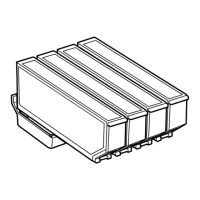
The guide provides detailed instructions for replacing ink cartridges. For optimal ink efficiency, cartridges should only be removed when ready for replacement. New Black ink cartridges should be gently shaken four or five times before opening. Color and Photo Black cartridges do not require shaking. The scanner unit must be opened to access the ink cartridge holder, which moves to the replacement position. Users must avoid touching the flat white cable connected to the holder. After removing the old cartridge, the cap should be placed back on its ink supply port for proper disposal. The new cartridge is inserted head first and pushed down until it clicks. The & light flashes during ink charging, and the product should not be turned off during this process.
Troubleshooting
The manual includes a section on basic troubleshooting for common error messages displayed on the LCD screen:
- Paper jam: Solutions involve removing jammed paper from the rear cover or inside the product.
- Paper out: Instructions direct users to load paper.
- Photos not recognized: Users are advised to place photos correctly on the scanner glass.
- Printer error: Suggests turning the product off and on again, and contacting Epson support if the error persists.
- Communication error: Recommends checking computer connection and scanning software installation.
- Printer's ink pad nearing/at end of service life: Prompts users to contact Epson support for replacement.
- Memory card or external device not recognized: Advises checking if the device is inserted correctly.
- IP address and subnet mask invalid: Refers users to the online Network Guide.
- Recovery Mode: Indicates a failed firmware update and instructs users to re-attempt the update using a USB cable and the Epson website.
Print Quality Help
For issues like banding, missing colors, or other print quality problems, the guide suggests:
- Ensuring paper is loaded correctly and originals are placed properly.
- Checking paper size and type settings.
- Performing a nozzle check and cleaning the print head if it is clogged.
Technical Support
Epson's Technical Support Web Site is available for problems not covered in the documentation, offering drivers, FAQs, manuals, and other downloads.


 To Next Page
 General