15
To enable the use of test mode (downloads pre-release
updates) click the Setup... button next to Advanced
Options and select the Enable pre-release updates
checkbox. To disable system tray notifications displaying
after each successful update, select the Do not display
notification about successful update checkbox.
To delete all temporarily stored update data, click the
Clear button next to Clear Update Cache. Use this
option if you are experiencing difficulty while updating.
4.2.3 How to create update tasks
Updates can be triggered manually by clicking Update
virus signature database in the primary window
displayed after clicking Update from the main menu.
Updates can also be run as scheduled tasks. To configure
a scheduled task, click Tools > Scheduler. By default, the
following tasks are activated in ESET Cybersecurity:
Regular automatic update
Automatic update after user logon
Each of the aforementioned update tasks can be
modified to meet your needs. In addition to the default
update tasks, you can create new update tasks with a
user-defined configuration. For more details about
creating and configuring update tasks, see the Scheduler
section.
4.3 Scheduler
The Scheduler is available if Advanced mode in ESET
Cybersecurity is activated. The Scheduler can be found in
the ESET Cybersecurity main menu under Tools. The
Scheduler contains a list of all scheduled tasks and
configuration properties such as the predefined date,
time, and scanning profile used.
By default, the following scheduled tasks are displayed in
the Scheduler:
Regular automatic update
Automatic update after user logon
Automatic startup file check after user logon
Automatic startup file check after successful update of
the virus signature database
Log maintenance (after enabling the Show system
tasks option in the scheduler setup)
To edit the configuration of an existing scheduled task
(both default and user-defined), right-click the task and
click Edit... or select the desired task you wish to modify
and click the Edit... button.
4.3.1 Purpose of scheduling tasks
The Scheduler manages and launches scheduled tasks
with predefined configurations and properties. The
configuration and properties contain information such
as the date and time as well as specified profiles to be
used during execution of the task.
4.3.2 Creating new tasks
To create a new task in the Scheduler, click the Add
task... button or right-click and select Add... from the
context menu. Five types of scheduled tasks are
available:
Run application
Update
Log maintenance
On-demand computer scan
System startup file check
Since Update is one of the most frequently used
scheduled tasks, we will explain how to add a new
update task.
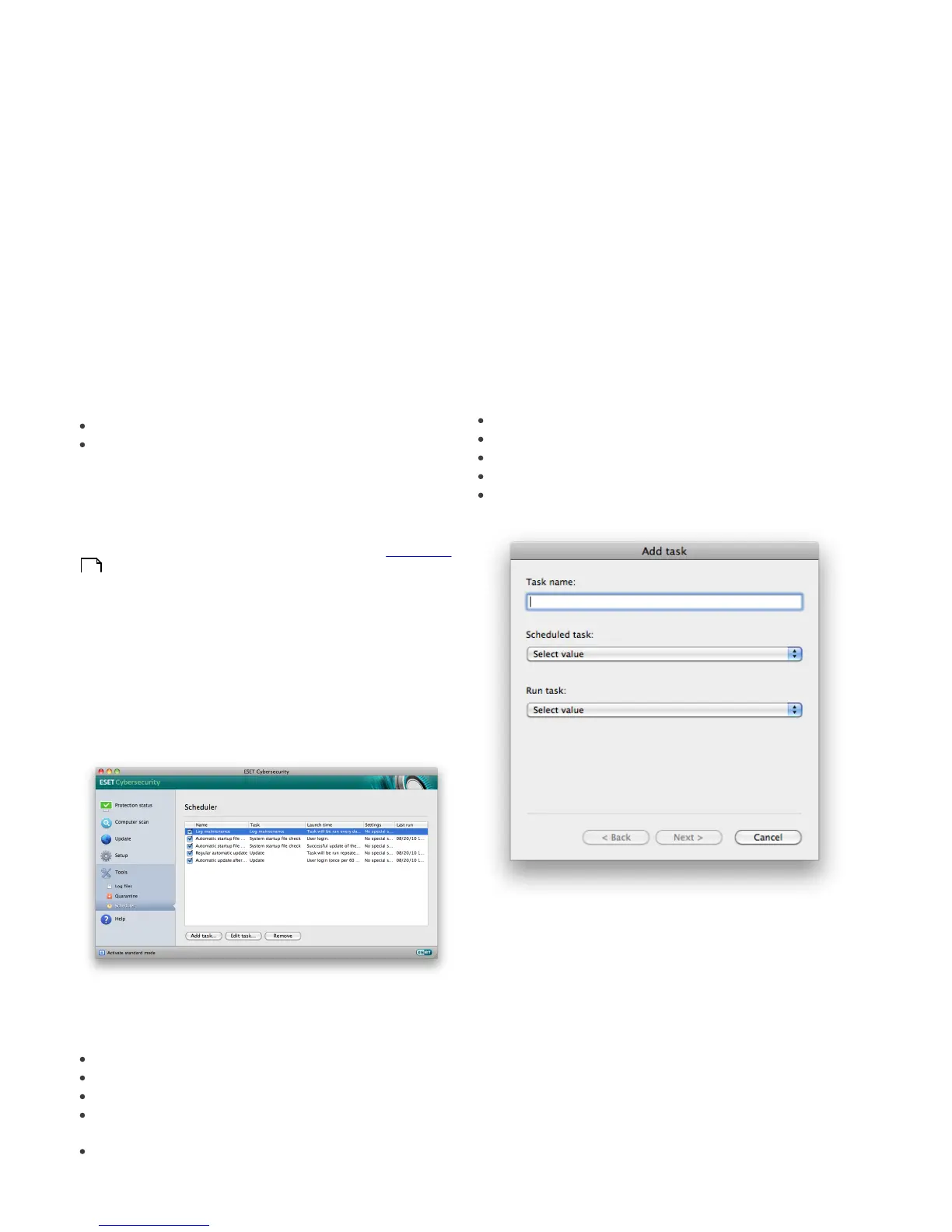
From the Scheduled task drop-down menu, select
Update. Enter the name of the task into the Task name
field. Select the frequency of the task from the Run task
drop-down menu. The following options are available:
User-defined, Once, Repeatedly, Daily, Weekly and
Event triggered. Based on the frequency selected, you
will be prompted with different update parameters.
Next, define what action to take if the task cannot be
performed or completed at the scheduled time. The
following three options are available:
15



 To Next Page