EasyManua.ls Logo

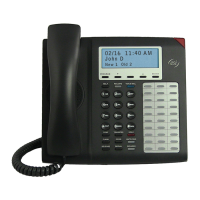
ESI 48-Key Feature Phone - User Manual

ESI 48-Key Feature Phone
108 pages
Print Icon
To Next Page IconTo Next Page
Loading...
ESI Phone
User’s Guide
FOR ESI Communications Servers
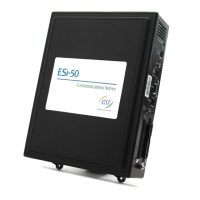
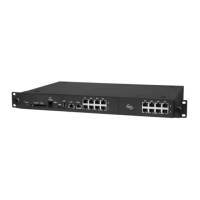
ESI-1000 • ESI-600 • ESI-200 • ESI-100 • ESI-50
Covering these current ESI phone models:
ESI 60 Business Phone • ESI 40 Business Phone
24-Key Feature Phone • ESI Cordless Handset II
. . . and these legacy ESI phone models:
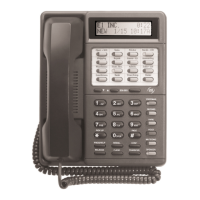
48-Key Feature Phone • 12-Key Feature Phone
[Original] ESI Cordless Handset
0450-1047
Rev. L
For on-line help, visit www.esi-estech.com/users.
About ESI
ESI (Estech Systems, Inc.) is a privately held corporation based in Plano, Texas. Founded in 1987, ESI designs and
builds innovative telecommunications products for businesses like yours. Because of their powerful combination of
value and features, ESI products are consistently recognized by industry publications and leaders.
Copyright © 2011 ESI (Estech Systems, Inc.).
Esi-Dex, Quick Groups, Quick Moves, Virtual Mailbox Key, AutoPage, Quick Page and Verbal User Guide
are trademarks, of ESI. Act! is a registered trademark of Symantec Corporation. Goldmine is a trademark of
Goldmine Software Corporation. Ethernet is a registered trademark of Xerox Corporation. Microsoft, Windows, NT and
Outlook are registered trademarks of Microsoft Corporation. Intel is a registered trademark of Intel Corporation.
Panasonic and DBS are registered trademarks of Matsushita Electric Corporation of America. Bluetooth is a registered
trademark of the Bluetooth Special Interest Group (S.I.G.), Inc. Information contained herein is subject to change
without notice. ESI products are protected by various U.S. Patents, granted and pending. Visit ESI on the Web at
www.esi-estech.com.

Table of Contents

Questions and Answers

  • S
    Sergio JohnstonJul 27, 2025
    What to do if my ESI Telephone System phone won't connect?
    • S
      Sharon WaltersJul 27, 2025
      If your ESI Telephone System phone won’t connect, verify the cable between the phone and the network access device (router, hub, or switch) is plugged into the NETWORK port on the bottom of the phone. Ensure the link light for the port on the router is illuminated; if not, check the router's power supply. Also, check the cable between the network access device and the modem, ensuring the WAN port on the router is plugged directly into the modem, or if using a hub or switch, connect its UPLINK port to the modem. Test your IP connection by using your PC to access a site on the Internet and call the main office with a regular phone to ensure the problem isn't with the network or IP connection at the main office. See page A.9 for instructions on connecting your phone.
  • E
    Emily AdamsAug 2, 2025
    Why is the audio quality poor on my ESI Telephone System phone?
    • R
      Robert StoneAug 2, 2025
      If your ESI Telephone System phone works correctly but the audio quality is poor, the problem is probably with the connection between the phone and the IP PBX at the main office. Ask your Network Administrator or ESI Reseller to evaluate your connection to the main office.
  • B
    briansmithAug 7, 2025
    How to fix a blank display on my ESI Telephone System phone?
    • D
      David AyersAug 7, 2025
      If your ESI Telephone System phone display is blank, first check other phone functions. If you get a dial tone when you lift the receiver but the display is still blank, the phone is defective. Ensure the Ethernet cable is plugged into the phone’s NETWORK jack and not the PC port. If no phone functions operate, check the phone power supply to ensure it's plugged into both the phone and an active AC outlet. If the display remains blank, the phone is defective. Contact your ESI Reseller if the phone is defective.
  • C
    Christopher WhiteAug 13, 2025
    What to do if my ESI Telephone System phone connects but doesn’t operate correctly?
    • H
      hernandezzacharyAug 13, 2025
      If your ESI Telephone System phone connects but doesn’t operate correctly, the phone may be defective. Contact your Reseller.
  • L
    lesliewilliamsAug 20, 2025
    Why does my ESI Telephone System phone display show software version?
    • A
      Alicia WadeAug 20, 2025
      If your ESI Telephone System phone display shows the software version, the phone is faulty. Contact your ESI Reseller.

Summary

User programming: An introduction

User programming menu

Overview of the user programming menu and its selectable options.

Voice mail operation

VOICE MAIL key

Describes the function and indicators of the VOICE MAIL key.

Personal greetings

How to record, manage, and use personal greetings for your mailbox.

Message retrieval

Step-by-step instructions for retrieving voice messages.

Off-premises message delivery

Setting up message delivery to external phones or pagers.

ESI phone operation

Special keys

Esi-Dex

Feature for accessing and auto-dialing stored names and numbers.

Using an ESI desktop IP phone remotely

Troubleshooting

Common issues and solutions for ESI desktop IP phones used remotely.

Using Esi-Link

Dialing an Esi-Link location

Step-by-step instructions for dialing remote Esi-Link locations.

Transferring calls

Procedures for transferring calls to remote locations.

ACD agent operation

Programming the agent log-on;off key

How to program a feature key for agent status control.

Wrap mode

Feature for managing post-call wrap-up activities.

Analog stations

Voice mail operation from an analog station

How analog stations handle voice mail operations.

ESI 48-Key Feature Phone Specifications

General IconGeneral
BrandESI
Model48-Key Feature Phone
CategoryServer
LanguageEnglish

Related product manuals