222 ESI Operation Manual
3. Use the left/right cursor keys to select a MIDI Channel. Use
the Up/Down Cursor keys to select Volume, Pan or Submix
output for each MIDI channel. For now move the cursor to the
lower line. Each column represents a MIDI channel from 1 to 16, left
to right.
4. Use the Data Entry Control or INC/DEC keys to select a
submix bus (Main, 1, 2, or 3) for each channel. The amounts for
each bus are adjusted in the Master, Effects menu.
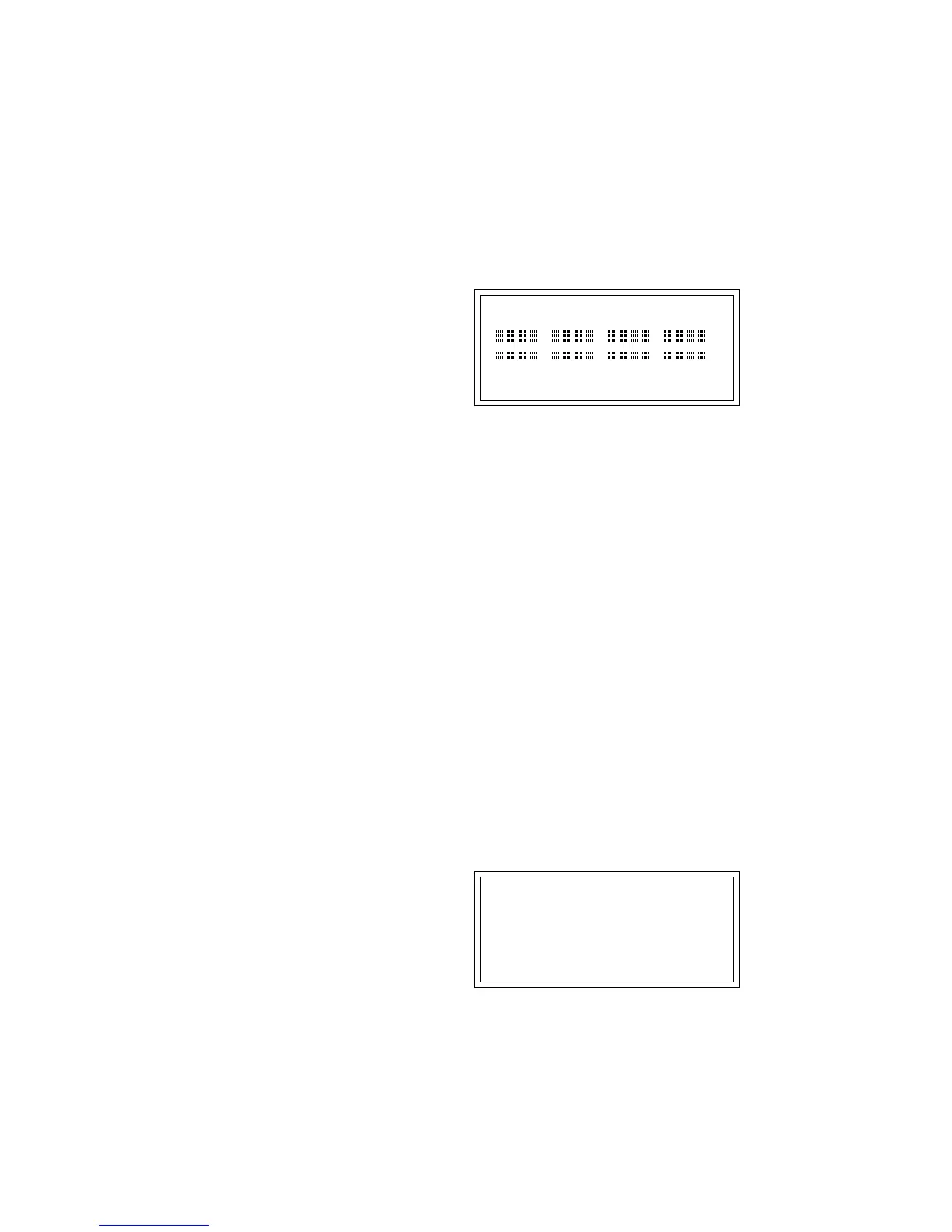
MIX C=01 Volume=127
M1MM 2MM2 123M MMMM
The submix busses can also be programmed by keyboard zone.
Using this feature you could assign a different effect to each half of the
keyboard or change the effect amount as you play up the keyboard. On a
preset containing a drum set, you could have four different effect mixes
to assign to each drum. A zone can be any range of keys.
þTo Program Submix Busses by Zone
• Set the submix bus to “z” using the Data Entry Control or INC/
DEC keys. Now the submix bus will be determined by the zone
assignments in the preset assigned to that MIDI channel.
þ To set up Submix Assignments in the Preset's Zone:
1. Exit the Master module.
2 Select the Preset assigned to the channel you set to “Zone” (z).
3. Press the Dynamic Processing key. The LED will illuminate and
the Dynamic Processing screen will appear.
4. Select a Zone (0). Define a range of the keyboard by pressing the
low key when prompted and then the high key of the range you want.
5. Select the Channel Assignment submodule (9). The following
screen will appear.
CHANNEL ASSIGNMENT
AssignGroup:Poly All
Submix: main
6. Move the cursor to the lower line and select one of the submix
busses using the Data Entry Control or INC/DEC keys.
7. To assign another zone, press Escape and go back to the “Select
Zone” screen to select a new zone. Then change the submix
assignment for the new zone.
8. Save the Bank!
! Caution:
You must be in Multimode in
order to change channels in the MIDI Mix
screen.



 To Next Page