Guided Tours 33
The Current Sample & Current Zone
The ESI has two modules dedicated exclusively to processing samples
within a preset: Sample Management and Digital Processing. Each
sample stored in a bank can be processed by the Digital Processing
module independently. Therefore, we need a way to specify the current
sample, which is the individual sample to be processed.
The concept of the current sample is important. To process one sample
out of a preset, select one sample to be the current sample, and process
it.
To Identify Which Keyboard Keys Belong to Which
Sample:
1. Activate the Preset Definition module.
2. Select Edit Assignment (2).
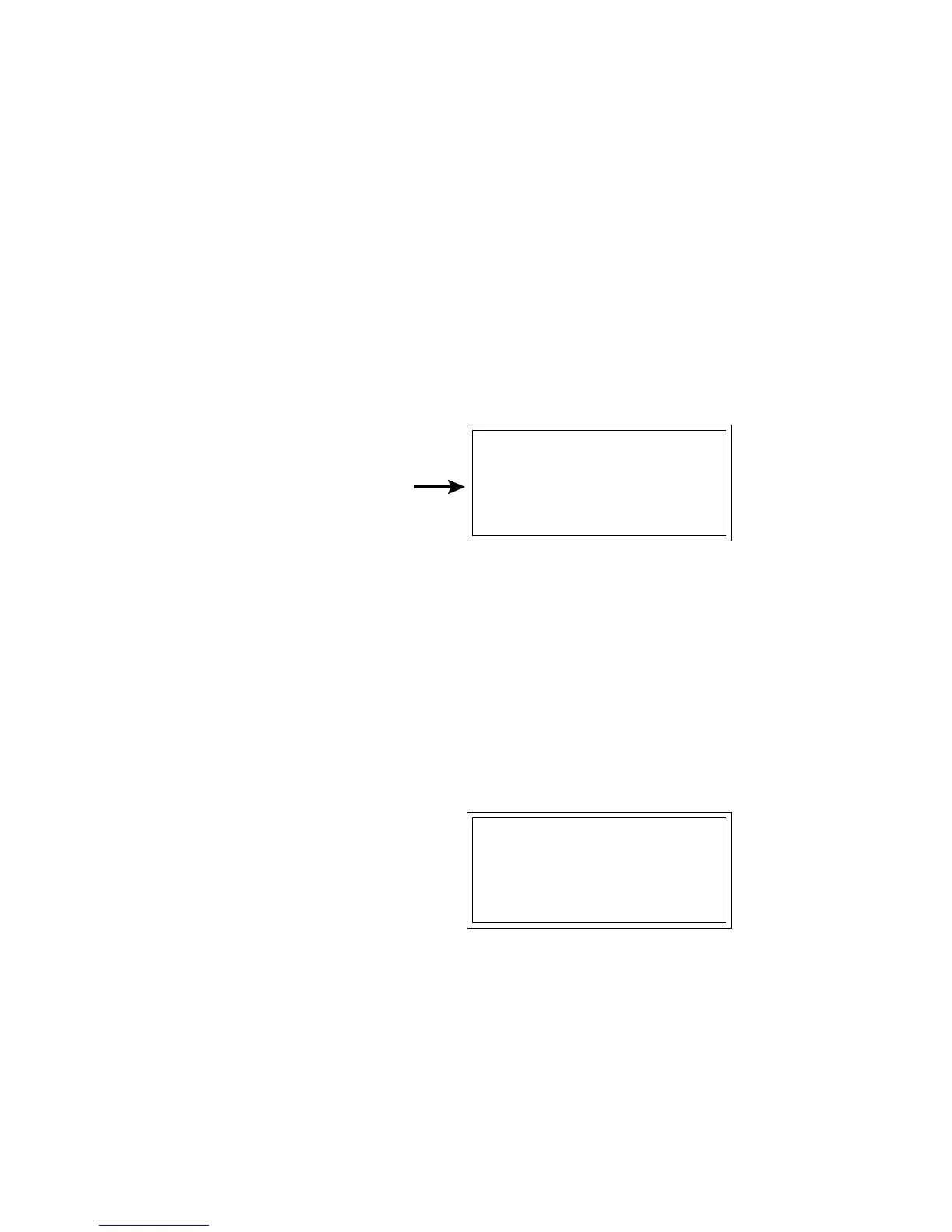
EDIT ASSIGNMENT
000 pri D2
001 Sample Name
No Secondary Sample
3. Play a key on the keyboard. Line two shows the preset number
and the last key pressed. Line three shows the primary sample
assigned to the key, and the fourth line shows the secondary sample,
if any, assigned to the key. As you run your fingers up and down the
keyboard, the primary and or secondary sample numbers will
change indicating the keyboard range of those samples. You can also
move the Data Entry control knob to show you the sample bound-
aries.
4. Choose a zone and press ENTER. The display now shows the
range of the current zone on the upper line of the display. Don’t play
any keys but press ENTER again. Now the display shows something
like this, where XX is the name of the key (such as D2).
EDIT ASSIGNMENT
Zone: XX to XX
Select High Key
Tour 2:
Selecting
Zones
Sample
Number
& Name



 To Next Page