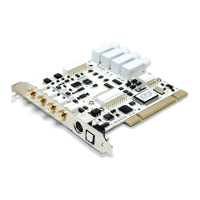
ESI Juli@
MASTER FADER
Allows you to change the level of the final output signal. The level can be set using the mouse,
mouse wheel, or cursor keys.
MUTE
Select this button to mute each signal source.
4. Sample Rate and Clock
Sample Rate
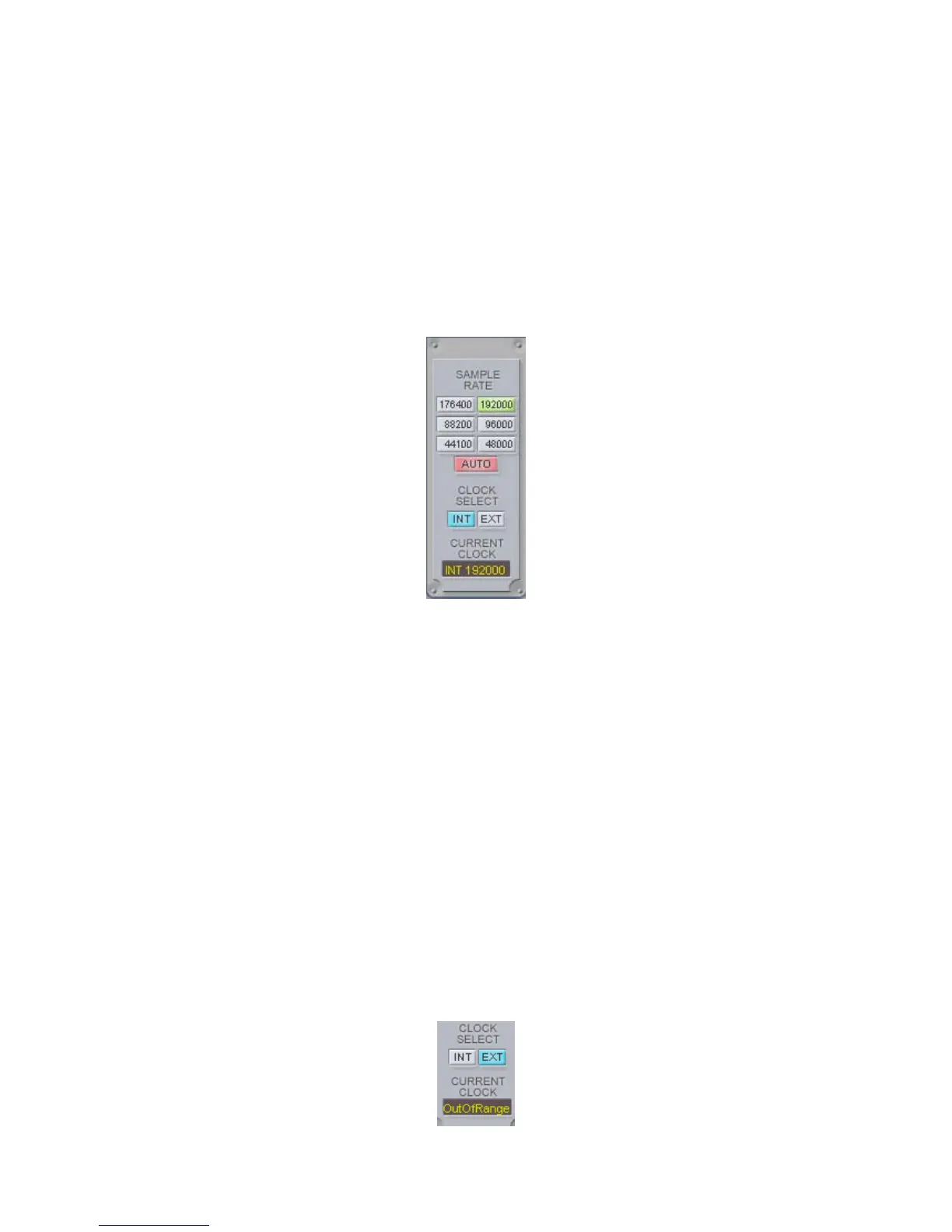
Selects the sample rate for Juli@. The green lit will indicate current sample rate. Juli@ supports
44.1, 48, 88.2, 96, 176.4, 192 (kHz) as sample rates. Select ‘AUTO’ to match the sample rate of the
played audio source automatically (a red light shows that AUTO is on). Deselecting Auto mode
allows you to set the sample rate manually (red light AUTO is off).
Clock Select
Selects the digital clock source for the Juli@.
(INT): Selects Juli@’s internal clock, which becomes the master clock. This mode must be selected
when Juli@ is used alone or any other digital device is configured as slave device.
(EXT): Selects the digital clock or audio data from an external device as the clock source. The
external device will be set as the Master device and the Juli@ will be set and operate as the Slave
device.
* In the EXT clock mode, Juli@ can detect the external clock automatically. If the external clock is
not correct, the Console displays the message ‘Out Of Range’ like shown below.
28


 To Next Page