EHN3261/3361
49
【Stream Settings】This IP camera can output three video streams simultaneously. For each of these
streams, the user can set the compression format, resolution, bit rate, and frame rate individually.
Stream 1 is always enabled for live view. To enable Stream 2, Stream3 and/or Stream 4, check the
Enable Stream 2 / Enable Stream 3 / Enable Stream 4 box.
Note: If you connect to the camera via the Internet and experience a delay (lag time) in the video
feed, try to reduce the number of streams and the quality and resolution of the streams – but
keep the frame rate at its maximum.
Format: Select the encoding format – H.264, MJPEG or MPEG4.
Resolution: Select the most suitable resolution for your needs.
Frame Rate: This function can only be set up in the Advanced tab. Select from 1 to 30 fps.
Bit Rate: This function can only be set up in the Advanced tab. If required, select whether you want
the stream to stream a Constant Bit Rate or a Variable Bit Rate, and set the values of whichever
option you choose.
Click Apply to apply the changes or Cancel to cancel the changes and return to the previous settings.
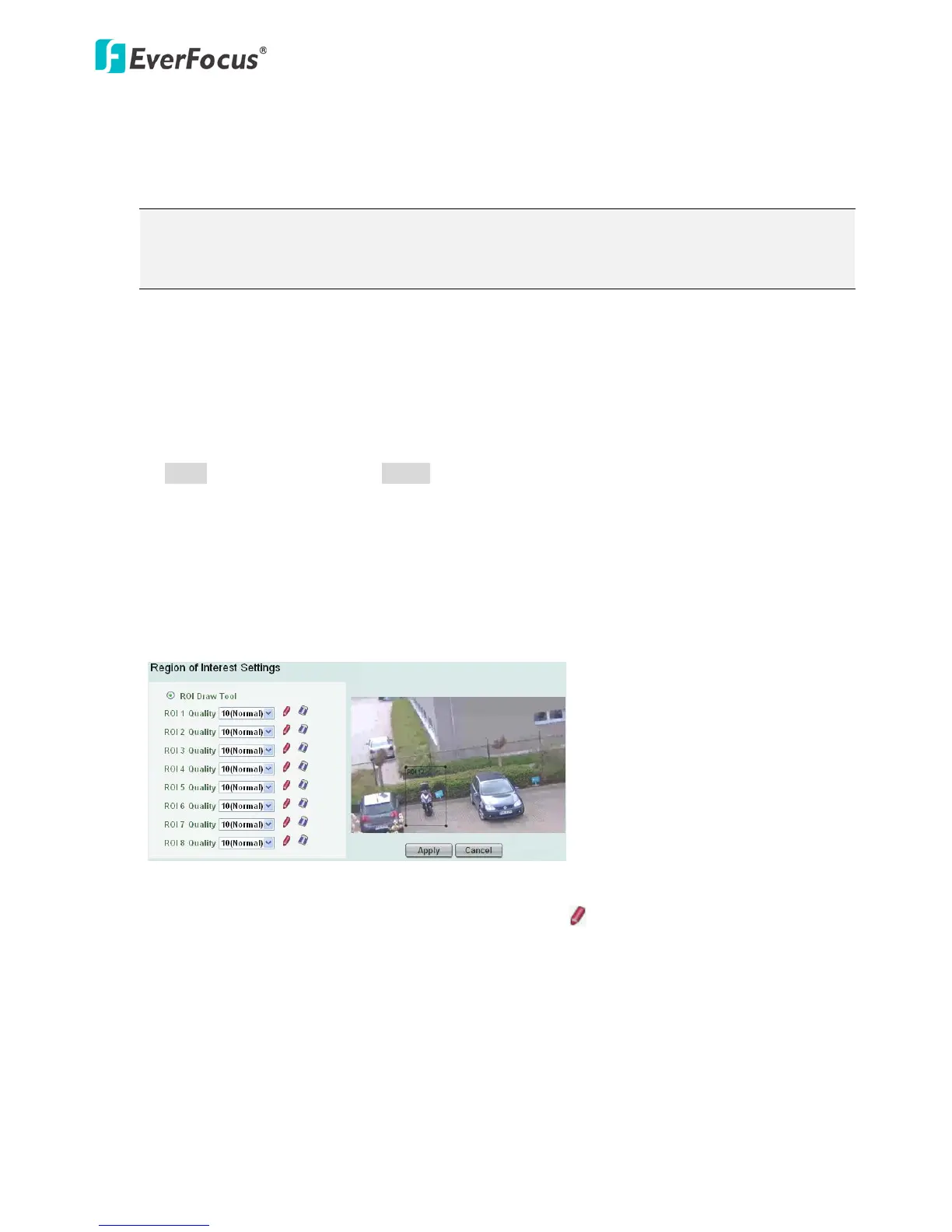
【Region of Interest Settings】This function can only be set up in the Advanced tab. The Region of
Interest (ROI) function allows users to set up multiple regions within an image with better quality
and less distortion than the rest of the image. You can also use this function together with the Digital
Zoom function on the Live View window to get a better image result. Up to eight ROIs can be
configured in this field.
To set up an ROI region:
1. Enabled the ROI Draw Tool and click the Draw button .
2. On the left-side live image, move the cursor to the position where you want the ROI rectangle
to start and then click. Move the cursor to the position (diagonally opposing corner) where
you want the ROI rectangle to end and then click.
3. Select a quality value for the ROI from the Quality drop-down list.
4. Click the Apply button to apply the settings, or click the Cancel button to reset without saving
the settings.


 To Next Page