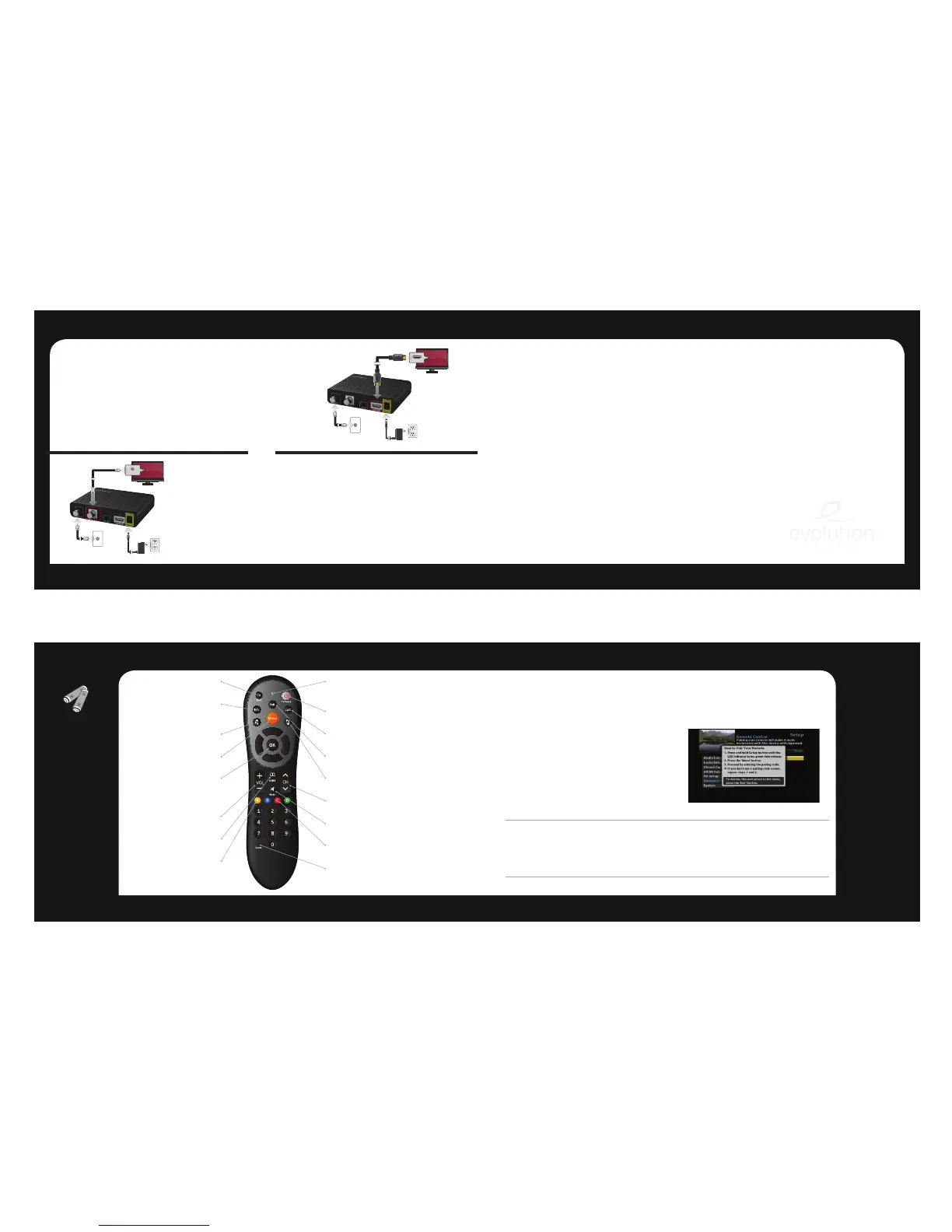
To TV
HDMI (IN)
To TV
To ElectricalOutlet
To Coaxial Wall Outlet
CABLE IN
To TV
To ElectricalOutlet
To Coaxial Wall Outlet
HDMI Connection è
HDMI allows you to take full advantage
of the Evolution Digital HD Set-Top Box
high-definition digital features.
1. Connect a coaxial cable to the cable
wall outlet and the “CABLE IN” port
on the cable box.
2. Connect the HDMI cable to the
“HDMI” port on HD Set-Top Box and
the “HDMI” port on your HDTV.
3. Connect the power cord to the
electrical wall outlet and the “DC 5V
IN” port on the HD Set-Top Box.
Note: HDMI cables carry audio and video to the TV.
Before you activate
1. Complete the Cable Connection steps
prior to activating.
2. Have the HD Set-Top Box Serial Number
available. This can be found on the bottom of
the HD Set-Top Box or on the side panel of the
product packaging.
3. Have your cable provider customer account
number accessible. This is typically found on
your cable provider billing information.
Now you are ready to activate!
4. Activate your HD STB by calling your cable
provider directly.
Note: Installation and activation will not impact your current
existing cable service.
SD Coaxial Audio/Video
Connection ç
1. Connect a coaxial cable to the cable
wall outlet and the “CABLE IN” port on
the HD Set-Top Box.
2. Connect another coaxial cable to the
“RF OUT” port on the HD Set-Top
Box. Connect the other end to the
input port on the TV.
3. Connect the power cord to the
electrical wall outlet and the “DC 5V
IN” port on the HD Set-Top Box.
Note: Make sure the channel 3/4 switch matches the
channel on your TV. For example, if your cable box is
set to “3”, make sure your TV is on channel “3”.
Activation
OR
Why do I need to activate my HD Set-Top Box?
Activation essentially “turns on” your digital box in your home and on your cable provider’s network.
10 11
Remote ControlRemote Control
TV Input
*
Toggle TV Input
Info
View the channel name
and number, date and time
Page Up
Now & Next page up
Menu
Display the Main Menu
OK
Select a highlighted item within
Menus. Display channel name
and number, date and time
Volume
Audio up & down
Guide
View Now & Next
Yellow A
Toggle to secondary language
(if available)
*TV must be programed with the remote
LED Indicator
Button press and special
command indication
TV Power
*
Turn your TV on or off
Last
Return to the previous channel or menu
Exit
Return to watching TV
Page Down
Now & Next page down
Channel
Channel up & down
Mute
Sound on & off
Red C
Toggles through available closed captioning
Setup
Program your remote control to your STB
and TV
NOTE
• Wheninserting
batteries,makesure
thatthepolarity(+/-)
iscorrect.
• TheLEDonthetopof
theremoteisavisual
indicatorthatconrms
theremotehas
powerwhenabutton
ispressed.
• Yourremotemayvary
slightlyfromtheone
picturedhere.
However,basic
functionsshould
remainthesame.
Remove remote
control pairing
If you would like to
use your remote
control for a different
set-top box, you
must first un-pair
the remote control
from the current
device. Follow the
steps below to
remove the pairing.
1Pressandholdthe
Setupbuttonuntil
theLEDIndicator
turnsgreen.
2Enter9-8-7onthe
remotecontrol.
3TheLEDIndicatorwill
blinkgreentwice.
Pair your remote control with your HD STB
1. Press the Menu button.
2. Select Remote Control and then select
Remote Control Pairing.
3. Press and hold Setup button until the
LED Indicator turns green.
4. Press the Menu button.
Please allow a few seconds for the menu to display
5. Proceed by entering the pairing code displayed
in blue on the pairing code pop-up screen.
Note: If you don’t see a pairing code screen, repeat steps 1 and 2.
To force remote control to send volume
control commands to the TV
1. Press and hold Setup button until the
LED Indicator turns green.
2. Press the volume up button
To force remote control to send volume
control commands to the HD STB
1. Press and hold Setup button until the
LED Indicator turns green.
2. Press the volume down button
Installing your HD Set-Top Box out of sight (pair remote) ê
Your remote control can be paired directly with your HD STB, allowing you to place the device out
of sight (in an entertainment center or behind your TV, for example). Once your remote is paired to
a specific HD STB, it will not control any other set-top box in your home.
Note: Refer to the Remote Control Programming and Operating instructions, provided with your remote control, to program your remote to
work on your TV and for more detailed information regarding pairing your remote.



 To Next Page