11
5.2 The steering column
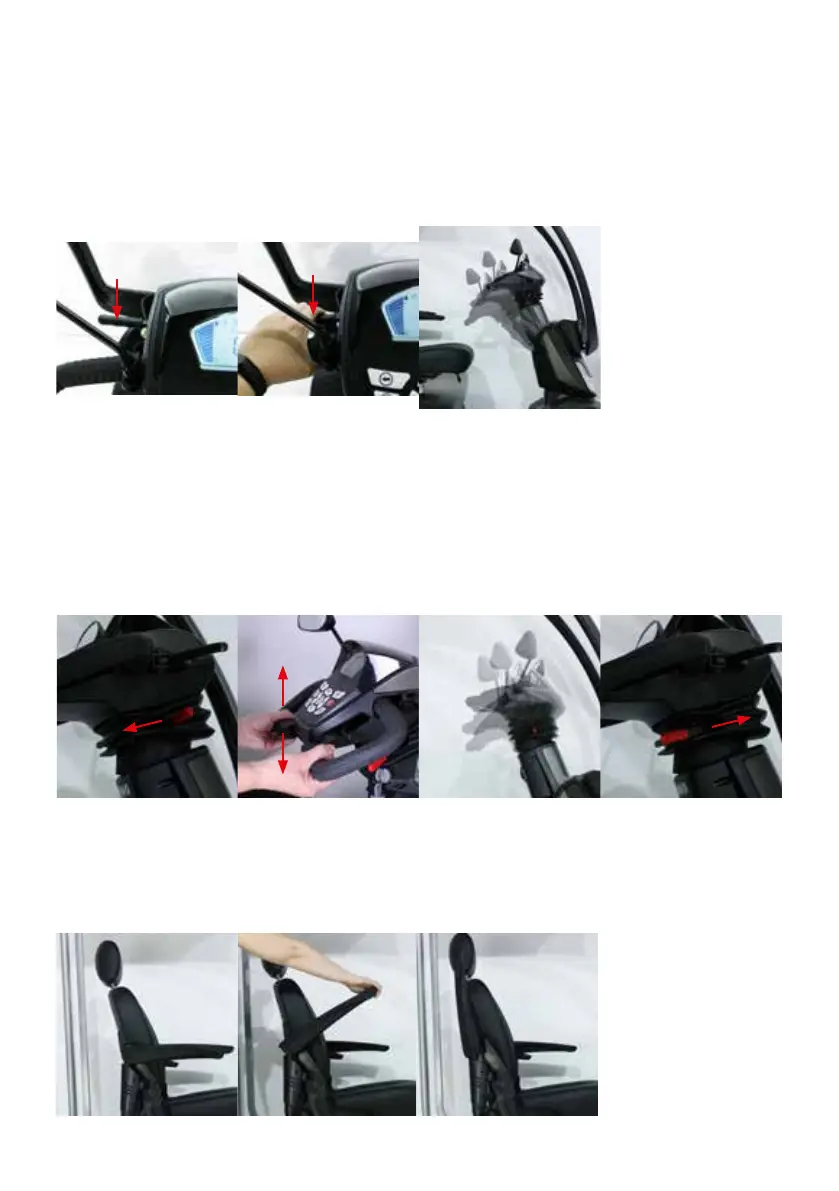
The steering column of the Excel Outback can be easily adjusted in angle. Adjusting the steering column to the desired
angle improves driving comfort. You can adjust the angle of the steering column by following the steps below;
• You should always return the steering column to its up most position to get out. This makes getting out easier (see
chapter 6).
• On the left side of the handlebar, in front of the handle, is a black lever (see photo 3). You have to pull the lever
towards you (photo 4) and with your right hand pull the steering column towards you or push it away from you to
adjust the angle.
• Once the desired
position is reached,
release the black
lever.
You can also adjust the angle of the upper part of the steering column, where the dashboard is located. You can read
below how to do this;
• On the right side, under the ‘head’ of the steering column, you will nd a lever with a red end (Photo 6). Pulling this
lever toward you unlocks the head.
• You can now pull the handles up or down (Photo 7) to change the angle of the steering column head to the
desired angle.
• Is the head at the desired angle? Now push the lever with the red end forward again until you feel it engage
(Photo 9). If necessary, pull the handles a little more until you notice that the head is locked in the chosen angle.
5.3 The armrests
The Excel Outback is equipped with height-adjustable, foldable and removable armrests. You can easily fold up the
armrests by pulling the armrest up, as shown in Photo 11. Folding up the armrests makes getting in and out of your
scooter a lot easier, see section 6.1.1.
EXCEL OUTBACK | Photo 11
EXCEL OUTBACK | Photo 10
EXCEL OUTBACK | Photo 12
EXCEL OUTBACK | Photo 3 EXCEL OUTBACK | Photo 4 EXCEL OUTBACK | Photo 5
EXCEL OUTBACK | Photo 6 EXCEL OUTBACK | Photo 7 EXCEL OUTBACK | Photo 8 EXCEL OUTBACK | Photo 9


 To Next Page