8
View Your Device
The app interface may change due to version update. Please refer to the actual interface.
1� Live View
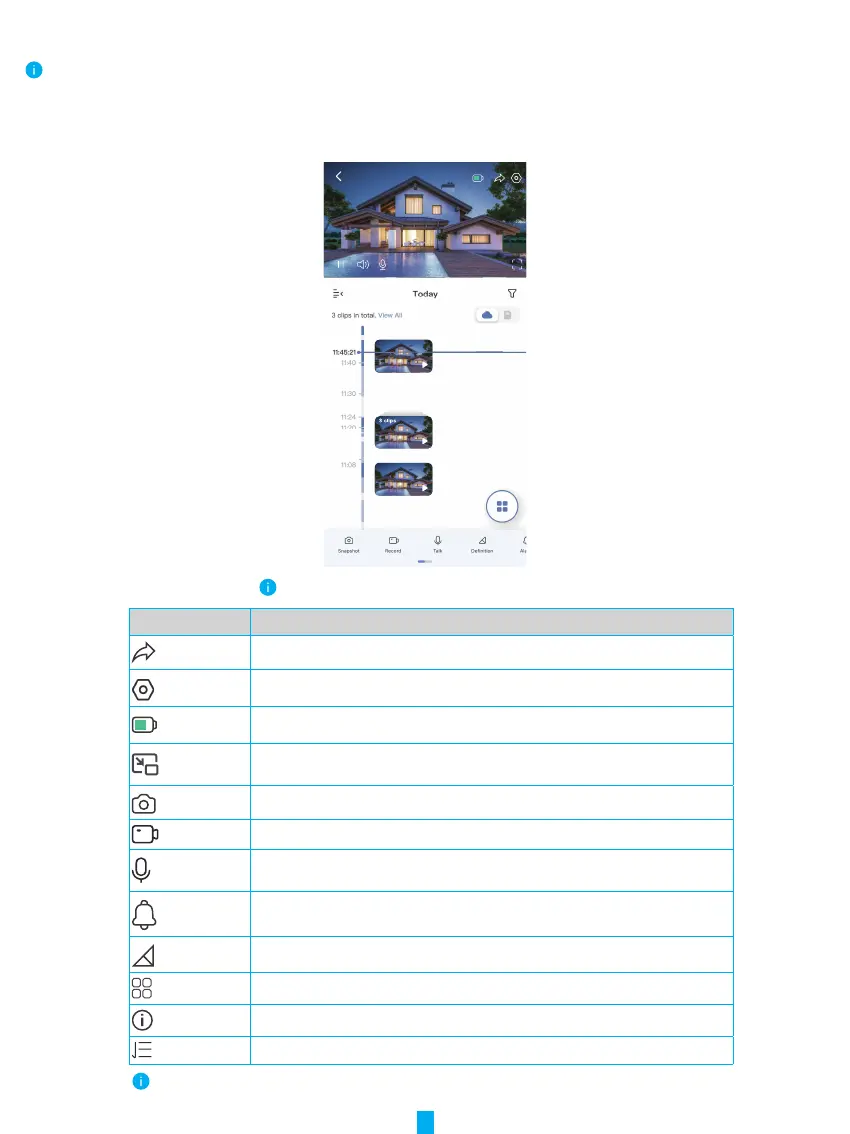
When you launch the EZVIZ app, the device page displays as shown below.
You can view and listen to a live feed, take snapshots or recordings, and choose video definition as needed.
Swipe left and right across the screen to see more icons.
Icon Description
Share. Share your device with anyone you want.
Settings. View or change the device settings.
Battery. View the remaining battery capcity.
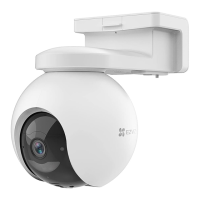
Picture in Picture. You can select to see the pictures taken simultaneously by
two lens in the live view.
Snapshot. Take a snapshot.
Record. Manually start/stop recording.
Talk. Tap the icon, and then follow the on-screen instructions to talk to or listen
to people in front of the camera.
Alarm. Sound or flash to deter intruders.
Definition. Select video resolution as you needed.
Nearby Device. Tap to check available devices nearby.
Tip.Tap to see more information about the device.
Rearrange. Rearrange the sequence of all the functions above.
Please refer to the actual interface for specific information.


 To Next Page