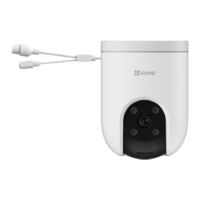
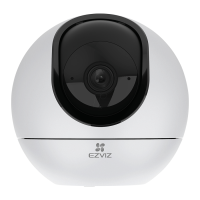
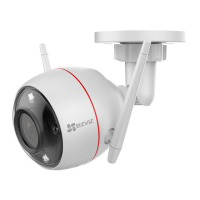
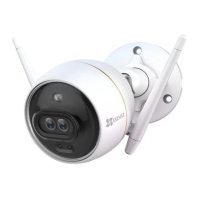
2
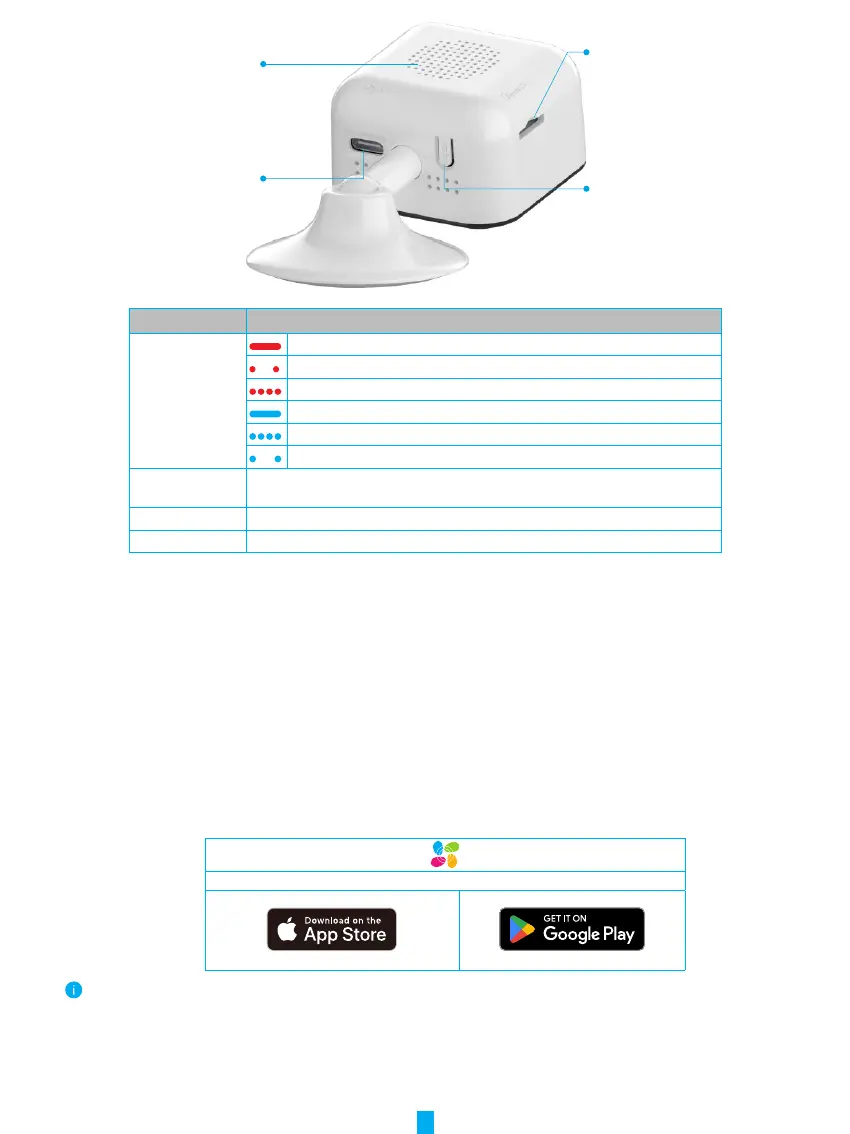
Reset Button
Micro SD Card Slot
Power Port
Loudspeaker
Name Description
LED Indicator Solid Red: Camera starting up.
Slow-flashing Red: Network exception.
Fast-flashing Red: Camera exception (e.g. Micro SD card error).
Solid Blue: Video being viewed in the EZVIZ app.
Fast-flashing Blue: Camera ready for Wi-Fi connection.
Slow-Flashing Blue: Camera working properly.
Micro SD Card
(sold separately)
Initialize the card in the EZVIZ app before using it.
Recommended compatibility: Class 10, maximum space 512GB.
Reset Button
Press and hold for 5seconds to restart and set all parameters to default.
Power Port For powering on the camera.
Setup
Follow the steps to set your camera:
1. Get the EZVIZ app, and log in to your EZVIZ app account.
2. Power on your camera.
3. Add your camera to your EZVIZ account.
1� Get the EZVIZ App
1. Connect your mobile phone to Wi-Fi (suggested).
2. Download and install the EZVIZ app by searching “EZVIZ” in the App Store or Google Play
TM
.
3. Launch the app and register an EZVIZ user account.
EZVIZ App
If you have already used the app, please make sure that it is the latest version. To find out if an update is available, go to the app store and
search for EZVIZ.


 To Next Page
 Loading...