GL-35DSR Network Storage & Extra Features
3.3 BitTorrent Download Manager
Used in conjunction with its built-in BitTorrent™ client, the NAS can be used to download files from
the Internet and have them saved directly to the hard drive.
3.3.1 Starting a Download
To start downloading files, download a torrent file from the internet and then upload it to the
network drive. Once the torrent file has been added, you can start downloading. The downloaded
files will be stored in the “BT” folder inside the Public directory.
1. Download and store the torrent file(s) on your computer.
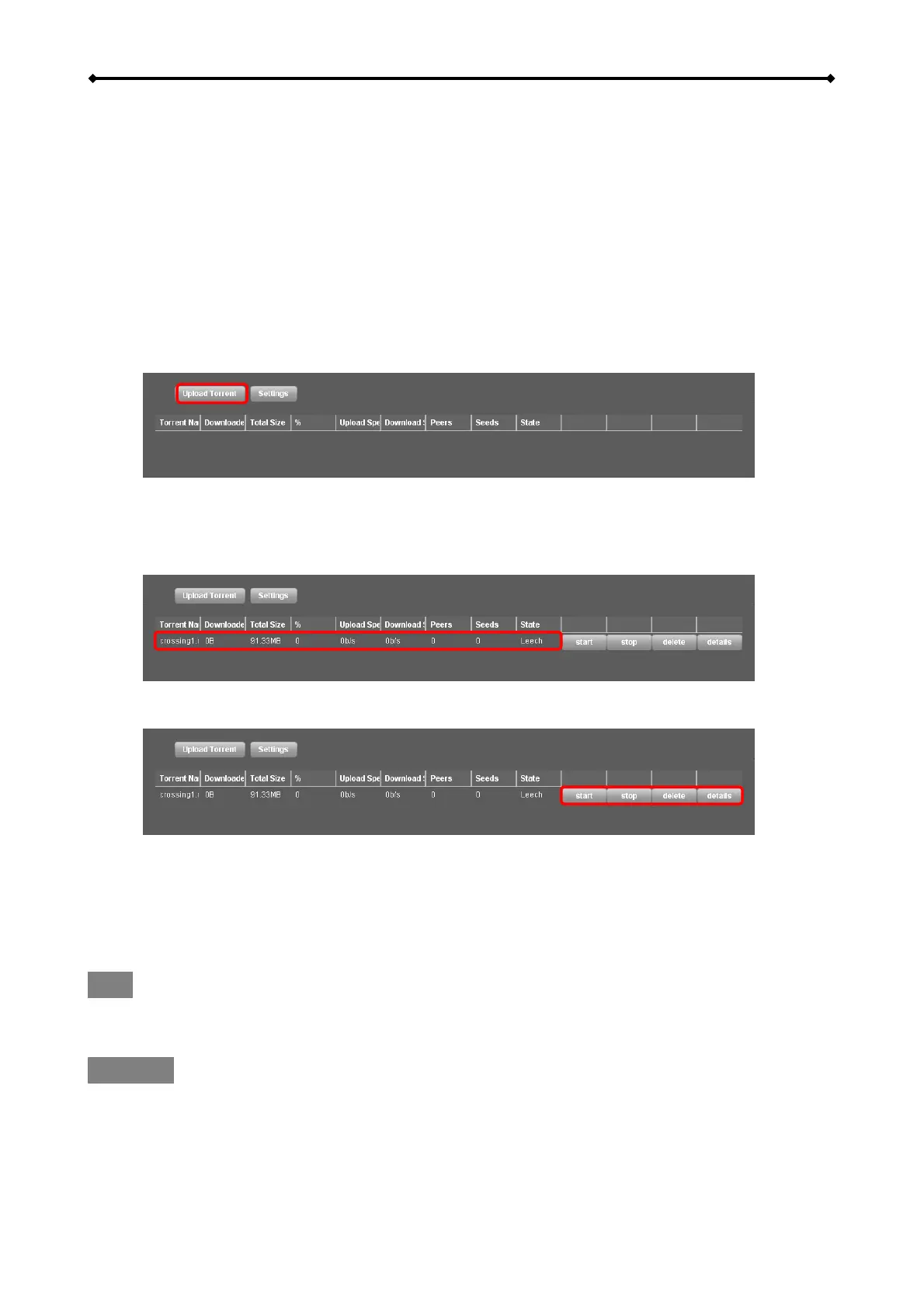
2. Login to your network drive and go to the Applications menu. Under BitTorrent Service,
click Upload Torrent and locate the torrent file on your computer.
3. Click OK to confirm and close the confirmation window.
4. The file will be added to the download queue and the download starts automatically. You
can now turn off your computer if desired.
5. For further commands, select the file from the list and you will have the option to stop and
start the download as well as completely remove a file from the queue or see more details.
6. Once the download process has reached 100% and if the file is not removed from the
download queue, it will start seeding (uploading) the file to other users.
7. You can now go to the BT folder and copy your file into your desired folder. If you don’t
intend to share this file with other BitTorrent users, you can now remove it from the
download queue.
Note
Once the Torrent has been added to the queue, the GL-35DSR LAN can download the files by
itself and the computer can be turned off.
Important
Sometimes it may happen, that you cannot add your selected Torrent files. In the case, please
rename the file and make sure you do not have any special character or space character inside.
(e.g. “driver_update_file.torrent” instead of “driver update file.torrent”)
EN 26/37



 To Next Page