GL-35DSR Network Storage & Extra Features
3.4 Printer Server
This network drive is equipped with a printer server. Connect your USB printer to the USB host port
on the back of your network drive to share it with other workstations on the same local network.
3.4.1 Installation on a PC
Printing via the shared network printer will be slower than when the printer is connected directly to
the USB port on the computer. After you press the Print button, please wait for the printer to
receive the data.
1. Connect your USB printer to the USB host port on the network drive and turn both units on.
2. Login to your network drive and go to the Applications menu to make sure the printer server
service has been enabled. We also recommend using a fixed IP address, in order to
prevent having to modify the printer setup whenever the IP changes.
3. On your PC, go to Start and select “Printers and Faxes”.
4. Go to File, select “Add Printer” to bring up the printer setup wizard and press “Next” to start.
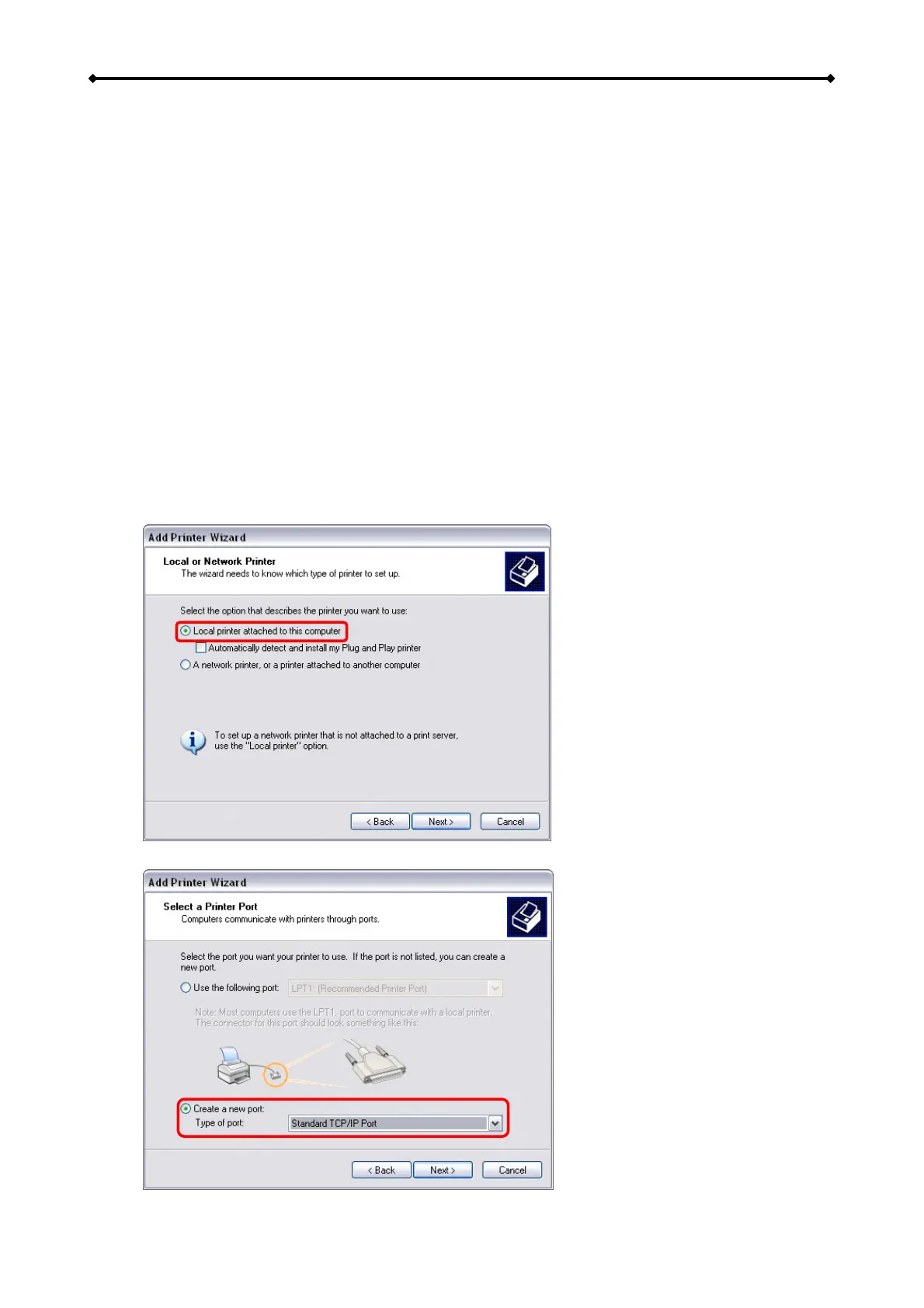
5. Select “Local printer attached to this computer”, deselect “Automatically detect and install
my Plug and Play printer“ and press “Next”.
6. Select “Create a new port”, choose “Standard TCP/IP Port” from the list and click on “Next”.
EN 27/37



 To Next Page