GL-35DSR NAS Configuration
1. To share files, browse for your media files in the media library.
2. Select the files, click Share in the toolbar and select the user you would like to share the
files with.
3. A new folder with the user name and a link to the files is automatically created inside the
“To” directory.
4. The other user is now able to access and view your shared files.
To stop sharing, go to the “To” folder inside the share directory and select the folder with the user
name you would like to delete. Select the files inside it or the folder itself and click Delete in the
toolbar. It will not actually remove the original files but only delete the files inside the share folder.
Note
To upload single or multiple files by dragging them from your computer and dropping them in the
Media Library, install Gears from Google. See http://gears.google.com
for more details.
Important
For a large number of files or folders to be copied, it’s recommended to copy these files via SMB.
This way is a lot faster, than the use of GUI copy mode with Google Gears!
Please enter the IP address into the browser bar of you Internet Explorer (e.g. \\192.168.11.10
) or
enter the name of the device (e.g. \\gl-35dsr
).
For more information please see chapter 3.1.1
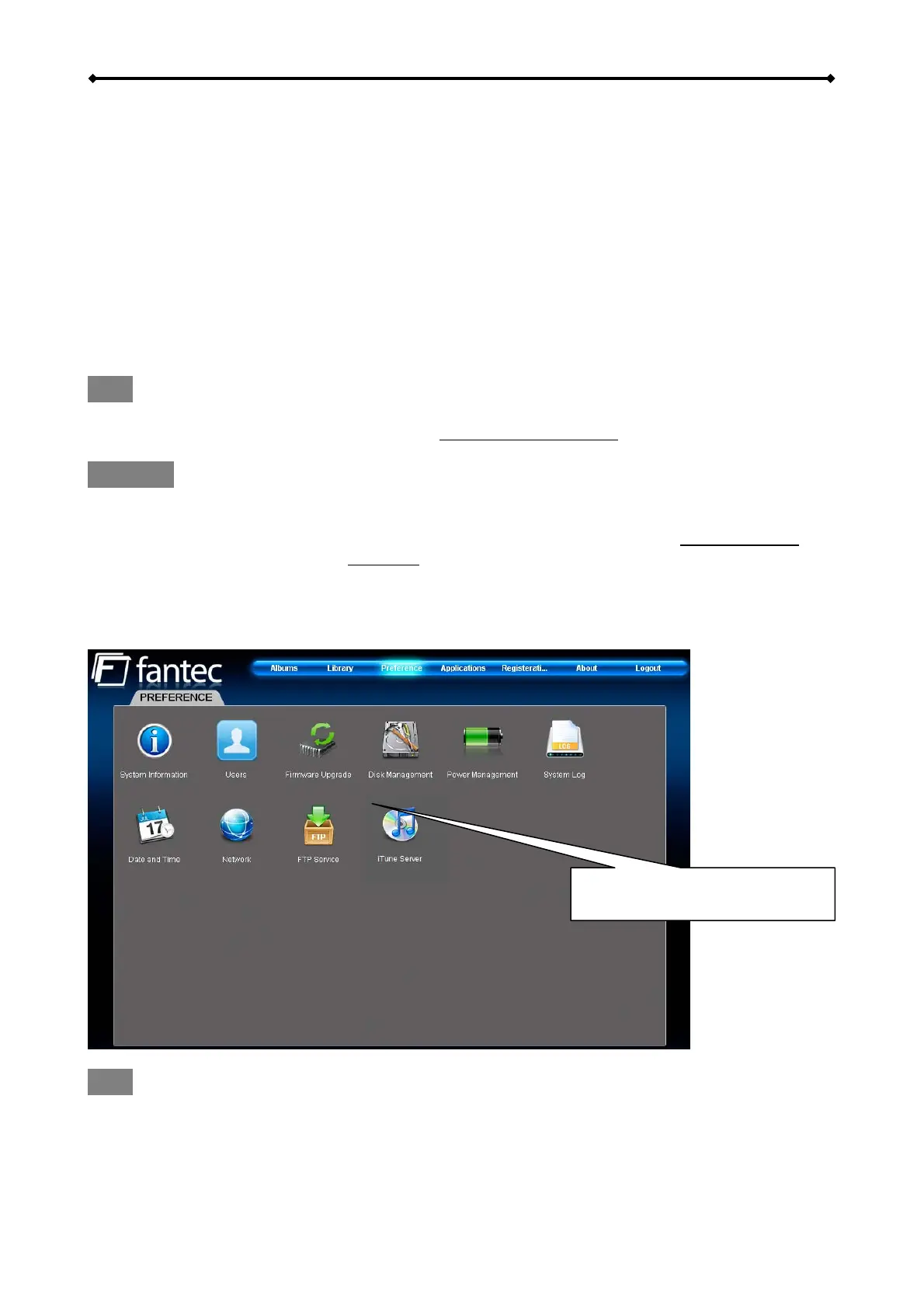
2.2.3 Preference
Double-click any of the icons
to modify the settings
Note
Only the system administrator (admin) is able to modify any of these settings. All other Users will
only be able to view the system information.
System Information
EN 13/37



 To Next Page