11
Every disk should appear with the word “Basic”, a size value that shows the available
storage capacity, and a status of “Online”. Instead of Basic, a disk could appear
Unknown, Dynamic, or Not Initialized. A window opens with the selected disk (all
Unknown disks may appear in this window). Make sure the box next to each disk is
checked and click OK. The disk should now be marked as a Basic disk. If a disk
appears as “ Dynamic”, right-click the disk icon, and select Revert to Basic Disk.
Within a few seconds, the disk should be marked as a Basic disk. If a disk is marked
“Not Initialized”, right-click the disk icon and select Initialize Disk. An additional
dialog box appears allowing you to select which disks to initialize. Uncheck the Disk
item and click OK. Within a few seconds, the selected disk(s) should be marked as a
Basic disk.
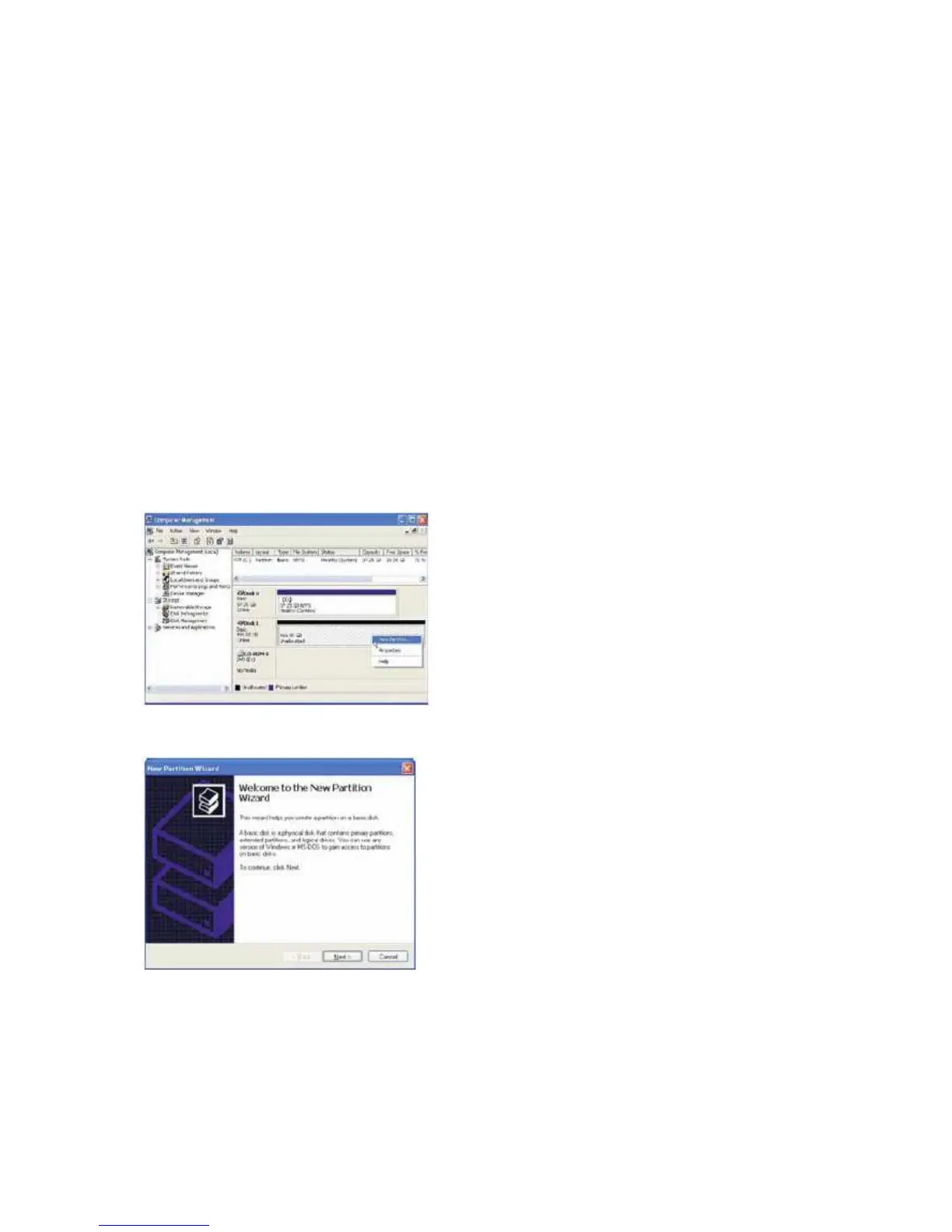
3. Right-click the configured disk's unallocated space and select New Partition.
If the New Partition option is not available, select the disk and initialize it first.
To do this, right-click on the disk item and select „Initialize Disk".
4. Click Next to start the Partition Wizard.



 To Next Page