13
5.2. MAC OS X
Important: Before reconfiguring a volume, back up your data and drag the old drive to
the trash to un-mount previously defined partition. If no hard drives are connected to the
Storage Appliance, the Processor disk (8.0 GB Config Disk Media) will appear. Do not
remove or modify that partition. After you configure and partition the new volumes,
restore the backed-up data to the new configuration.
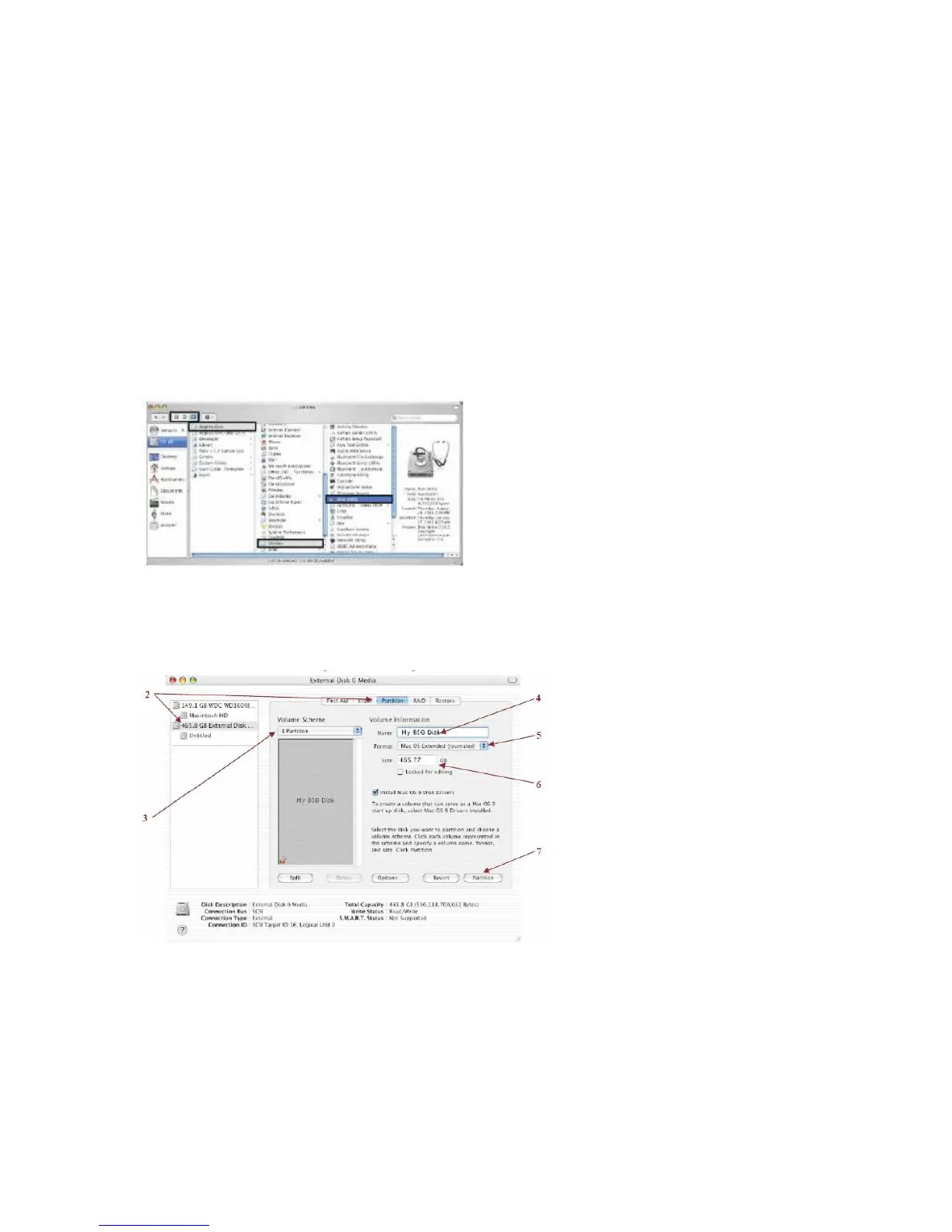
1. Please connect the device to your computer’s USB 3.0 interface. Launch Disk
Utility from the Application > Utilities folder.
2. Select a configured disk and click the Partition tab. This procedure illustrates the
BIG Storage Policy configuration, which concatenates the capacity of all hard drives
connected to the device.
3. Select 1 Partition from the Volume Scheme drop-down list.
4. Enter a name for the volume in the Name field (such as “My BIG disk”.)



 To Next Page