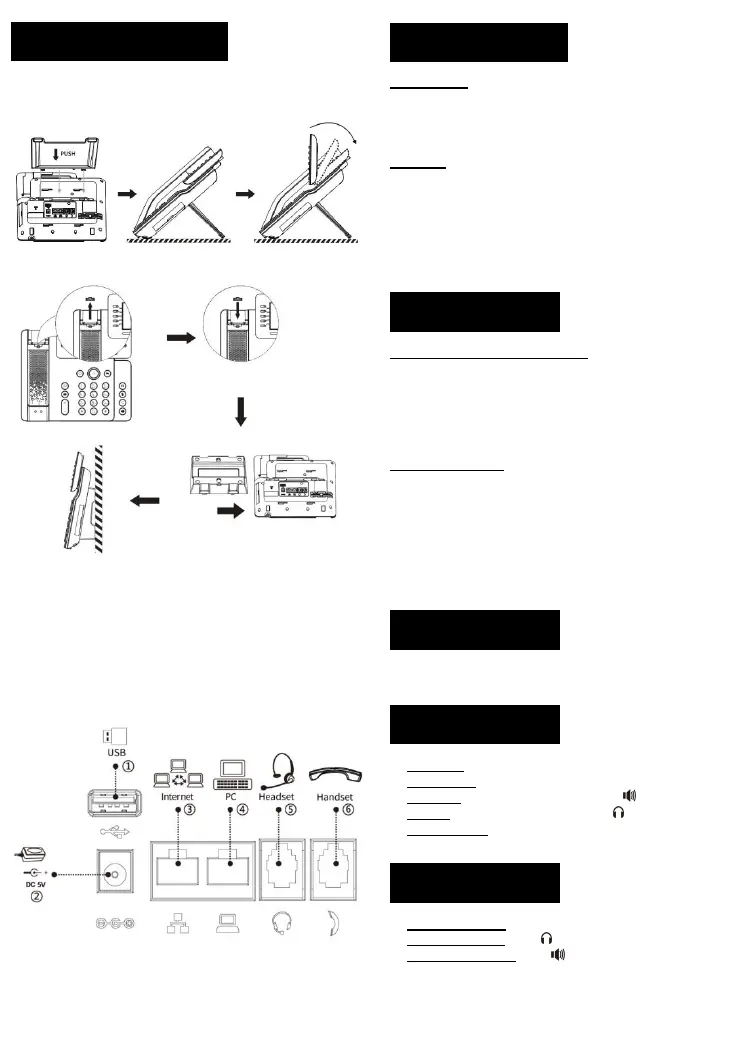
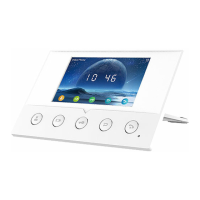
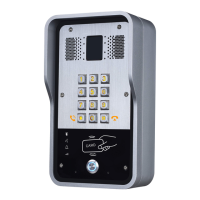
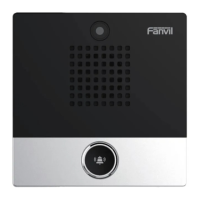
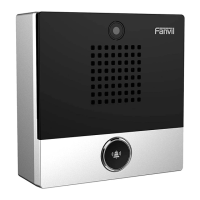
Please follow the instructions in below picture to install the device.
Attach the stand and adjust the angle of the screen
Wall mounting (wall stand need buy separately)
Connecting to the device
Please connect power adapter, network, PC, handset, and headset to
the corresponding ports as described in below picture.
①
USB port: connect USB device (USB flash drive)
② Power port: connect the power adapter.
③ Network port: connecting local area network or internet.
④
PC port: the network port connect to the computer.
⑤ Headset port: connect headset.
⑥ Handset port: connect IP Phone handset..
Using Ethernet
1.The power on the device and connect the WAN port of the phone
to the RJ45 socket of a hub/switch or a router (LAN side of the router)
using the Ethernet cable.
2.The default is DHCP mode.
Using WiFi
1.The power on the device and make sure the phone is idle.
2.Press Menu > Basic > WLAN, Enabled the WiFi Feature.
3
.
Press scan to search for currently available wireless network.
4.Enter the available network and select the WiFi you want to
connect.
5
.
Press connect soft key and enter the appropriate password to
connect to the WiFi. The default is DHCP mode.
Configuration via LCD menu of phone
1
.
Press Menu > Advanced (default password 123)
2.Select Network: To configure the Network Settings
(IPv4/IPv6/IPv4&IPv6, DHCP/Static/PPPoE).
3
.
Select Accounts: To configure enable the account, fill the SIP
server address, port, user name, password etc.
4.Save the configuration.
Configuration via web
1. Get the IP address from the phone: Press down navigation key, or
Menu > Status > IPv4 / IPv6.
2. Login: Input the IP address in the web browser. The PC and phone
should be in the same IP address segment (The default username
and password are both ‘admin’.)
3. Configure: Select network/account etc, and fill the relevant
content.
4. Save the configuration.
1
.
Press Menu key > Basic > Language.
2.Select the desired language and press OK soft key.
1.Pre-dialing: enter the phone number and pick up the handset.
2
.
Direct dialing: lift the handset and enter the phone number.
3.Handsfree: enter phone number and press or vice versa.
4.Headset: enter phone number and press or vice versa.
5
.
Designated line: press line key, enter phone number and press
dial key.
1.Using the handset: pick up the handset.
2
.
Using the headset: press .
3.Using the handsfree: press .


 To Next Page