14
With the Sequencer section it is possible to record and then to listen to all that was played. The Sequencer allows you to test
the your musical learning level. The musician can play the melody, record it with a song and then listen to the outcome.
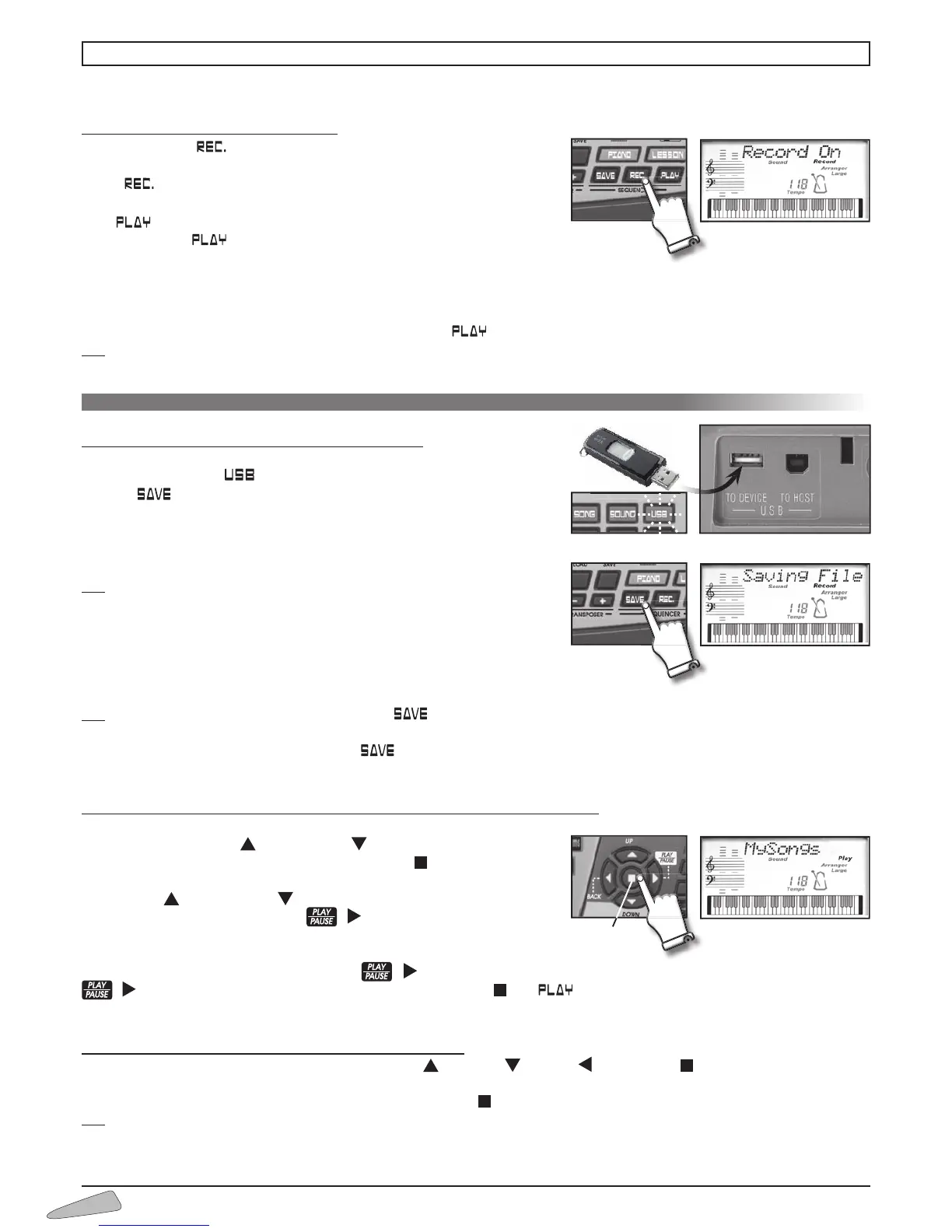
How to record a musical sequence
Press the button The display will read “Record On” and “Record”
flashing to show that the Sequencer is on. Play the song you wish to record.
Press once again to stop recording. The display will read “Record
Off
”.
Press to listen to what was recorded. The display will read “Sequencer”
and “Play” . Press once again to stop.
Nearly 14,000 notes can be memorised.
When the memory is full, the display reads “
Record Off” temporarily and the indication “Record” disappears.
After a recording, when PL AY is on, variations made with the control panel can affect the recordings.
Recorded data remains in the memory as long as the keyboard is on.
If nothing has been recorded in the Sequencer, by pressing
, the display reads “SequenEmpty” temporarily.
N.B.: Sounds coming from the microphone cannot be recorded.
The recorded sequence can be saved on a USB Flash Drive (not included).
How to save a recording on a USB Flash Drive
1. Insert a USB Flash Drive in the relevant socket (
USB TO DEVICE
) in the back of
the instrument. The
control turns on.
2. Press . The display visualises “Saving File”, and then “File
saved”, to indicate that the musical sequence has been memorised in the
USB Flash Drive.
The display will then read “
Seq00” which is the first name assigned automa-
tically to the musical sequence just memorised.
N.B.: The musical sequences memorised in the USB Flash Drive go from “Seq00”
to “Seq99”. The number is assigned automatically.
All of the sequences from “Seq00” to “Seq99” are automatically stored in the
folder “
MySongs” and stay memorised even when the instrument turns off
or the USB Flash Drive is removed.
The folder “
MySongs” is created automatically with the first SAVE.
The sequences from “Seq00” to “Seq99” are midi files and can be managed on the PC with the most widespread musical programs.
N.B.: If the USB Flash Drive is not inserted, pressing
, the display will read “USB FD Off”. It is therefore not possible to save
the recording.
If no recording has been done and you press , the display will read “Disable”.
The USB Flash Drive cannot be inserted and removed with the instrument on as well.
How to recall a musical sequence already saved on a USB Flash Drive
1. Insert a USB Flash Drive in the relevant socket (
USB TO DEVICE
) in the back of the instrument.
2. With the controls UP (
) and DOWN (
), view the name of the folder
“MySongs” on the display and press ENTER (
): the display reads
“Loading”;
3. With UP (
) and DOWN (
) select the desired sequence, i.e. “Seq00”,
“Seq01”, “ Seq02”, etc… Then press (
) to listen to the sequence.
The display reads “Loading”, and then “FileLoaded” and Play on the
top right.
To pause the sequence that is playing, press (
) . The display reads Play which is flashing. To restart the sequence, press
(
) again. To stop the sequence being played, press ENTER (
), or on the Sequencer or START / STOP in the STYLE
section.
How to delete a sequence from the USB Flash Drive
1. Enter the folder “MySongs” using the controls UP (
), DOWN (
), BACK (
) and ENTER (
) and view the sequence you
wish to delete.
2. Write 86. The display reads “DeleteFile?”; pressing ENTER (
), the sequence will be deleted.
N.B.: The midi files contained in other folders can be deleted also by following the same procedure.
13. SEQUENCER
ENTER


 To Next Page