20
Multiroom
Watch recordings on another Fetch box
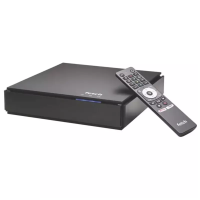
You can share recordings between up to three Fetch boxes in your home if your Fetch service includes the
Multiroom feature*. This means you can watch stuff you recorded on any Fetch box from any other box in your
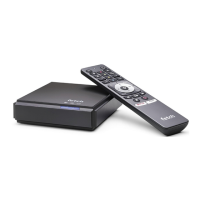
home. You can watch content recorded on your other boxes from a Fetch Mini too.
You can’t set or manage recordings on other boxes from a Fetch Mighty or Gen 2 box. However, you can do this
from a Fetch Mini when you pair to your Fetch Mighty or Gen 2 box.
Finding your shared recordings
You’ll see shared recordings in Menu > My Stuff > Recordings. The name of the Fetch box on which the recording
is stored will show in the recording options.
How does Multiroom work?
All your Fetch boxes need to be on the same account, powered on and connected to your local network.
Select the sharing options in Menu > > Multiroom > Options (Page 51) for each box in your home. You can then
share recordings, subscription channels, rentals and purchases.
If you’ve no antenna connected to your Fetch Mini, you can share Free-to-Air channels from a paired Mighty or
Gen 2 box. (Your paired Fetch Mighty still needs a TV antenna connection to receive and share digital Free-to-Air
TV). You can’t share Free-to-Air channels from one Fetch Mighty or Gen 2 box to another.
Which boxes support Multiroom?
The Gen 2, Mighty, and Mini boxes all support sharing.
* Multiroom may not be available on your Fetch service yet.
For more info or help, download the Multiroom User
Guide from fetch.com.au/guides


 To Next Page