21
Things you can do with Recording Priority
Set the seasons you want to record
Set the number of episodes you want to keep
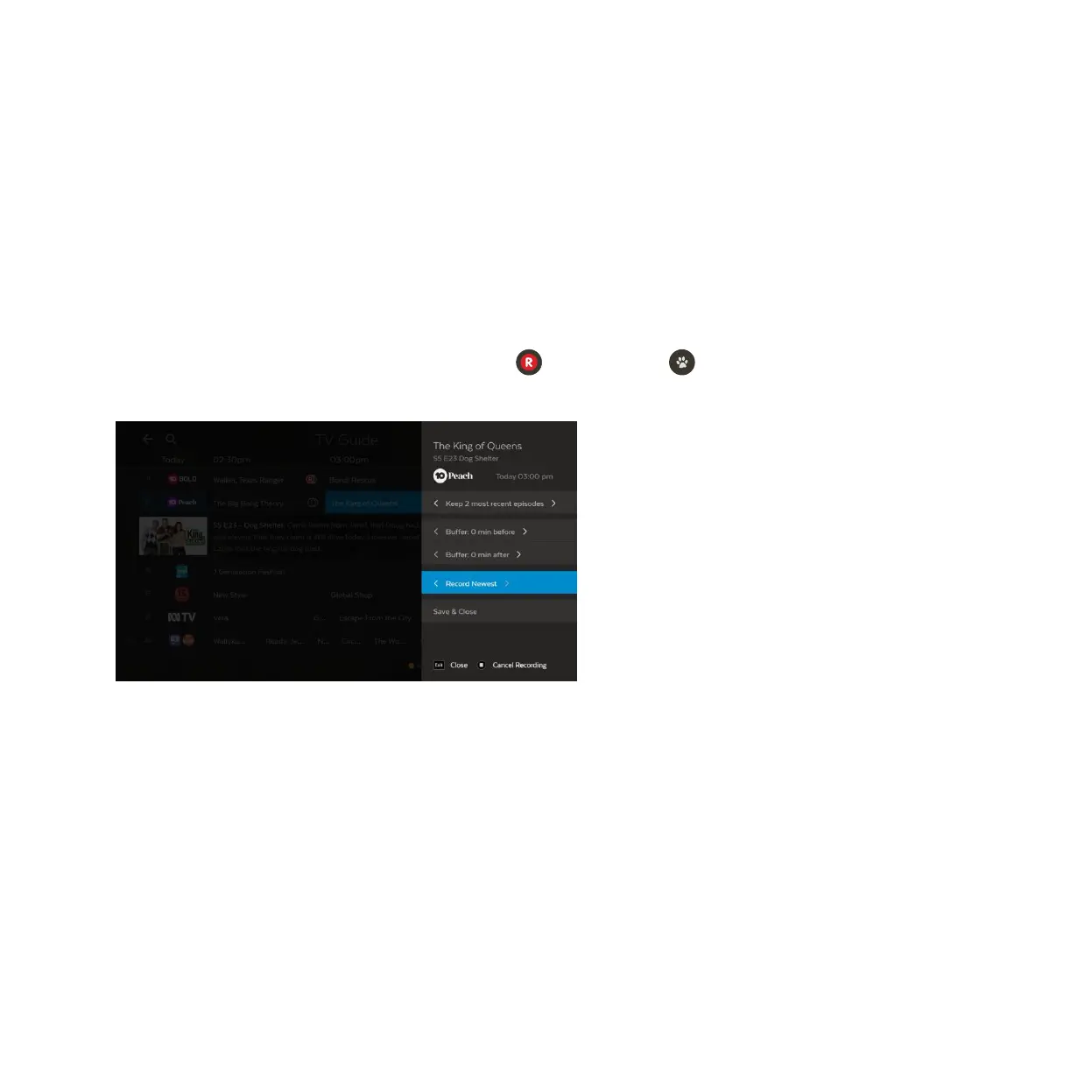
You can set the season option for a Series Recording to control which episodes to record.
• Record All Seasons means all episodes from all seasons of the show will be recorded.
• Record Latest Season means only the latest season onwards will record.
• Record Newest will only record newer episodes than the latest episode and season onwards. If the
episode is already on your Fetch box it won’t record again. You may still get duplicate recordings if the
correct season or episode info is unavailable.
You can choose the number of recorded episodes of a show you want to keep on the hard drive.
• If it’s the evening news you may just want to Keep most recent episode only (record today’s and
delete yesterday’s) or you can choose to keep 2 or 5 most recent episodes.
• Protect Recordings – Off means the recordings will be kept unless the box needs space for more
recordings.
• Protect Recordings – Keep All means the recordings will never be deleted unless you manually delete
them. We don’t recommend you use this option for all your series recordings as it can fill up your
Fetch box.
1
2
When setting a Series Recording from the TV Guide press twice. Then press . Select Modify Recording,
and then Series Recording. Change the seasons setting using the on screen arrows.


 To Next Page